


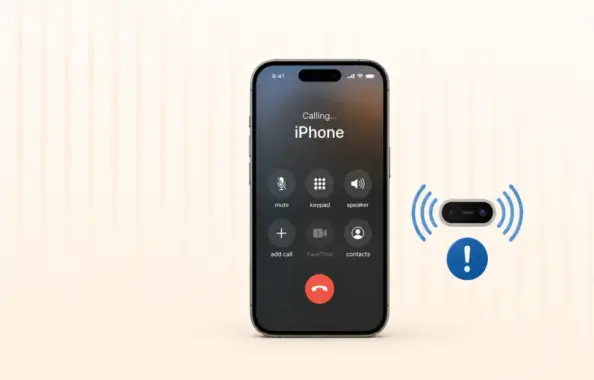
After the iOS 26 update, a growing number of iPhone users are reporting issues with the proximity sensor. In some cases, the screen does not turn off during voice calls. In others, features like Always On Display behave oddly in low-light conditions. If your iPhone’s proximity sensor feels “broken” or inconsistent after updating, you are not alone.
Most of the time, this is not a hardware failure. It is a software or configuration glitch that can be fixed with a few targeted steps.
Here is a TheTechHacker-style guide to help you get your iPhone’s proximity sensor working properly again.
Fix 1: Refresh the Display Zoom to Recalibrate Sensors
iOS 26 appears to have changed how display and sensor calibration interact for some devices. Toggling the Display Zoom setting can force the system to re-initialize the display stack, which often brings the proximity sensor back in line.
Steps:
-
Open Settings on your iPhone.
-
Tap Display & Brightness.
-
Scroll down and tap Display Zoom.
-
Switch to Larger Text (or any non-Default option available on your model).
-
Tap Done and wait for the display to refresh.
-
Once the change is applied, go back to Display Zoom and switch to Default.
-
Tap Done again and let the screen reload.
This back-and-forth toggle acts as a soft recalibration for the display and its associated sensors.
How to test the proximity sensor:
-
With Always On Display enabled, bring your hand close to the Dynamic Island / top sensor area.
-
The screen should dim or turn off when covered and wake up when removed.
-
During a call, move your phone close to your ear; the screen should go dark and come back when moved away.
If this behavior improves after the toggle, the issue was likely a calibration glitch.
Fix 2: Disable “Raise to Listen” in Messages
Some users are seeing proximity-sensor-like issues specifically around audio messages and calls. A likely culprit is the Raise to Listen feature, which uses motion and proximity data to auto-play voice messages.
Steps:
-
Open Settings on your iPhone.
-
Scroll down and tap Messages.
-
Go to the Audio Messages section.
-
Find Raise to Listen and turn it Off.
Disabling this feature stops the system from constantly interpreting proximity and motion in that specific context, which can resolve odd sensor behaviour during calls and voice notes.
After turning it off, test:
-
Sending and playing audio messages.
-
Making a regular voice call and checking if the screen turns off when near your ear.
Fix 3: Offload and Reinstall the Problematic App
If the proximity sensor issue appears only in a specific app—such as FaceTime, WhatsApp, or a third-party calling app—the problem may lie in that app’s integration with iOS 26’s sensor APIs.
Steps:
-
Open Settings.
-
Tap General → iPhone Storage.
-
Wait for the app list to load, then find the app where you’re facing the issue (e.g., FaceTime, WhatsApp, etc.).
-
Tap the app name.
-
Choose Offload App.
-
This removes the app binary but keeps your data and documents.
-
-
After offloading, tap Reinstall App.
-
Once reinstalled, open the app and test calls or features that use the proximity sensor.
Offloading clears any corrupted app-level cache or permissions while preserving your chats and media. For many users, this resolves app-specific sensor glitches introduced after the iOS 26 update.
Fix 4: Hard Reset the iPhone to Reset Sensor States
A hard reset (force restart) does not erase your data, but it does force all hardware subsystems—including sensors—to re-initialise from a clean state. This is often enough to clear temporary sensor bugs after a major iOS update.
Steps (for Face ID iPhones):
-
Press and quickly release the Volume Up button.
-
Press and quickly release the Volume Down button.
-
Press and hold the Side (Power) button.
-
Keep holding until you see the Apple logo, then release.
Once the iPhone boots up:
-
Make a test call and check if the screen turns off when held near your ear.
-
Test Always On Display behaviour in a dim room by covering the top sensor area.
If the proximity sensor starts responding normally after this, the issue was likely a transient software state.
Fix 5: Remove Obstructions Around the Sensor Area
The proximity sensor on modern iPhones sits in the Dynamic Island / top bezel region, alongside Face ID components. Anything that interferes with this area can cause false readings.
Common culprits:
-
Thick or poorly aligned screen protectors.
-
Cases with a raised lip over the top edge.
-
Dirt, oil, or residue on the sensor area.
Steps:
-
Remove the case from your iPhone.
-
Use a clean microfiber or soft cotton cloth to gently wipe the Dynamic Island / top sensor region.
-
Inspect your screen protector:
-
Check if it is misaligned or bubbling near the top.
-
If it covers or distorts the sensor area, consider replacing it with a thinner or better-aligned protector.
-
-
Re-test the proximity sensor:
-
During a call, bring the phone close to your ear.
-
With Always On Display, cover and uncover the top sensor region.
-
Many users find that simply cleaning the sensor area and removing a bulky case restores normal behaviour.
When to suspect hardware damage
If none of the above fixes help, consider the possibility of hardware issues, especially if:
-
The problem started after a drop or impact.
-
The top sensor area was exposed to liquid.
-
Face ID itself is also behaving oddly or failing.
-
The screen never turns off during calls, regardless of apps or settings.
In such cases, contact Apple Support or visit an authorised service provider for a hardware diagnostic.
Stay tuned to TheTechHacker for more iOS 26 fixes
iOS 26 has brought several under-the-hood changes that are still surfacing as edge-case bugs. We will keep updating our guides as new fixes and workarounds emerge.
For more detailed how-to articles, troubleshooting guides, and the latest technology news, subscribe to TheTechHacker.
Visit thetechhacker.com regularly for step-by-step solutions that help you get the most out of your devices without the hassle.