


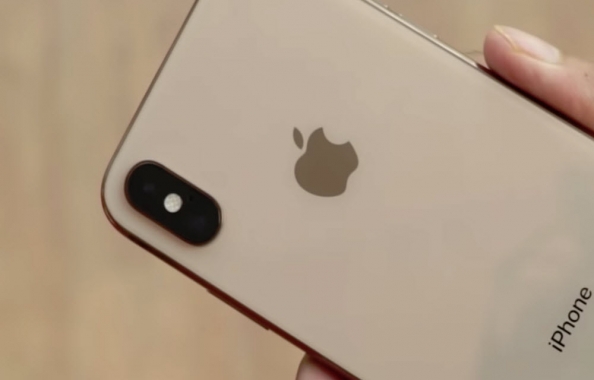
If your iPhone won’t turn on, it can feel like the device is completely dead. Sometimes the screen stays black, sometimes the Apple logo never appears, and sometimes the phone just refuses to respond no matter what you do. The good news is that this problem is often caused by a charging issue, a software crash, or a boot problem that you can fix at home.
Before you assume the worst, try a few basic checks first. In many cases, the iPhone is not truly dead it is just stuck, unresponsive, or out of battery.
Why this happens
An iPhone may fail to turn on because of:
-
A drained battery.
-
A faulty charging cable or adapter.
-
A software crash.
-
A corrupted boot process.
-
A display issue that makes the phone look off even when it is still running.
If your iPhone is not turning on, go through the fixes below one by one.
Fix 1: Force restart the iPhone
This is the first thing you should try.
Steps:
-
Press and release Volume Up.
-
Press and release Volume Down.
-
Press and hold the Side button.
Keep holding the side button until the Apple logo appears. On some devices, you may need to hold it for up to a minute.
If the phone boots normally, the issue was likely a temporary system freeze.
Fix 2: Check the charger and cable
Sometimes the phone is not turning on simply because it is not charging properly.
Try this:
-
Use a different charging cable.
-
Use a different power adapter.
-
Try a different wall socket.
-
Leave the phone plugged in for at least 20–30 minutes.
If the cable is damaged or the adapter is faulty, the iPhone may not get enough power to start.
Fix 3: Clean the charging port
Dust or lint in the Lightning or USB-C port can block proper charging.
What to do:
-
Turn off any force attempts and disconnect the cable.
-
Inspect the charging port under light.
-
Clean it gently using a dry, soft brush or wooden toothpick.
-
Plug the charger back in and test again.
Be careful not to damage the port while cleaning it.
Fix 4: Try a different power source
Your iPhone may look dead if the charger is fine but the outlet or USB port is not delivering power.
Try:
-
A different wall plug.
-
A laptop USB port.
-
A power bank.
-
Another certified Apple charger.
If the battery was fully drained, it may take several minutes before anything appears on the screen.
Fix 5: Put the iPhone in Recovery Mode
If the phone is stuck in a boot loop or software failure, Recovery Mode can help.
Steps:
-
Connect the iPhone to a computer using a cable.
-
Press and release Volume Up.
-
Press and release Volume Down.
-
Press and hold the Side button until the recovery screen appears.
Once the recovery screen is visible, open iTunes or Finder on your computer and choose Update first if available. This can reinstall iOS without deleting your data.
If update does not work, you may need to choose Restore.
Fix 6: Use iTunes or Finder to restore the iPhone
If the system is badly corrupted, restoring the device may be necessary.
On Windows:
-
Open iTunes.
-
Connect the iPhone.
-
Let iTunes detect the device.
-
Choose Restore.
On Mac:
-
Open Finder.
-
Select your iPhone.
-
Choose Restore iPhone.
This will erase the device and reinstall iOS. Use this only if other methods fail.
Fix 7: Let the battery charge longer
If your iPhone battery is completely empty, the device may not show anything for a while.
Do this:
-
Plug it into a charger.
-
Leave it charging for 30 to 60 minutes.
-
Do not keep pressing buttons repeatedly.
-
Check again after some time.
A deeply drained battery can make the phone appear fully off even when it is just waking up slowly.
Fix 8: Check for screen-related issues
Sometimes the iPhone is on, but the display is not showing anything.
Signs of this:
-
You hear notification sounds.
-
The phone vibrates.
-
Siri responds.
-
The device gets warm.
If that happens, the issue may be with the display rather than the power system.
More things to try
If nothing above works, you can also:
-
Try a force restart again after charging.
-
Use a different certified cable.
-
Check whether the phone was exposed to water.
-
Leave the device connected overnight.
-
Visit an Apple service center if the phone still remains unresponsive.
Final thoughts
If your phone is acting like a dead phone, perform the above steps. In many cases, a force restart, a proper charge, or a recovery restore will bring it back to life. Start with the simple checks first, then move to Recovery Mode if needed.