

How to install and uninstall add-ons from Google Docs
Currently, there has been a lot of talk about productivity and apps related to it. While we see that Windows and macOS are doing well in the market, Google’s ChromeOS is also catching up fast. However, Google fans were triggered when Apple’s Phil Schiller said that Chromebook using students won’t succeed. Now, we know that…

How to install and uninstall add-ons from Google Docs
Currently, there has been a lot of talk about productivity and apps related to it. While we see that Windows and macOS are doing well in the market, Google’s ChromeOS is also catching up fast. However, Google fans were triggered when Apple’s Phil Schiller said that Chromebook using students won’t succeed.
Now, we know that macOS and Windows OS-powered devices can get costly very quickly and this is not suitable for students. Therefore, Chromebooks are preferred in schools which are plenty of powerful, cheap and do get the job done.
Advantage of using Google Docs on Chromebook
One of the main advantages of using Chromebooks is that you can have the full advantage of Google services. Basically, you can use everything from Google Docs, Sheets, Slides as well as Gmail, Google Assistant, and YouTube with Chrome browser optimized for the devices too.
Talking about Google Docs, it has now become a great option to replace Microsoft’s Word application which comes with its Office 365 suite which is costly while Google Docs is free.
Install add-ons on Google Docs
Now, if you are a Google Docs user then you might want to know how to install and uninstall add-ons inside them which can be useful for doing some stuff that is not available in-built.
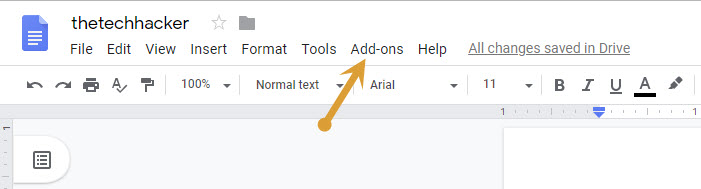
- So all you need to do is open a Google Doc and click on the “add-on” option at the top of the screen.
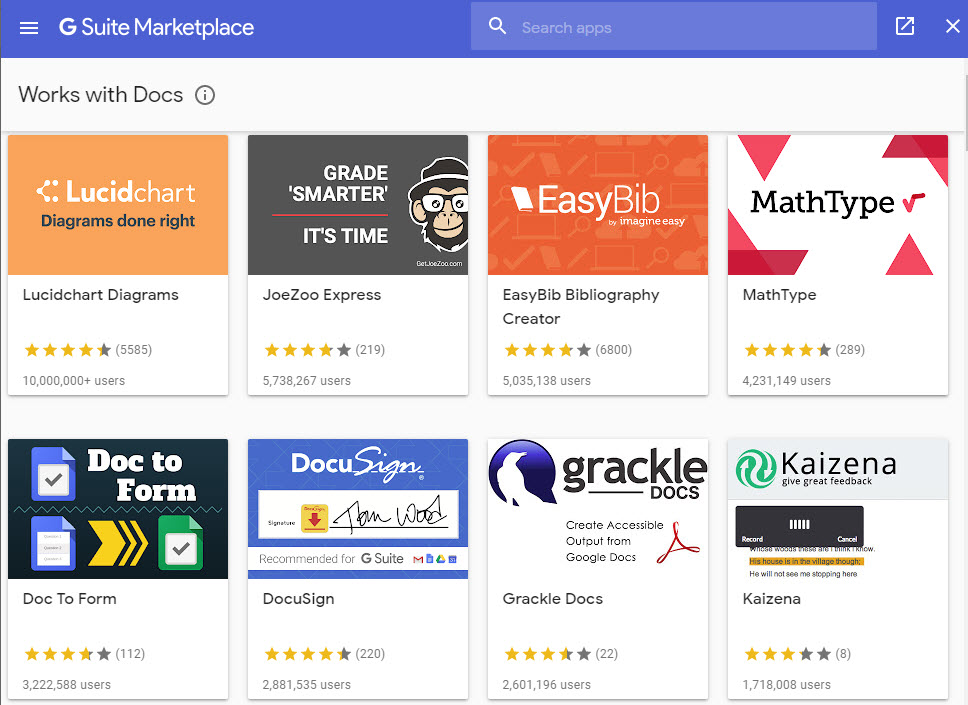
- Here search for your required add-on to install inside Google Docs.
Once you have found the required add-on, you can just install it from the “Free” button which is how you can download it.
Uninstall add-ons on Google Docs
Uninstalling the add-ons is also simple which can be done from Google Docs itself. You will have to go to the ‘Add-ons’ tab beside the ‘Tools’ tab.
- Click on it and you will see the options from which you have to select the ‘Manage Add-ons’ option.
- After that, you will see the list of installed add-ons. To uninstall a particular add-on, click on the ‘more options’ button next to it and click on uninstall.
That’s it, this is how you can install and uninstall add-ons inside Google Docs with ease.
More in How-to

How To Add A Recycle Bin To Your Android Device
We usually see and use a recycle bin on our computers. A recycle bin useful for deleting unwanted stuff from our computer. It also acts as a backup place if we accidentally remove any file. The same concept is useful for other platforms too. Fortunately, we can avail this facility for Android platform.

How To Save Most Of The Space On The Hard Drive
It is very easy to run out of the disk space, because data size is going bigger and larger. In this digital age every data is converted into digital applications, videos, songs, movies and documents etc. Even 1TB hard drive became minimum these days. Solid state drives are replacing the traditional hard drives, they are…
How to fix “This Site Can’t Be Reached” Chrome Error
This Site Can’t Be Reached is the common error in the Google Chrome browser. The error is caused by many reasons when your trying to open a website address in Google Chrome. If you are currently facing the error and trying to fix the issue, then you are in the right place. We are here…
The week in tech, minus the noise.
New reviews, fixes and the stories that matter — once a week, straight to your inbox.
We only use your email to send the newsletter. Unsubscribe any time. See our privacy policy.
Comments