

How to Find out How much RAM is Installed in Ubuntu
Ubuntu is one of the handiest operating systems out there. But at the same time, it can be tough to use, especially for beginners. For example, if you want to find out how much RAM is installed on your Ubuntu PC, it does not seem as easy as it is in Windows. Actually, it is…

Ubuntu is one of the handiest operating systems out there. But at the same time, it can be tough to use, especially for beginners. For example, if you want to find out how much RAM is installed on your Ubuntu PC, it does not seem as easy as it is in Windows. Actually, it is easy; you just need to know where to look. If you are struggling with this, we have a short guide that will walk you through the steps to find how much RAM is installed in Ubuntu. Have a look at the detailed guide below.
In this article, we will cover simple Terminal commands, the graphical Settings app, and System Monitor, so you can pick whichever method you are most comfortable with.
Find out How much RAM is Installed in Ubuntu
Method 1: Use the free command
The quickest way is the free command, which works on every Ubuntu version.
- Open the Terminal by pressing Ctrl + Alt + T, or open Activities (or the app grid), type Terminal and open it.
- Type the following command and press Enter.
free -h - You will now see the total, used, free and available memory on your PC. The Mem row is your RAM, and the Swap row is swap space on your disk.
The -h option shows the values in an easy-to-read format such as “Gi” (gigabytes). If you prefer plain megabytes, use free -m instead.
Do not worry if “free” looks very low. Linux uses spare memory for caching to speed things up. The available column is a better guide to how much memory your apps can still use.
Method 2: Check /proc/meminfo
Linux keeps detailed memory information in a special file. To see just the total amount of RAM, run:
grep MemTotal /proc/meminfo
To see everything, run cat /proc/meminfo. The values here are shown in kilobytes.
Method 3: See RAM sticks, speed and type with dmidecode
If you are planning a RAM upgrade, you may want to know how many memory slots you have, what size each stick is, and its type and speed. The dmidecode tool can show this. It needs administrator rights, so you will be asked for your password.
sudo dmidecode --type memory
Look for the Memory Device sections. Each one shows the Size, Type (for example DDR4 or DDR5) and Speed of a slot. Empty slots usually show “No Module Installed”. The Physical Memory Array section also lists the maximum capacity your motherboard reports, though this value is not always accurate.
Method 4: Use lshw
Another option is lshw, which lists your hardware:
sudo lshw -short -C memory
This gives a compact summary of your system memory and each installed module.
Method 5: Check from the Settings app
If you do not like using the Terminal, you can find the memory details in Ubuntu’s Settings app.
- Open Settings from the app grid or the system menu at the top-right corner.
- Go to About. In newer Ubuntu releases, you will find it under System > About.
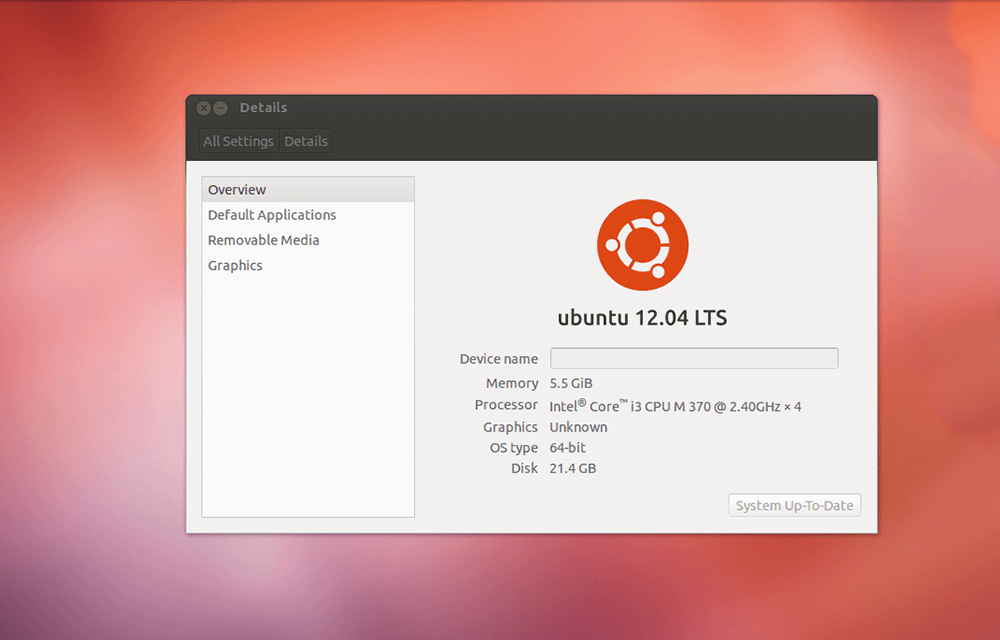
- Look for the Memory entry, which shows the total RAM installed.
On older versions of Ubuntu, this information was under System Settings > Details (or System Info) instead.
Method 6: Use System Monitor
You can also view the memory details through the System Monitor application. Here is how.
- Open Activities, search for System Monitor and open it. You can also launch it from the Terminal with the following command.
gnome-system-monitor - Open the Resources tab to see a live graph of memory and swap usage along with the total memory.
If System Monitor is not installed on your system, you can add it with sudo apt install gnome-system-monitor.
Why does Ubuntu show less RAM than I installed?
It is normal for Ubuntu to show slightly less memory than the sticks you bought. For example, a PC with 16 GB may show around 15 GB in free -h. There are a few common reasons:
- Reserved memory: The firmware and the Linux kernel reserve some memory for themselves.
- Integrated graphics: If your PC has no separate graphics card, part of the RAM is set aside for the graphics chip.
- Units: Tools may show values in GiB (1024-based), which look a little smaller than GB (1000-based).
If the difference is very large, such as half of your RAM missing, check the output of sudo dmidecode --type memory. A stick that is not detected may be loose or faulty, or it may need to be moved to a different slot.
Frequently asked questions
Which command is best for beginners?
Use free -h. It is short, works on every Ubuntu version and does not need administrator rights.
How can I check my RAM speed in Ubuntu?
Run sudo dmidecode --type memory and look for the Speed or Configured Memory Speed line under each Memory Device.
Do these steps work on other Linux distributions?
Yes. The free, /proc/meminfo, dmidecode and lshw methods work on most Linux distributions, including Debian, Linux Mint and Fedora. Only the Settings app steps may look different.
So, now you know how to find memory details in Ubuntu. If you have any problems finding it, feel free to leave a comment in the section below. We will always be happy to assist you.
That’s all for now. We hope you liked the article. Please don’t forget to share it on your social media platforms, and do share your views and feedback in the comment box below.
More in Linux

Best lightweight Linux distributions for older hardware
Are you still having your old rig that has Intel Pentium chip inside? If yes, don’t throw that away. That old rig is still capable of doing so much that you can’t imagine. If you think that you might be able to run massively massive Windows 10 or MacOS on your rig, that’s not what…
5 Things To Do After You Install Ubuntu
You must be familiar with the Windows Operating System. Have you ever thought of installing Ubuntu? If that’s a yes, then you’re probably aware of the advantages of Ubuntu over Windows. And, you don’t need to search over the entire web to know what Ubuntu OS actually is. It’s simply an easy-to-use Linux desktop. I…
How to Install Spotify in Ubuntu
If you are an Ubuntu user and want to install Spotify in Ubuntu, it used to be a lot harder than on Windows. On Windows, installing software is usually just a matter of running an installer, while Linux works a little differently. If you are struggling to get your favourite music service on your Ubuntu…
The week in tech, minus the noise.
New reviews, fixes and the stories that matter — once a week, straight to your inbox.
We only use your email to send the newsletter. Unsubscribe any time. See our privacy policy.
Comments