

How to Undo Sent Mail in Gmail Account
Gmail has become the largest and dominated mailing service all over the globe. Millions using Gmail for their mailing needs and various purposes. Many of you may be using the Gmail for sending serious business related emails that have a lot of important information in it. How would it be if you accidently sent a…

Undo Sent Mail
Gmail has become the largest and dominated mailing service all over the globe. Millions using Gmail for their mailing needs and various purposes. Many of you may be using the Gmail for sending serious business related emails that have a lot of important information in it. How would it be if you accidently sent a mail to the wrong address? You can do nothing than just looking to the sending notification helplessly. There is nothing to do once you have clicked the send button.
Once you have found the email was sent to the wrong address, you will feel angry yourself. But, No more. Here is the method to undo sent mail in gmail account.
But, no more. Gmail has an unknown feature that lets you cancel those accidently sent emails if you realise it within seconds of the sending process. It allows you to undo sent emails and resend them to the correct address. So, let’s have a look at the steps to do so.
How to Enable the Undo Button in Gmail And Cancel Sent Mail
There is a hidden feature in Gmail that let you undo sent mail. To get the feature, you have to follow the simple steps given below.
- Login to your Gmail account.
- Now, click on the Gear icon on the top right corner and select Settings from the drop-down list.
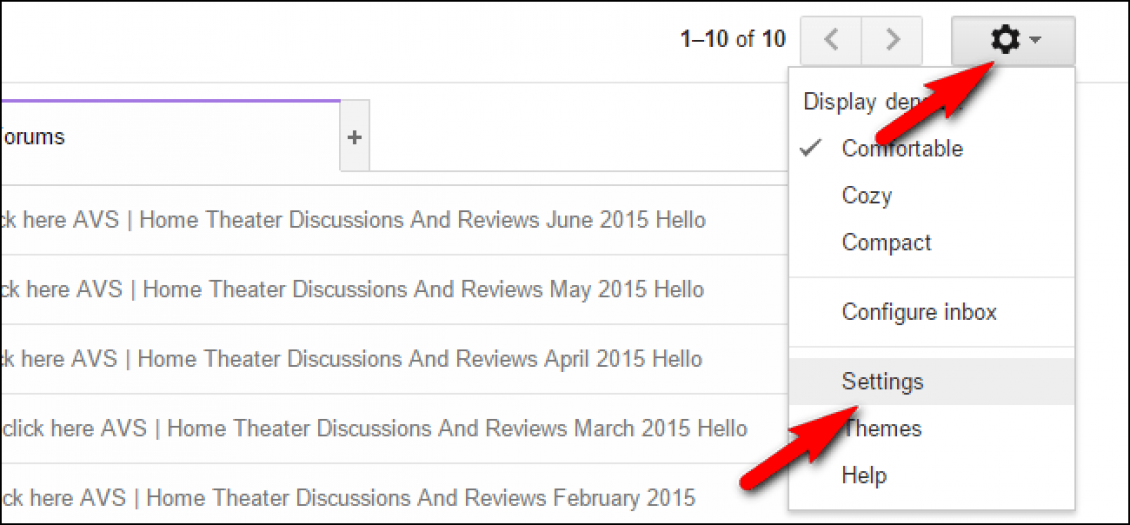
- Now, you will be taken to the settings window of your Gmail account.
- You will see an option namely Undo Sent under the General tab.
- Check the “Enable Undo Sent” and select the time you want to get to Undo a Sent email.
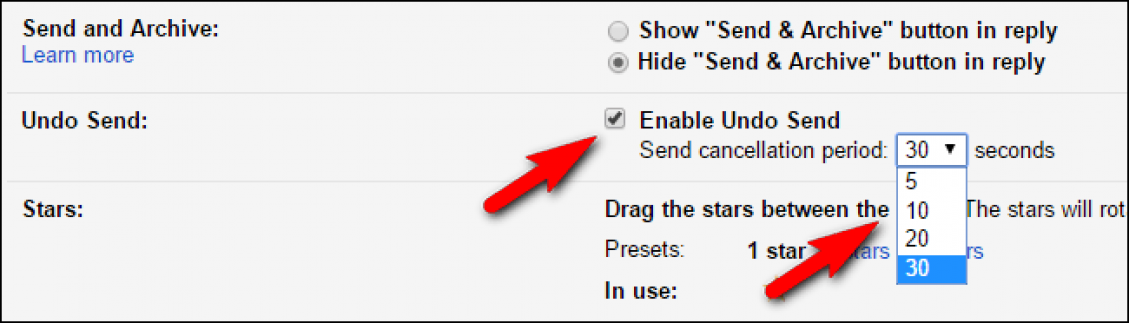
- I recommend you to choose 30 seconds because you get much more time to cancel an email.
- You can change this at any time by going to settings->general->undo send->cancellation period.
- Now, Gmail will provide you with an option to undo it every time you sent a mail.

Now, don’t worry about cancelling sent mail all you wanted to do is to follow the above steps and enable the undo option in Gmail and the Gmail will provide you with the Undo option for a specified time.
More in How-to

12 Best Gmail Tips For Productivity
Gmail is the best web-based mailing system. You can access Gmail from anywhere in the world either via PC or mobile. You need to make use of emails for client management including staff. If you are a book lover, you would receive relevant files via email only. It is difficult to live without email. In…
How to schedule emails in Gmail with Boomerang
If you are not aware of the recent developments happening to Gmail, we would like to inform you that it is now possible to schedule emails on Gmail. While this is possible with Gmail’s in-built scheduler, we know that it is better to use third-party apps for the same. Because you get many advantages in…
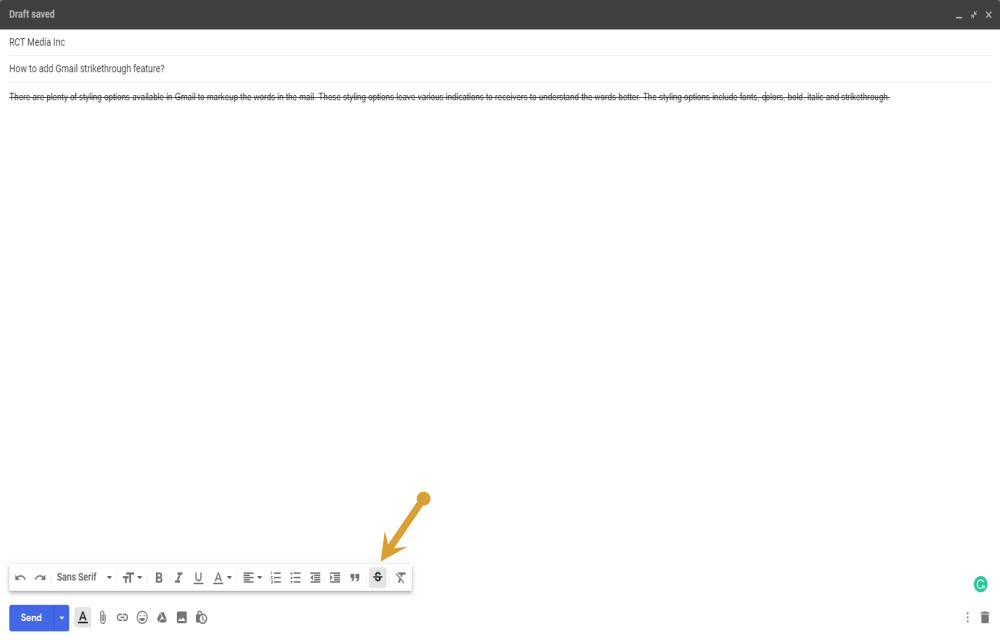
How to add Gmail strikethrough feature?
There are plenty of styling options available in Gmail to markup the words in the mail. These styling options leave various indications to receivers to understand the words better. The styling options include fonts, colors, bold, italic and strikethrough. Strikethrough feature is a typographical element that strikes off the selected sentence or a paragraph and…
The week in tech, minus the noise.
New reviews, fixes and the stories that matter — once a week, straight to your inbox.
We only use your email to send the newsletter. Unsubscribe any time. See our privacy policy.
1 comment
Awesome article!