

Macrorit Disk Partition Expert Review
A Good Partition Manager is needed when you’re running out of space on your disk partition in Windows 10. Macrorit Partition Expert is the best option in partition manager software, and here’s how you can solve low disk space problems on the system partition. Features of Macrorit Partition Expert Macrorit Partition Expert is free for…


macrorit disk partition expert review will give you more details regarding the software.
A Good Partition Manager is needed when you’re running out of space on your disk partition in Windows 10. Macrorit Partition Expert is the best option in partition manager software, and here’s how you can solve low disk space problems on the system partition.
Features of Macrorit Partition Expert
Macrorit Partition Expert is free for home use, unlike other partition, software differs free edition from paid editions, Partition Expert Free Edition has exactly the same functions in Paid Editions. Some of the features are listed below:
- Resize/Move Volume
- Copy Volume
- Convert between Logical and Primary
- Convert to FAT32, change the partition file system
- Change Drive Letter, Change Label
- Set Active
- Check Volume
- Defragment, Surface Test
- Hide and Unhide Volume
- Delete Volume, Format Volume
- Wipe Volume or free space or the entire disk
And more…
Installation and Usage
NOTE: Please close all other application when installing Macrorit Partition Expert to make a safe installation.
Or: Just Download the Portable Edition if you don’t want to install it.
Macrorit Partition Expert is a small green software, and you’ll find out the interface is easy to access. My situation here is to extend C Drive in Windows 10, because of my system partition in showing Red Bar.
To get started, download Macrorit Disk Partition Expert Free Edition from the official homepage, install in or directly run it on Portable Edition.
There’s no adware in Partition Expert, both the installation package and the portable zip. It’s really green software.
Run the software from desktop or start menu, Partition Expert will be loading itself and show your disk map in the main interface. As you can see from the screenshot below, I have a Red Bar in C Drive, but free space in D Drive and E partition. So I need to move free space in D Drive to C Drive without data loss.

You don’t have to delete the whole D Drive, just click on it, and choose “Resize/Move Volume” from operations column, and there’s a new popup window, D Drive is now can be resized with two handles on each side. Click on the left one, hold the left bottom and drag it to the right; now D Drive is shrunk, you have created unallocated space, click OK to go on.

Now you can see there’s a pending operation listed in the left column, let’s now click C Drive, and “Resize/Move Volume” again, Drag the handle on the left side of C Drive to the end; Click OK, and we click Commit in the home screen to make our operations take effect.

In fact, steps to create new partition are almost the same with resizing C Drive, just click on the unallocated space, and select “Create Volume” to make new partitions.

That’s all the steps to fix low disk space problem in Windows 10, if you have the meeting the same alert, download this portable software and have a try, it will fix your entire disk partition related problem for free.
More in Software Reviews

EaseUS Data Recovery Wizard for Mac 9.5 – Details and Review
All of us faced the loss of data stored in our machines on various occasions due to various reasons. When we lose the data, some people get panic without knowing how to recover the data back and approach experts and some people start looking for a data recovery Software when the pressure starts bumping their…

Wondershare Data Recovery Review
When it comes to data recovery, a good tool is always necessary to get all lost data back. If you have accidentally deleted an important presentation on your computer or have lost a memorable image from the memory card, the data recovery is the last hope you have. So, choosing the right recovery software is…
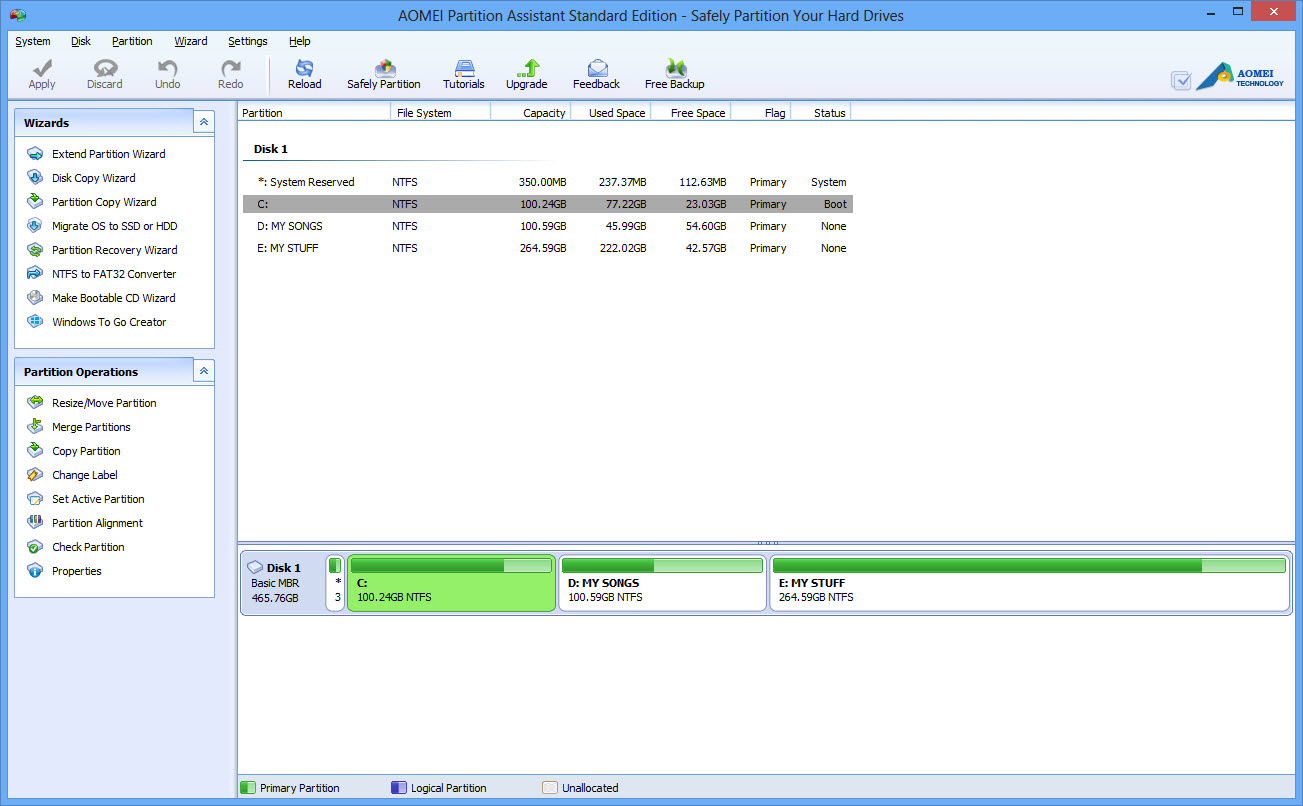
Extend, Copy, Migrate Your Hard Disks Easily With AOMEI Partition Assistant – Review
Choosing perfect partition assistant for your traditional hard disk or SSD is a tough process. In the software market, we have tons of free and pro partition tools available. If you are looking for a high quality and decent performance oriented partition assistant definitely go for AOMEI Partition Assistant.
The week in tech, minus the noise.
New reviews, fixes and the stories that matter — once a week, straight to your inbox.
We only use your email to send the newsletter. Unsubscribe any time. See our privacy policy.
Comments