

FonePaw Screen Recorder: Capture Your Windows and Mac Screen Easily
You must have seen people who share their computer screens of them doing some tasks. At that moment, you might be wondering how they do it. Basically, all they do is record their screens so you have to do tasks as normal while the PC records the screen. This is similar to taking a screenshot…


FonePaw Screen Recorder Review
You must have seen people who share their computer screens of them doing some tasks. At that moment, you might be wondering how they do it. Basically, all they do is record their screens so you have to do tasks as normal while the PC records the screen. This is similar to taking a screenshot but in a video format. So if someone sees a screen recording of yours, they will get the feeling that they are using your PC.
Also, screen recorders are useful when you want to guide someone but you can’t be there at that time. So you do that task on your screen and record it and then send it to the person so that they can see and follow the same steps on their PC. One thing that stops you from recording your screen is a good screen recorder. We have seen that there are very few options when it comes to screen recorders.
However, we are here to tell you about a great software which will not only record screens but performs many more things. This is the easy-but-powerful FonePaw Screen Recorder.
Features
FonePaw Screen Recorder offers Audio Recording from both your system as well as record screen at the same time. Therefore, you can basically give an audio/video tutorial about something you want to guide someone about.
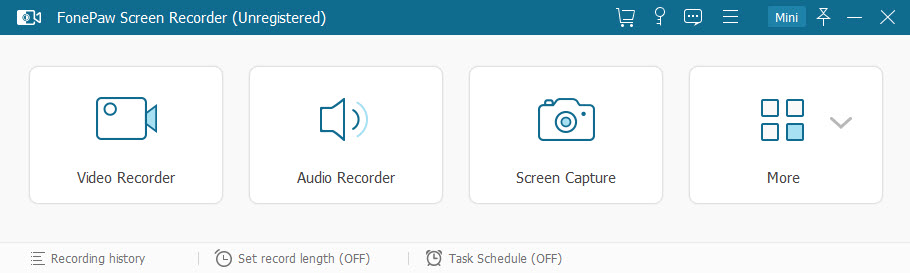
Apart from that, taking a screenshot is also possible on the FonePaw Screen Recorder. Also, you can take a snapshot from the recorded video as well. You can also capture the entire window of your PC or a particular area of it as well.
Same applies for the recording too as you can select the entire window for recording or just a particular area to record the video. You can also export your video to multiple formats or set up hotkeys for performing certain tasks. You can even make GIFs with the FonePaw Screen Recorder.
FonePaw also offers a mouse tracker inside its application so that you can show mouse clicks to a person viewing your recorded screen. You can also record videos with the webcam which means that you can record your face while showing the screen at the same time. This is particularly useful when you are playing games for people to see your reaction.
Apart from all the above features, you can also add annotations to your videos such as arrows or text or captions. This will give your watchers a clear idea of what your video is about.
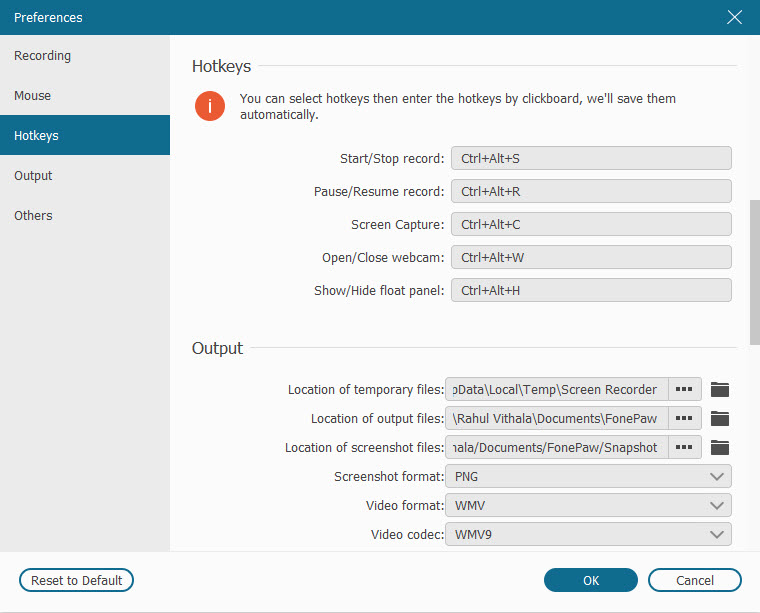
Another interesting feature is hotkeys customization. You can add your desired keys as the shortcut to capture screen via screenshot or recording.
Conclusion
Talking about how to download the FonePaw Screen Recorder, you can get it for free right now. However, you will be able to use this software for a trial period only.
Once you are convinced with the application, you can buy the FonePaw Screen Recorder for an all-time low fee of just $34,95 right now. This will give you a license for 1 PC as well as lifetime updates to go with that. You also get 24-hour support guarantee with your purchase too.
In our opinion, FonePaw Screen Recorder offers plenty of features which other screen recorders don’t at much cheaper than its competitors. Therefore, it is totally recommended to give this app a spin and even buy it once you are happy with it.
More in Featured
How Small IT Teams Handle Urgent Server Access After Business Hours
Small IT teams face a recurring challenge when critical server issues arise outside standard business hours. Remote support tools enable technicians to access and troubleshoot systems from any location, eliminating the need for physical presence at the office or data center. This capability has become essential for maintaining uptime and resolving urgent problems quickly. Remote…
How to Create a Professional Video easily with Wondershare Filmora
Creating professional videos to entertain or educate others is not an easy task. No one likes videos that are low-quality, don’t entertain them, and most importantly, poorly edited. You can add as much info as you want in an educational video, and still get backlashes for its quality and editing. A professional video editor will…
Remo Repair MOV Review: The Best MOV File Recovery Software
One thing we have seen in the industry is that people have started to shoot videos more and more which was not the case earlier. Earlier, it used to be the case that people would capture stills but over time, it has been realized that there is a lot more emotion being captured in a…
The week in tech, minus the noise.
New reviews, fixes and the stories that matter — once a week, straight to your inbox.
We only use your email to send the newsletter. Unsubscribe any time. See our privacy policy.
Comments