


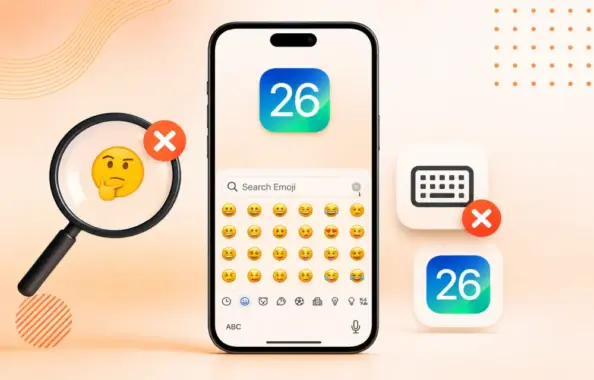
If you can’t find your favorite emojis, stickers, or GIFs from the iPhone keyboard search, you’re not alone. This issue has been reported by users on iOS 26 and later, where the emoji search bar either shows no results, behaves strangely, or fails to return the right stickers and emojis even though the keyboard itself still works.
The good news is that this is usually a software-side glitch, not a serious hardware problem. In most cases, a few simple settings changes are enough to bring the emoji search feature back to normal.
Why this happens
On newer iPhones, the emoji keyboard and sticker search are more tightly connected than before. That means a small indexing issue, a stuck keyboard preference, or a language cache problem can affect the search results. In some cases, the predictive keyboard or smart keyboard features may also interfere with how emojis are indexed and shown.
If the emoji board is blank, incomplete, or not responding properly, the fixes below should help.
Fix 1: Toggle the Stickers setting
On iOS 26 and later, the emoji and sticker search system uses a combined index. If that index gets stuck, toggling the Stickers feature can refresh it.
Here is what to do:
-
Open Settings.
-
Go to General.
-
Tap Keyboard.
-
Scroll down to the Emoji section.
-
Turn Stickers off.
-
Open the app where the emoji search was failing and test it again.
-
Return to the same setting and turn Stickers back on.
This refreshes the emoji-sticker index and often restores normal search results.
Fix 2: Reset the keyboard dictionary
If the emoji board appears blank or behaves oddly, the keyboard dictionary may be corrupted. Resetting it can clear out the glitch.
Follow these steps:
-
Open Settings.
-
Tap General.
-
Go to Transfer or Reset iPhone.
-
Tap Reset.
-
Choose Reset Keyboard Dictionary.
After that, test the emoji search again. This is a low-risk fix and often helps when the keyboard feels unstable.
Fix 3: Re-add the Emoji keyboard
Sometimes the Emoji keyboard itself needs to be removed and added again. This can refresh the keyboard setup and fix search-related issues.
Do this:
-
Open Settings.
-
Go to General.
-
Tap Keyboard.
-
Open Keyboards.
-
Tap Add New Keyboard.
-
Search for Emoji and add it again.
-
Restart your iPhone once.
After the restart, check whether emoji search is working properly.
Fix 4: Refresh the language settings
A language indexing problem can also affect emoji search. Refreshing your iPhone language settings can rebuild that index.
Here is the process:
-
Open Settings.
-
Tap Language & Region.
-
Tap Add Language.
-
Choose English (US) or English (UK), depending on which one you are not currently using.
-
Set the added language as the primary language.
-
Let the iPhone restart.
-
After it comes back on, switch back to your original language.
This forces iOS to refresh its language and search indexing system, which can fix the emoji lookup bug.
Fix 5: Turn off Predictive and Show Math Results
The smart keyboard features in iOS 26 can sometimes interfere with emoji search. Turning off these options may help.
Try this:
-
Open Settings.
-
Go to General.
-
Tap Keyboard.
-
Turn Predictive off.
-
Turn Show Math Results off.
-
Test the emoji search again.
If the issue was caused by keyboard intelligence features conflicting with emoji search, this should clear it up.
Best fix order to try
If you want the fastest path, try the fixes in this order:
-
Toggle Stickers off and on.
-
Reset the Keyboard Dictionary.
-
Re-add the Emoji keyboard.
-
Refresh the Language & Region settings.
-
Turn off Predictive and Show Math Results.
Starting with the simplest fix usually saves time and avoids unnecessary resets.
Final thoughts
Emoji search issues on iPhone can be frustrating because they affect something so basic and familiar. But in most cases, the problem is caused by a temporary keyboard glitch, a broken search index, or a language-related cache issue rather than anything more serious.
Once you refresh the sticker setting, reset the keyboard dictionary, or rebuild the language index, the emoji search usually starts working again. If the issue keeps returning, it may be worth checking whether the problem is tied to one app or whether it happens across the entire keyboard system.
FAQ
Why is emoji search not working on my iPhone?
It is usually caused by a keyboard indexing issue, a language cache problem, or a stuck sticker setting.
Will resetting the keyboard dictionary delete my personal data?
No. It only resets keyboard-related dictionary data, not photos, files, or apps.
Why should I toggle Stickers off and on?
Because iOS uses a combined emoji and sticker search system, and toggling it can refresh the index.
Do I need to reinstall the keyboard app?
No. The built-in Emoji keyboard can usually be fixed by re-adding it in settings.
Will turning off Predictive affect normal typing?
Only the predictive suggestions are disabled. Basic typing still works normally.