

Top 2 Ways to Transfer Contacts From Android to iPhone
Without a question, Android is the most widely used mobile operating system worldwide. But iOS, the operating system for iPhones and iPads, isn’t far behind either. In recent years, they have really been closing the gap. People frequently switch between different devices and OSs. You might need to transfer your Android data to your new…

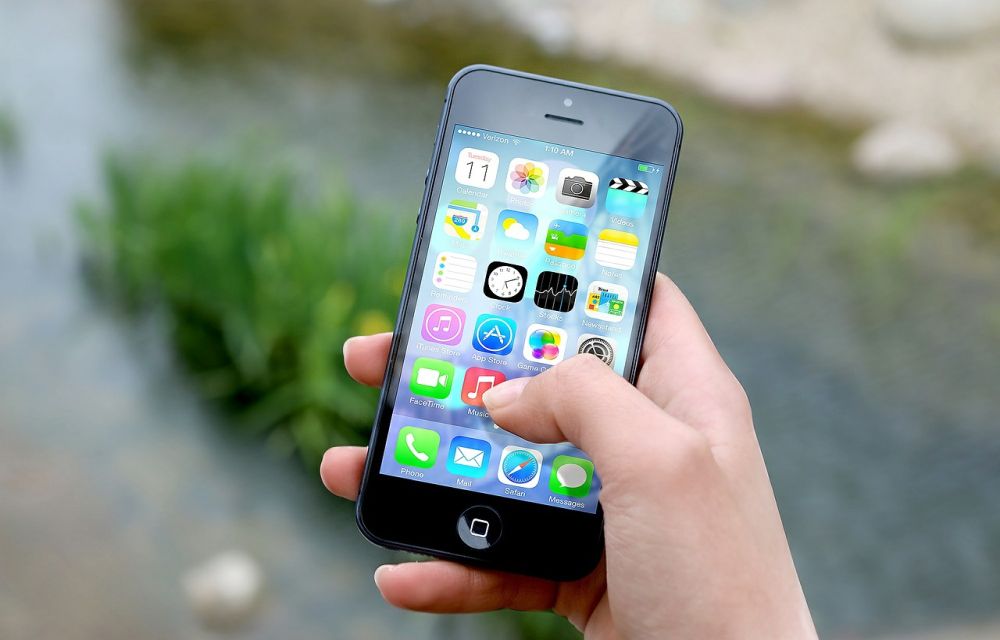
digital composite of hand holding smartphone with vignettes
Without a question, Android is the most widely used mobile operating system worldwide. But iOS, the operating system for iPhones and iPads, isn’t far behind either. In recent years, they have really been closing the gap.
People frequently switch between different devices and OSs. You might need to transfer your Android data to your new phone if you’re one of them and migrating from Android to iPhone. Contacts are among the most significant pieces of information we keep on our phones.
In this article, you are gonna learn how to move contacts from Android to iPhone. The main two ways to move contacts from an Android device to an iPhone are described in this guide.
Solution 1: Use Google Sync to move contacts between an Android and an iPhone.
You can effortlessly transfer contacts from Android to iPhone with Google Sync because the majority of Android services and features are compatible with iPhones
But keep in mind that this method will only function if contacts syncing with your Google account have previously been activated. On some devices, this feature isn’t enabled by default, but you can simply enable it by following these instructions:
How to enable Google Sync on Android,
- On your Android device, access the settings.
- Go to the Section for Users & Accounts.
- Select Account sync by tapping on your Google account.
- Activate the toggle button for Contacts.
- Await the sync of all the contacts.
You can move contacts from Android to iPhone after turning on your contacts sync.
- Open your iPhone, then navigate to the Settings menu.
- Select Accounts under Contacts.
- If you’ve enabled synchronization, add or choose your Gmail account.
- Make sure the Contacts checker is turned on at this point.
- All of the contacts from Android will soon transfer to iPhone.
Solution 2: Using a VCF file to move contacts from an Android device to an iPhone.
- Go to the Contacts app of your Android device.
- In the top right corner, click the gear icon or three dots.
- Select the option for Contacts (Export/Import).
- To save all contacts into a VCF file, select Export to storage.
- Sending yourself a copy of the file.
- You can also select the Share option and send the contacts in a vCard file straight by email rather than exporting them.
- Open the email on your iPhone now, and save the file locally.
- To use the Share option, navigate to the file’s location and press it.
- To share, pick the Contacts app, and then click Add All Contacts.
All of your Android contacts are now accessible on your iPhone.
Switching platforms shouldn’t be hampered by the difficulties of exporting contacts and other important data between OS platforms. Here are some of the best ways to move contacts from an Android device to an iPhone. We’ve provided step-by-step instructions for these techniques so you can use them without difficulty.
More in Guides
How To Sync Gmail Contacts To an iPhone
As a tech enthusiast, I regularly switch my phones. When it is coming to Android and iOS these two platforms way much different from each other and raises compatibility issues while migrating data. I faced these issues many times especially switching from Android to iOS. iOS works it’s in an own way. When coming to…
How to Switch from iPhone to Android Smartphone
iPhone is great, it is one of the best devices in terms of quality, it has some unique functions, and everything is perfect. But, then there is Android, which has more features, extremely flexible, various brands to choose from, and a ton of apps to accomplish almost anything that you can do with a smartphone.…
How To Resolve iPhone 17 Stuck in SOS Service
Learn how to fix your iPhone 17 when it’s stuck in SOS mode, preventing normal cellular connection.
The week in tech, minus the noise.
New reviews, fixes and the stories that matter — once a week, straight to your inbox.
We only use your email to send the newsletter. Unsubscribe any time. See our privacy policy.
Comments