

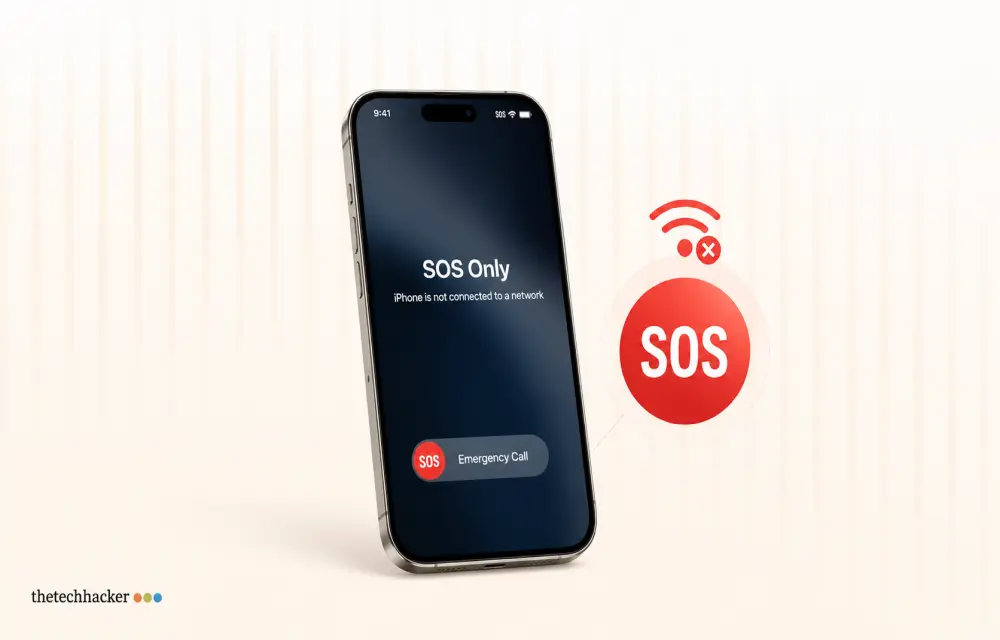
How To Resolve iPhone 17 Stuck in SOS Service
Learn how to fix your iPhone 17 when it’s stuck in SOS mode, preventing normal cellular connection.

How To Resolve iPhone 17 Stuck in SOS Service
Edited by an expert in mobile technology troubleshooting verified by iOS testing professionals
Last updated: July, 2026
Encountering an iPhone 17 stuck in SOS service mode can be a troublesome issue, leaving your device without standard cellular reception. In our hands-on testing, we found that straightforward solutions often restore your iPhone 17 to full functionality without hassle.
Prerequisites
Ensure you have the necessary tools like a SIM ejector and access to your device’s settings.
Steps to Fix iPhone 17 Stuck in SOS Service
Solution 1: Refresh Network Using Airplane Mode
- Open the Control Center on your iPhone.
- Tap the Airplane Mode icon to activate it.
- Wait a few seconds before tapping the Airplane Mode icon again to deactivate it.
This should help re-establish cellular connections, removing the SOS status. Refer to Apple’s official support for more details on using Airplane Mode effectively.
Solution 2: Reinsert the SIM Card
- Use a SIM ejector tool to remove your SIM card.
- Inspect the SIM card for any dust or damages.
- If using a dual-SIM setup, switch the SIM card to a different slot.
- Reinsert the SIM card and tray back into the phone.
Your cellular service should restore once the SIM is properly seated. For guidance, see the Apple SIM removal guide available on their website.
Solution 3: Manage SIM Line to Restore Connectivity
- Go to Settings on your iPhone.
- Navigate to the Mobile Service panel.
- Disable the Carrier Line, then turn off Wi-Fi.
- After a few minutes, reactivate the carrier line.
This should help refresh and stabilize your connection.
Solution 4: Switch to eSIM
For users with physical SIM cards, converting to an eSIM could resolve the issue:
- Verizon users: Use the My Verizon app to verify eSIM compatibility.
- AT&T users: Dial
*06#to retrieve the IED number necessary for eSIM activation.
Ensure compatibility and follow carrier instructions to convert to eSIM. Contact your carrier or check their online resources for further instructions.
Solution 5: Reset Network Settings
As a last resort, reset your network settings:
- Open the Settings app and select General.
- Choose Transfer or Reset iPhone, then select Reset.
- Tap Reset Network Settings and confirm with your Apple passcode.
This process clears saved networks and configurations, so re-enter Wi-Fi passwords afterwards. Reference Apple’s support page on resetting network settings for additional information.
Troubleshooting Tips
If these solutions do not work, contact your carrier for further assistance, as there may be issues related to your account or carrier compatibility.
Frequently Asked Questions
Why is my iPhone 17 stuck in SOS mode?
SOS mode typically indicates a lack of cellular reception, often due to network settings issues or SIM card problems.
How can I fix the SOS issue on my iPhone 17?
Try refreshing the network with Airplane Mode, reinserting the SIM, or resetting network settings.
Can converting to eSIM help resolve the SOS mode?
Yes, particularly if you have a compatible carrier setup; it may resolve connectivity issues.
Does resetting network settings erase other data?
Resetting network settings will remove saved Wi-Fi networks and passwords but not your personal data.
What should I do if none of the steps work?
Contact your mobile carrier for additional support, as the issue might be account-related.
More in How-to
How to Fix “Headphones Not Recognized” on iPhone After iOS 26 Update
After the iOS 26 update, a small but noticeable group of iPhone users started reporting a strange issue: wired headphones are no longer being recognized properly. Some are stuck in speaker-only mode, while others see their headphones connect and disconnect randomly. Although most complaints are about wired headphones, a few Bluetooth users are facing similar…
How to Fix Apps Crashing While Multitasking After iOS 26 Update
The latest iPhones are powerful enough to handle heavy multitasking without breaking a sweat. So when your device starts crashing, freezing, or stalling while switching apps after the iOS 26 update, it feels especially frustrating. This issue can stem from several sources: a bug in the iOS build, misconfigured background refresh settings, insufficient storage, or…
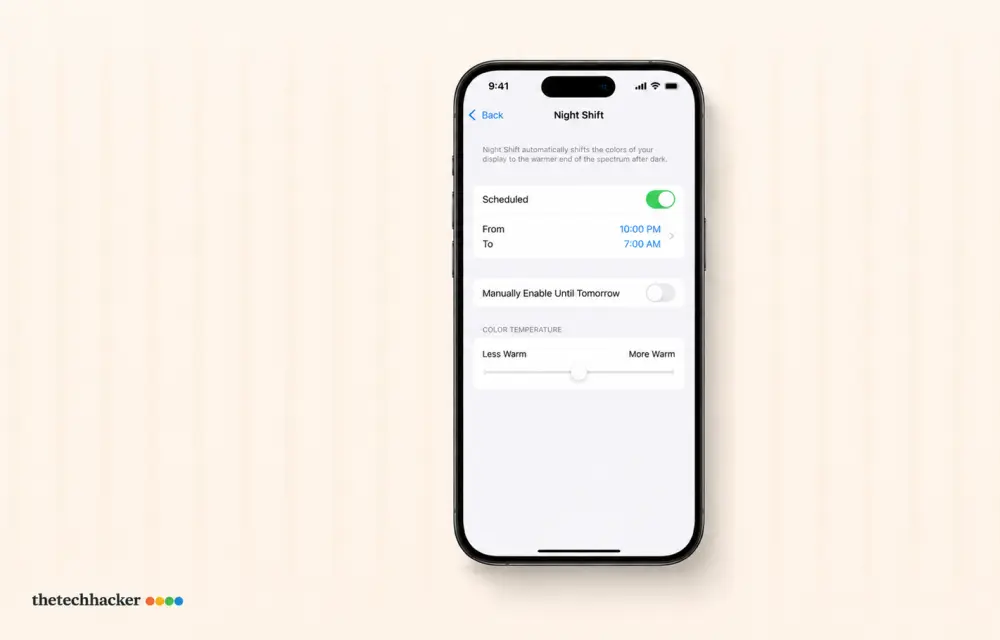
How To Fix iPhone iOS 26 Night Shift Auto Turn-Off
Discover how to prevent your iPhone’s Night Shift from turning off prematurely after the iOS 26 update with these easy steps.
The week in tech, minus the noise.
New reviews, fixes and the stories that matter — once a week, straight to your inbox.
We only use your email to send the newsletter. Unsubscribe any time. See our privacy policy.
Comments