

How to Force Quit Programs that Ignore Alt+F4
I remember this was one of the first things that I was taught in computer class. Alt+F4. It’s a command that every user knows, be it an advanced user or just a basic user. This shortcut has always been used to allow users to end programs that they are done using. It’s quite simple and…

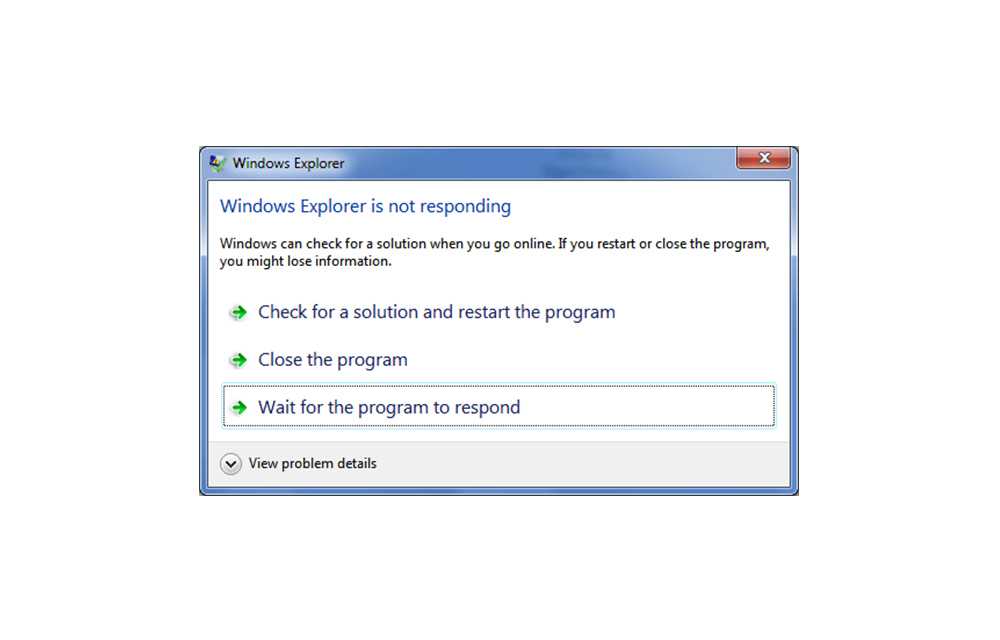
I remember this was one of the first things that I was taught in computer class. Alt+F4. It’s a command that every user knows, be it an advanced user or just a basic user. This shortcut has always been used to allow users to end programs that they are done using.
It’s quite simple and efficient as well. There are times though that you might encounter that one stubborn program that ignores this command entirely. Programs that crash, hang or refuse to close are normally the culprit. Here are some solutions to this problem.
The Task Manager
The go to method when a program brings trouble is to bring up the task manager. Many do this by clicking the program itself or via the command “Ctrl+Alt+Delete”. The task manager has always proved to be effective. It gives you the list of apps running and its background processes allowing you to completely terminate it.
There are times when the pesky software blocks the view of the task manager. At times like these, the only thing to do is to normally reboot your PC, but this do0esn’t always have to be the case. You can simply open the task manager, go to options and select the always on top option. This way you’ll never have to deal with this problem again.
Command Prompt
The other method you can use is via a utility software that’s pretty useful for a number of things and that’s command prompt. To open command prompt, you have to go to the start menu, type “cmd”, once it pops up, right click and choose “run as administrator”.
Once the program opens, simply type “Tasklist” and press enter. You’ll see a list of executed programs, simply go through the list to find the program that might have crashed. Once you find it, input the command “taskkill /IM taskname /f”. The “taskname” in the command is the name of the program that you’d like to close. Once you do this a message will pop up saying “Success: The process has been terminated”.
Third-Party Apps
There are some third-party apps that you can consider using to help with this. It’s important that you don’t just choose any app as they might affect the overall performance of your PC. Only go for the recommended apps with great reviews. An example of such a software would be Super F4 that creates a new keyboard command to instantly kill the active program. There are others of course, but this is one we can vouch for.
Finally
It’s important to understand your PC. You can use these methods to make stubborn programs force quit, but if the problem keeps happening more often than not, then there’s a need for a diagnosis of your PC. There might be an underlying issue that you aren’t aware of.
More in How-to
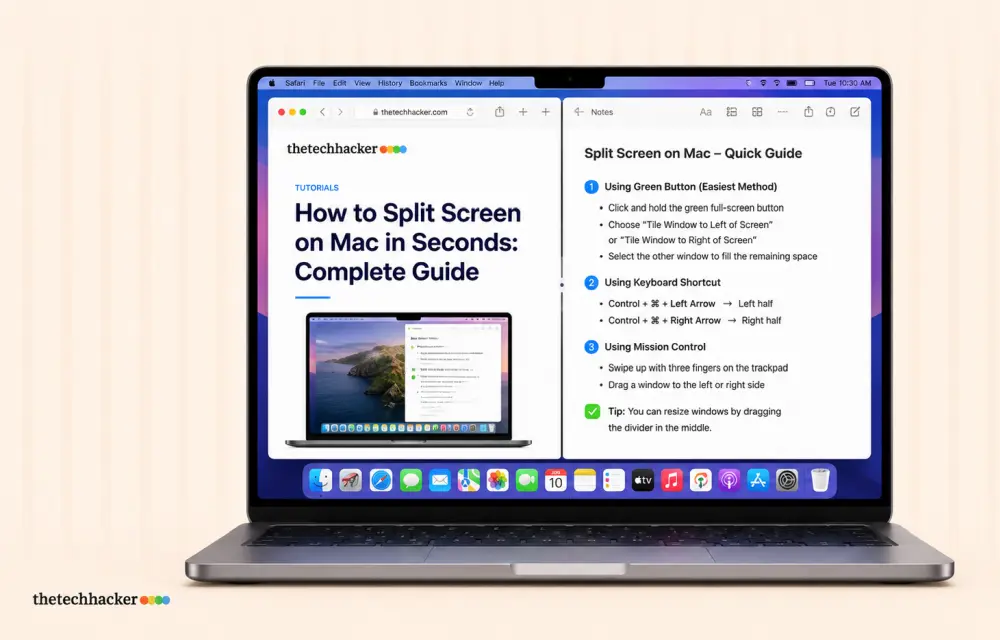
How to Split Screen on Mac in Seconds: Complete Guide
Learn how to split screen on Mac to view two apps side by side. This guide walks you through Split View setup, keyboard shortcuts, and troubleshooting tips.

Steps To Fix Contact Names Showing As Numbers On iOS
If you have been using a smartphone for calling or messaging and you have a contact which you interact with frequently, it is quite obvious that you will save their number. This is so that the next time that same number calls, you know who it is from the saved contact and not have to…

How to Buy Bitcoin with Credit Card
Buying Bitcoin via credit card is quite a unique and a simple process which involves certain means of verification before finally the deal is set. Though it sounds quite simple, for a newbie to complete the transaction is a bit tricky one. There are only few cryptocurrency exchanges that encourage its customers around the globe…
The week in tech, minus the noise.
New reviews, fixes and the stories that matter — once a week, straight to your inbox.
We only use your email to send the newsletter. Unsubscribe any time. See our privacy policy.
Comments