

What is Keyboard
The keyboard is an input device of the computer that has many keys to operate it. Like the mouse, the keyboard is an essential part of the input unit of a computer. Most commonly, keyboards consist of letters, numbers, symbols and function keys. The letters range from A to Z, the numbers from 0 to…

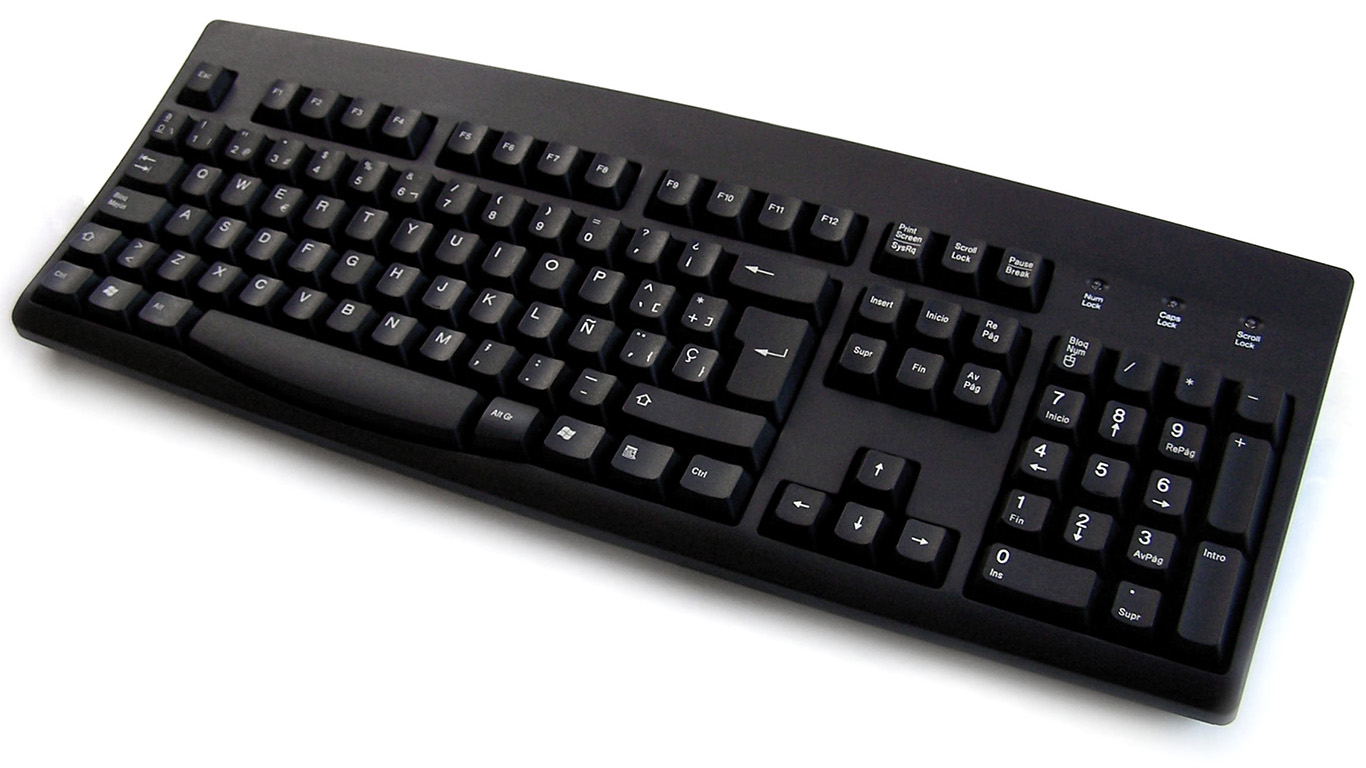
The keyboard is an input device of the computer that has many keys to operate it. Like the mouse, the keyboard is an essential part of the input unit of a computer. Most commonly, keyboards consist of letters, numbers, symbols and function keys. The letters range from A to Z, the numbers from 0 to 9, symbols include , (comma), . (dot), + (plus) and – (minus), and special functions like Shift, Control and Caps Lock are all implemented using keys. A traditional US keyboard has 101 keys, and a standard Windows keyboard has 104 keys. Modern keyboards often include even more keys for gaming, music, video streaming and other everyday needs.
Keyboard layouts: QWERTY and others
The keys on most English keyboards are arranged in the QWERTY layout, named after the first six letters on the top row. It comes from the typewriters of the 1870s and is by far the most widely used layout today.
Other countries use their own variations, such as AZERTY in France and Belgium and QWERTZ in Germany and much of Central Europe. There is also the Dvorak layout, which was designed to put the most common letters on the home row so you move your fingers less. Some people find it more comfortable, but it is much less common.
Main parts of a keyboard
- Alphanumeric keys: The letters, numbers and punctuation you type with.
- Function keys (F1 to F12): The top row. Their job depends on the program, for example F1 often opens help and F5 refreshes a web page.
- Modifier keys: Shift, Ctrl, Alt, the Windows key, and on a Mac, Command and Option. They change what other keys do when pressed together.
- Navigation keys: Arrow keys, Home, End, Page Up, Page Down, Insert and Delete.
- Numeric keypad: The calculator-style block of numbers on the right, useful for entering lots of figures.
- Special and media keys: Volume, play/pause, screen brightness and other shortcuts found on many modern keyboards.
Types of keyboards
By connection
- Wired keyboards: Connect with a USB cable. No batteries and no lag to worry about.
- Wireless keyboards: Connect through a small USB receiver. They give you a tidy desk but need batteries or charging.
- Bluetooth keyboards: Connect without a receiver, so they work with laptops, tablets and phones. Many can switch between several devices.
By key mechanism
- Membrane keyboards: The most common and affordable type. Keys press on a soft rubber layer, so they are quiet but feel a bit mushy.
- Mechanical keyboards: Each key has its own switch, which gives a clear feel and sound. They last longer and are popular with gamers, programmers and writers.
- Scissor-switch keyboards: Low, thin keys used on most laptops.
By design and use
- Ergonomic keyboards: As regular keyboards can put stress on the fingers, wrists and shoulders, ergonomic keyboards were designed with split, curved or tilted shapes to keep your hands in a more natural position.
- Gaming keyboards: Popular among gamers and designed for comfort during long gaming sessions. They usually come with backlighting for easy use at night, fast response and extra programmable keys and shortcuts.
- Compact keyboards: Tenkeyless (TKL) keyboards drop the numeric keypad, and smaller 60% or 75% layouts remove even more keys to save desk space.
- On-screen (virtual) keyboards: The keyboards you type on with your fingers on phones and tablets. Windows and macOS also include an on-screen keyboard for accessibility.
Useful keyboard shortcuts everyone should know
On Windows, use the Ctrl key; on a Mac, use the Command key instead.
- Ctrl + C / Ctrl + V: Copy and paste.
- Ctrl + X: Cut.
- Ctrl + Z: Undo.
- Ctrl + A: Select all.
- Ctrl + F: Find text on a page or in a document.
- Alt + Tab (Windows) or Command + Tab (Mac): Switch between open apps.
- Windows key + L: Lock your Windows PC.
Tips for choosing and caring for a keyboard
- Pick a layout that matches your language and the one you are used to.
- Choose wired for reliability, or wireless/Bluetooth if you want fewer cables or use several devices.
- If you type a lot, try a mechanical or ergonomic keyboard to see what feels comfortable.
- Clean it regularly: unplug it (or switch it off), turn it upside down to shake out crumbs, and wipe the keys with a slightly damp cloth.
Frequently asked questions
Why are keyboard letters not in alphabetical order?
The QWERTY layout was created for early typewriters, and it stuck because people learned to type on it. Changing it now would mean everyone relearning how to type.
What is the difference between a 101-key and a 104-key keyboard?
The 104-key keyboard adds the two Windows keys and the Menu key to the traditional 101-key layout.
Is a mechanical keyboard better?
Not always. Mechanical keyboards are durable and feel great to type on, but they are often louder and more expensive. A good membrane or laptop-style keyboard is perfectly fine for everyday use.
We hope this article helped you understand what a keyboard is and the different types available. Let us know which keyboard you use in the comment section below.
More in What is?

What is USB OTG? and What you can do with it?
Ever wondered what is the USB-like device in your table tagged USB OTG? Do you know its actual use? In this article, you are going to grab the answers for all your doubts and speculations. It’s a common peripheral which is coming with a large percentage of smartphones and there is no chance for not…

What is USB
USB abbreviated as Universal Serial Bus is a port commonly used to connect input devices such as Keyboards, Mouse, and flash drives to the Computers or Laptops. It is invented in the year 1994 by an Indian engineer Ajay Bhat. After a long journey, it is still one of the most depended input methods which is widely used…
What is GUI (Graphical User Interface)
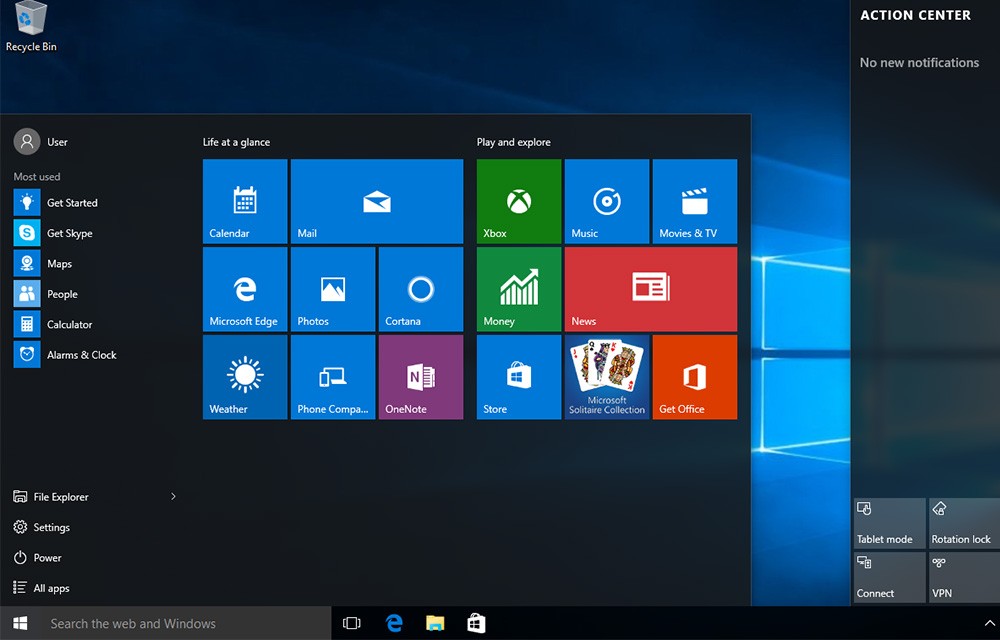
GUI or Graphical User Interface is used in the modern day computers which utilize the input devices to navigate through the monitor. Users can take advantages of specific icons and objects on the screen in order to navigate to different features and functions of the operating system and software. In the old days, the command line…
The week in tech, minus the noise.
New reviews, fixes and the stories that matter — once a week, straight to your inbox.
We only use your email to send the newsletter. Unsubscribe any time. See our privacy policy.
Comments