

How to convert videos into GIFs on WhatsApp?
WhatsApp is a popular messaging application. The Facebook-owned company has been adding new features from time to time to provide an impressive user experience. In 2016, the messaging app was reloaded with the long pending video call capability. The latest development is that the WhatsApp has been updated with the ability to create GIFs from…


WhatsApp is a popular messaging application. The Facebook-owned company has been adding new features from time to time to provide an impressive user experience. In 2016, the messaging app was reloaded with the long pending video call capability.
The latest development is that the WhatsApp has been updated with the ability to create GIFs from the captured videos. However, the main catch is that your clips should not be longer than six seconds. WhatsApp will only create GIFs, which runs six seconds. In this article, we will examine how you can convert the video into GIF.
Step 1
The first step is to shoot a video which you need to convert to GIF. You can capture a new video by tapping the Camera icon from the home screen. By default, the camera app provides an ability to shoot pictures. You can capture videos by tapping the camera icon. It is advisable to shoot the only video that is six seconds.
Step 2
The next step is to open the captured video using WhatsApp. You can directly send the video to WhatsApp by tapping Send button. You just need to tap on the video, and you will view the Send button. Select WhatsApp from the list and pick a contact to whom you need to send the converted GIF. Your video will appear inside the relevant contact.
If your video is more than 6 seconds, then you will not find an option to convert into GIF. The second option is to open a new conversation from WhatsApp and to select the video from the Gallery section.
Step 3
After selecting the name of the contact, your video should appear inside the conversation.
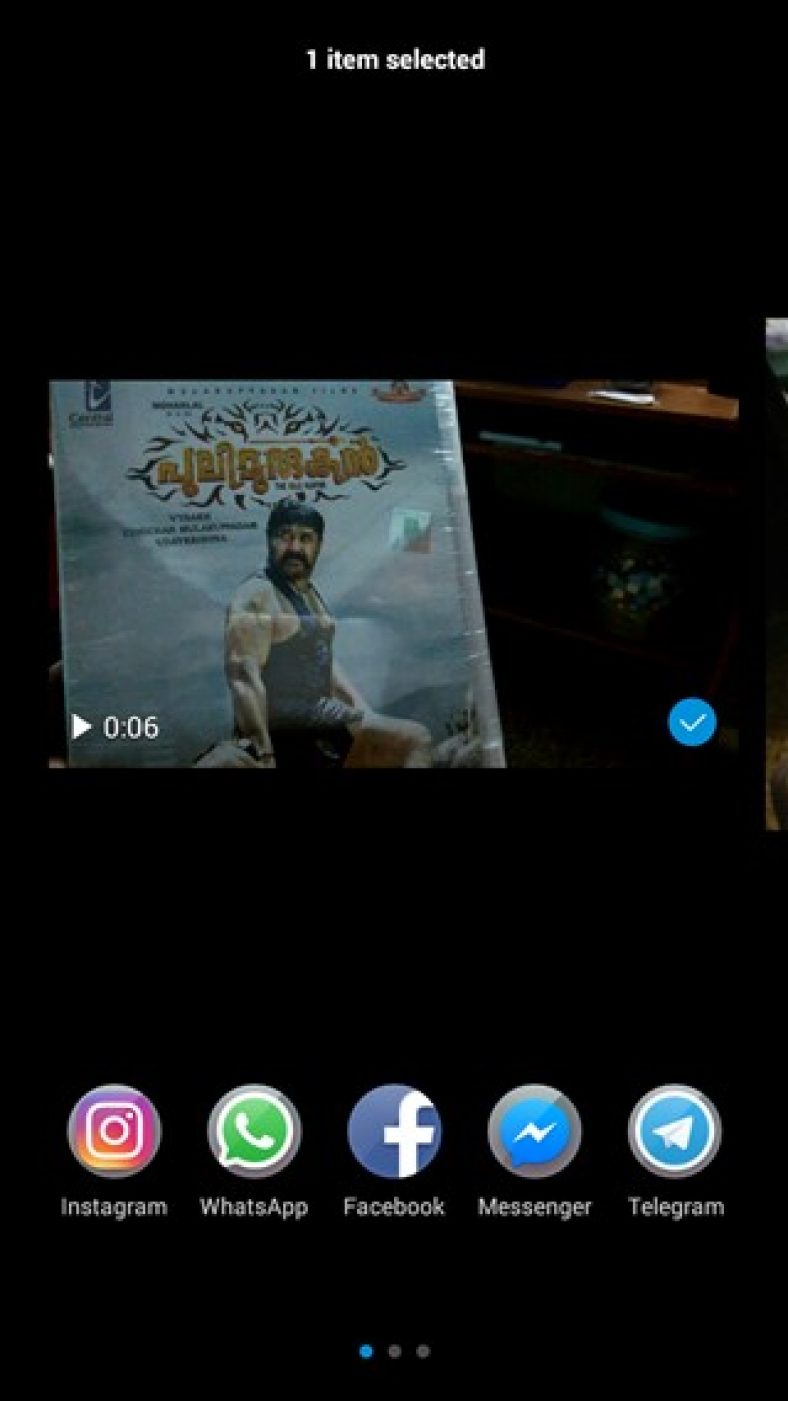
To create a GIF based on the created video, you need to tap the camcorder icon located on the top right-hand side.
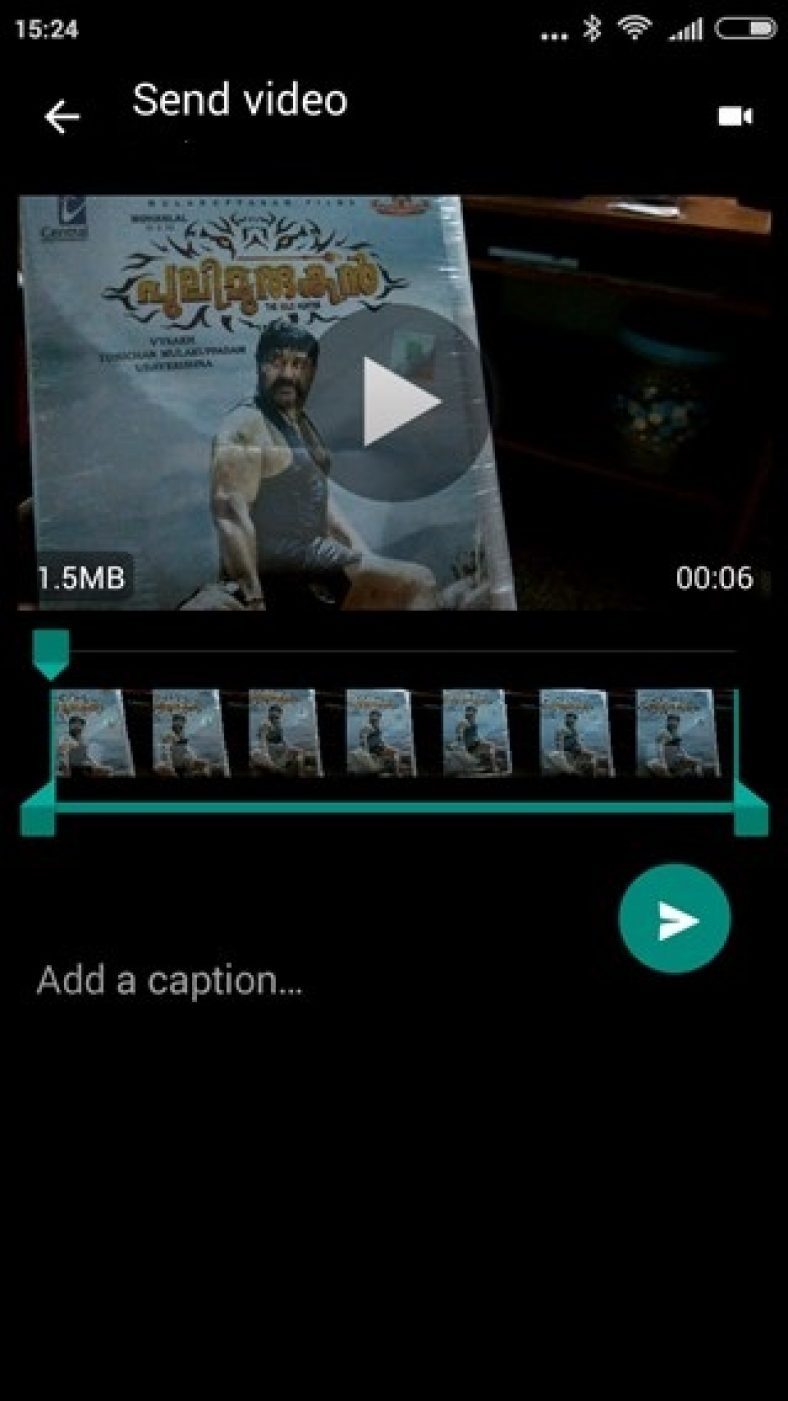
WhatsApp will immediately start the process of GIF creation, and the slider will move from left to right direction.
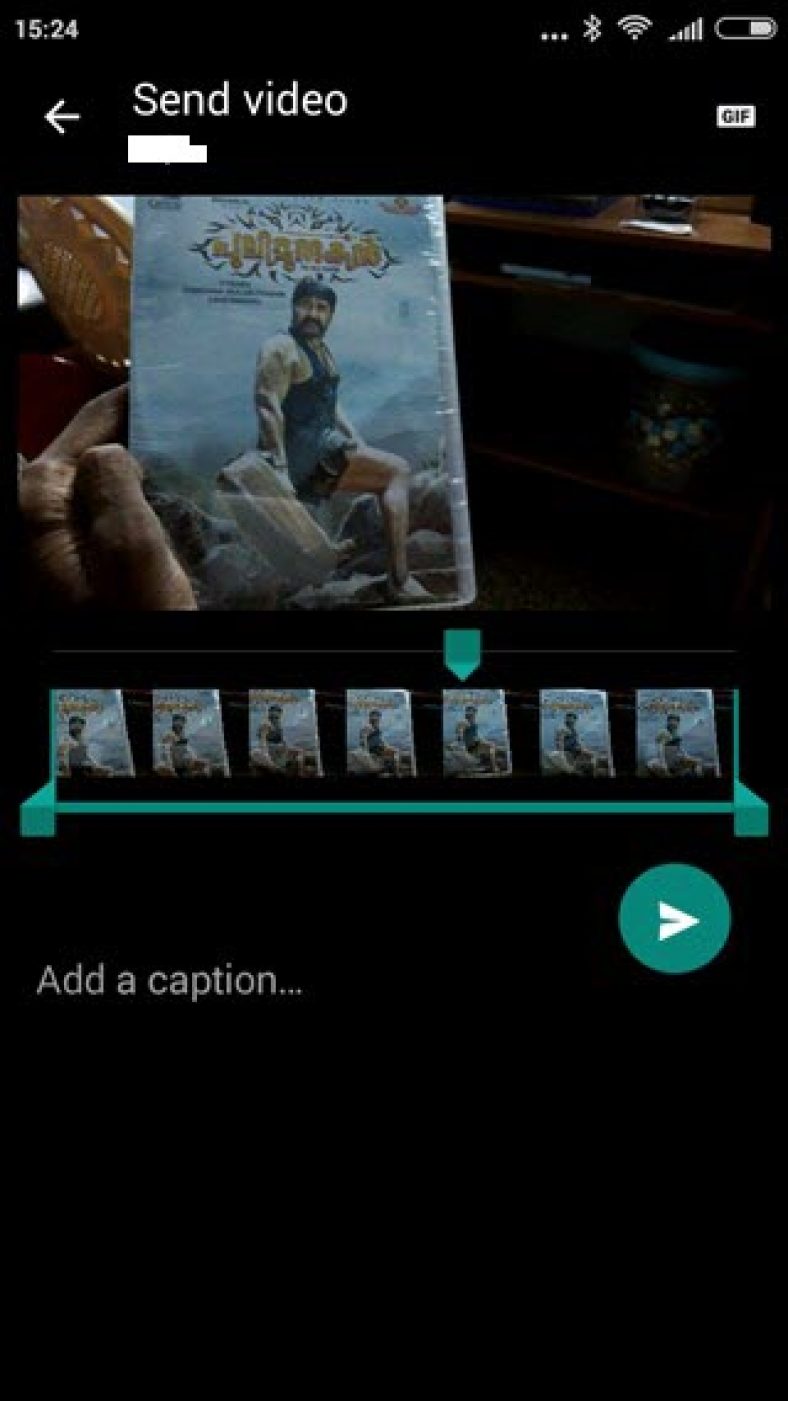
The video will continuously play similar to that of the Instagram videos. You can add the caption if you want and deliver the message containing the GIF by tapping the green arrow icon.
As you can see, the process of converting a video into GIF is indeed very easy. It’s time to have fun by creating GIFs and sharing them with your family and friends.
Please let us know about this feature. Did you like the new GIF creation feature? Do you want to create more than GIF videos with more than six seconds?
You might also like

How to Convert AVI to GIF
It may sound unreal to some extent, considering the fact that both file formats play different roles in the motion picture industry, but converting AVI files to GIF is very much possible. How? Here’s a step by step tutorial on how to convert AVI to GIF. Convert AVI to GIF using Adobe Photoshop If you’ve…
How to Convert DAT File to AVI
A couple of years back, Video CDs were the most sought-after home electronic gadgets in the market, but fast-forward to a few years, and you’ll realize that they have been overtaken by other devices. But that doesn’t mean you cannot watch your favorite movies from your Video CDs anymore. Of course, you can if you…

How to Create GIF in Photoshop
GIFs are funny, creative, and always enjoyable. So, it is natural that you also wanted to create one. If you have been searching for a way to create GIFs, you might have already found plenty of online/offline solutions to do so. But if you haven’t, here we are sharing the steps to create GIF files…
The week in tech, minus the noise.
New reviews, fixes and the stories that matter — once a week, straight to your inbox.
We only use your email to send the newsletter. Unsubscribe any time. See our privacy policy.
Comments