

Steps Required To Burn ISO Images In Windows 10
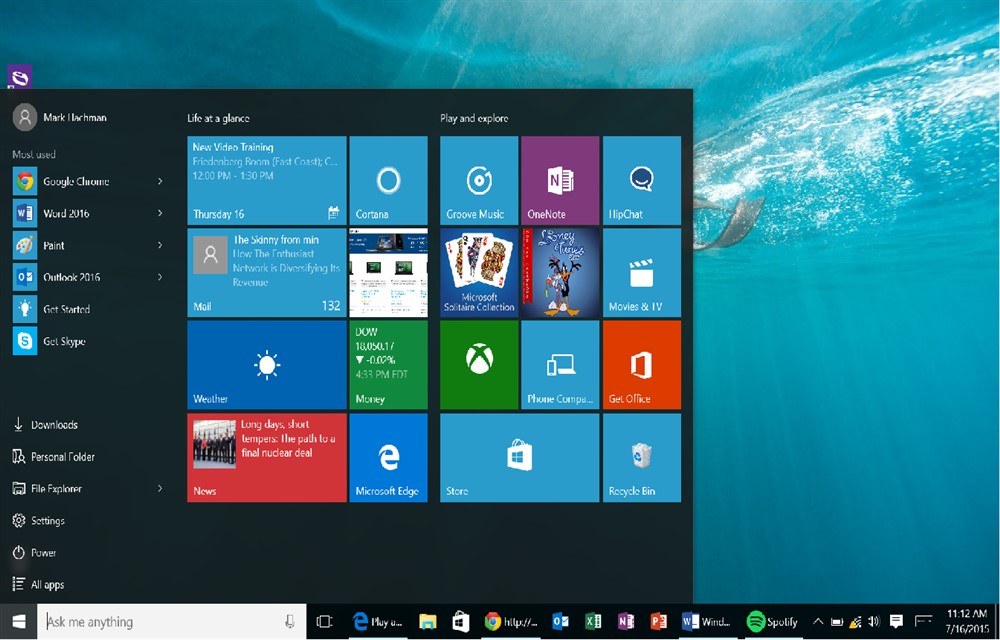
Microsoft completely refreshed the file explorer in Windows 10. Moreover, the Redmond-based company changed the name from file explorer to Windows Explorer. The company also removed the control bar located below the address bar. In Windows 10, you will view three ribbons that resembles the grouped controls identical to Microsoft Office apps. If you look…

Windows 10
Microsoft completely refreshed the file explorer in Windows 10. Moreover, the Redmond-based company changed the name from file explorer to Windows Explorer. The company also removed the control bar located below the address bar.
In Windows 10, you will view three ribbons that resembles the grouped controls identical to Microsoft Office apps. If you look at the ribbon tabs, it has the same set of controls. You can access either from the control bar or the menus. However, few controls appear only when a specific type of file is selected by the user.
With Windows 10, the Burn option has migrated to a different tab. Moreover, the Burn option is compatible with only a few file types. Even though it gives the impression that you cannot burn or mount disc files, it is virtually possible to do it.
The burn feature in Windows 10 provides a capability to mount a disc image file. You need not have to make use of any third-party apps without making any changes to the registries. You can mount a disc image. For this purpose, you need to select the relevant file in Windows Explorer and navigate to the Manage tab.
You should note that the Manage tab is context aware. Moreover, the controls included with it rapidly changes depending upon the selected file type. As soon as you select the ISO file, the Manage tab included with the Disc Image Tools has two options such as Mount and Burn.
You will be able to see the contents inside the option if you choose the Mount the file. It is even possible to execute the files inside it. You will be prompted to select the disc burning device if you choose to burn the file.
As you can see, it is possible to burn ISO images directly from within the Windows 10. You need not have to install any third-party software tools.
You might also like
How to Wipe a Hard Drive Completely
In this day and age, everyone must be using a Windows or macOS powered laptop or desktop. If you use either of these, you are bound to be using hard drives. In some cases, SSDs are used in Laptops or PCs but generally, people use hard drives. This is because they are much cheaper than…

How To Use Rufus To Create A Bootable USB Drive
Gone are those days when we used to CD or DVD to boot Windows XP and higher OS versions. The latest models of laptops and desktops are not coming with the optical drive enabled. I can literally say, CD and DVD’s are obsolete now at least for installing Operating systems. For Windows users, there are…
How To Install Windows 11 In VMware Workstation
Virtualization has become a significant aspect of computing, as it enables users to run multiple operating systems on a single machine. VMware Workstation is a popular virtualization tool that allows users to run various operating systems concurrently. In this article, we’ll discuss how to install Windows 11 in VMware Workstation, so you can explore the…
The week in tech, minus the noise.
New reviews, fixes and the stories that matter — once a week, straight to your inbox.
We only use your email to send the newsletter. Unsubscribe any time. See our privacy policy.
Comments