

How To Disable Sticky Keys In Windows
Sticky Keys enables you to make use of keyboard shortcuts without any need to press more than one key. You also need not have to enter capital letters. If you have not activated the Keys, you would have to press Shift key for capital letters. Moreover, if you hold the Ctrl key along with S,…

Windows 10
Sticky Keys enables you to make use of keyboard shortcuts without any need to press more than one key. You also need not have to enter capital letters.
If you have not activated the Keys, you would have to press Shift key for capital letters. Moreover, if you hold the Ctrl key along with S, you will be able to save a document. You will also use tricky shortcuts such as Ctrl+Alt+Del.
With the help of Sticky Keys, you can easily press Ctrl, Shift or Alt and then navigate to another key. You will hear the beep sound upon pressing the two keys together.
To enable the keys, you have to press the Shift key of your keyboard five times without any interruption. You will view a popup message prompting you to enable sticky keys. If you activate sticky keys, you will not be able to press two keys at once.
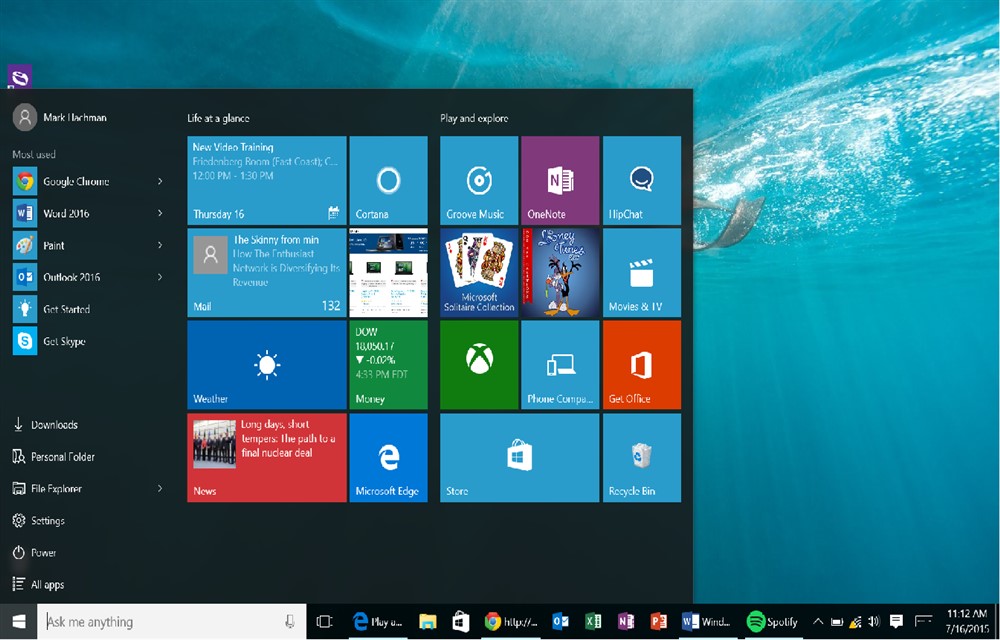
After enabling sticky keys, if you would like to deactivate the feature, you have to complete few steps. Since you have already activated sticky keys, you will not be able to press Shift key five times. You should navigate to the Start menu and type the search keyword “ease of access“. You need to click on Ease of Access from the displayed list of results.
In case if you are working with Windows 8, you should click on the Ease of Access Keyboard settings result. After that, you need to deactivate the Sticky Keys toggle by changing the setting to off.
You should click on Ease of Access Center in Windows 7 or Vista. You should then scroll down and select the link Make the keyboard easier to use. You need to uncheck the Turn on Sticky Keys option and select OK. The Sticky Keys is now disabled.
It is also possible to disable the appearance of Sticky Keys menu option. By default, if you press Shift key five times, you will view an option to enable sticky keys. You can prevent it from appearing. You just need to uncheck the option captioned “Turn on Sticky Keys when SHIFT is pressed five times“.
You might also like

How To Charge Your Smartphone While Your Computer is in Sleep Mode
It is a myth that the computer totally sleeps after closing the laptop lid. But technically when the laptop lid is closed the USB ports go into sleep mode. But with a simple tweak you can disable the sleep mode of the USB ports while the computer in sleeping mode. Sounds interesting? Yes, this simple…

How To Stop Automatic Updates On Windows 11
Automatic updates are often troublesome especially when we don’t really want an update but it does so when connected to Wi-Fi. By the end of this article, you will learn perfectly how to stop automatic updates on Windows 11. The Windows 11 that we are using currently is still fairly new and it has not…
How to fix Wuauserv high CPU usage error in Windows 10
Wuauserv error has encountered for many Windows 10 users. It drastically slows down the performance of the Windows 10 PC or laptop while it is running in the background. Usually, many services like svchost.exe and Windows update runs in the background and consumes a very low amount of system resources. But in the case of…
The week in tech, minus the noise.
New reviews, fixes and the stories that matter — once a week, straight to your inbox.
We only use your email to send the newsletter. Unsubscribe any time. See our privacy policy.
Comments