

How To Fix Application Error 0xc000007b In Windows 10
Windows 10 has come a long way considering improvements offered with every update. However, there are some issues that only a user can solve and Microsoft isn’t really at fault. Yes, Windows isn’t a bug-free experience — but when you encounter the error “application error xc000007b”, things get annoying. The application error 0xc000007b is something…

How To Fix Application Error 0xc000007b In Windows 10
Windows 10 has come a long way considering improvements offered with every update. However, there are some issues that only a user can solve and Microsoft isn’t really at fault.
Yes, Windows isn’t a bug-free experience — but when you encounter the error “application error xc000007b”, things get annoying.
The application error 0xc000007b is something that a user notices when trying to run an app that is not compatible with the version of Windows installed. Maybe, you’re trying to run a 64-bit program on a 32-bit installation or maybe not.
It is worth noting that if you’re trying to install a 64-bit program on a 32-bit system, there’s no solution to it. Unless the app offers a 32-bit version, you can’t do anything to resolve the error.
You can troubleshoot the issue with a couple of solutions. In this article, let us take a look at them:
1. Ensure that you have the latest and correct version of the app
Sometimes simply uninstalling the existing program and installing the latest version available solves the problem.
So, you need to make sure that you have the latest version of the app installed. If not, re-install the latest version available. But, if you already do, follow the next potential solution. Also, make sure that you know whether you’re downloading a 32-bit or 64-bit version of the app.
2. Update the .NET Framework version
Usually, you should have the latest .NET framework if you have an up-to-date Windows installation.
But, in case you don’t have it, you can try downloading the latest version from the official download page.
Sometimes you will also notice that some applications require a specific version of the .NET framework — so if that’s the case, you can download the exact .NET framework version and get it installed.
3. Update Windows
You probably already have the latest Windows installed on your computer. But, in case you don’t update Windows because you fear that it might break your system, it’s best to go for it.
Yes, sometimes Windows updates are quite disastrous. Hence, always keep a backup of your important files and perform an update if you haven’t already.
Not just limited to this error, but having the latest Windows update gives you the latest security and performance improvements. So, it’s important to update Windows.
4. Run the app as an administrator
This may not be an exact solution for this error — but it doesn’t hurt to try.
To do this, you need to search for the app using the search bar and then right-click on the app, you should find a “Run as administrator” option, click on it to proceed.
5. Restart Your Computer
If you’ve faced multiple issues on a Windows machine previously, you must be aware that a reboot fixes an error most of the time.
Yes, I won’t go into the technical details of what happens when you reboot your computer, but that definitely solves a lot of problems.
And, to solve Application Error 0xc000007b, a reboot can definitely come in handy. It’s also important to remember that whenever you install something on Windows, you do need to restart your system for the changes to take effect. So, make sure to perform a reboot.
6. Scan Hard Drive for Errors
Troubleshooting issues is time-consuming indeed and you cannot rule out every possibility unless you have resolved the error, especially – Application Error 0xc000007b.
For the very same reason, it’s wise to consider checking the hard drive for errors, if any.
To do that, simply launch the command prompt as administrator. If you don’t know how to do that, simply press Windows key then search for cmd and right-click on command prompt listing to run it as an administrator.
Once done, you can just copy this and enter the command to scan the entire hard drive:
chkdsk /f /r
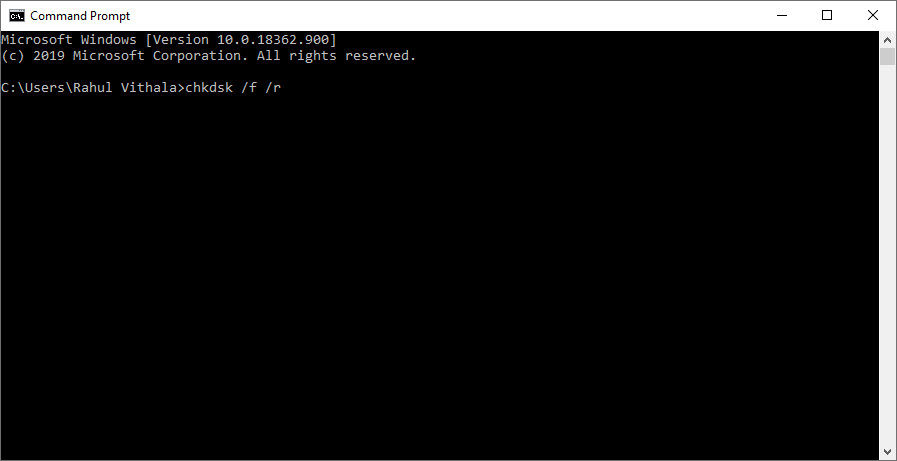
To know more about chkdsk command and its usage, you can follow the official Microsoft documentation.
7. Install the latest Visual C++
There are some rare cases when installing or updating Visual C++ resolves the issue. You can head to their supported Visual C++ download page to get the latest version for your system.
Again, I must mention that if nothing else solved your issue, you should do this. Or else, it’s totally unnecessary.
8. Reinstall Windows
The easiest way to fix the annoying application error 0xc000007b is to just reinstall Windows or perform a clean installation.
However, I’d advise you to follow the troubleshooting steps mentioned above thoroughly before re-installing Windows.
Of course, you need to make sure that you have a back up of your important files. Once you do, reinstall Windows and install the problematic app again to see if it has been fixed.
Wrapping Up
For the most part, you should be able to resolve the issue when you encounter Application Error 0xc000007b on Windows 10.
I hope the solutions mentioned here help you. Let me know your thoughts in the comments below.
More in How-to
How to fix application was unable to start correctly 0xc0000018 error in Windows
This application was unable to start correctly 0xc0000018 error in Windows error appears when launching an app and usually closes the program with only an OK button. In most cases it is fixable with a few steps. Follow the sequence below from simple to advanced, and stop once the error disappears. Always reboot and test…
How To Fix App Has Been Blocked Due To Company Policy In Microsoft Store In Windows 10
Sometimes while downloading an application from Microsoft store, you may encounter a message “App Has Been Blocked Due To Company Policy In Microsoft Store In Windows 10” error message. It is due to some unexpected error caused by Microsoft store. Here are the fixes for “App Has Been Blocked Due To Company Policy In Microsoft…

How To Fix Office 2010 Setup Error 2203 An Internal Error Occurred
Microsoft Word is a comprehensive word processing package. Even though Office 2010 is outdated, many people still work with them. To work with Office 2010, you need to install the package properly. However, the installation process would not be smooth as expected. Sometimes, you will view a message “Error 2203. An Internal Error Occurred” during…
The week in tech, minus the noise.
New reviews, fixes and the stories that matter — once a week, straight to your inbox.
We only use your email to send the newsletter. Unsubscribe any time. See our privacy policy.
Comments