

How To Add Subtitles in VLC Media Player
Do you want to add your own subtitles to a video using the VLC media player? Adding your own subtitles can be handy in a lot of situations. If the video contains English subtitles and you want to add one in your own native language to show it to your family, adding a subtitle will…


Add Subtitles using VLC
Do you want to add your own subtitles to a video using the VLC media player? Adding your own subtitles can be handy in a lot of situations. If the video contains English subtitles and you want to add one in your own native language to show it to your family, adding a subtitle will be extremely helpful. So, in this article, we will guide you through the steps required to manually import your own subtitles to any video file using VLC.
You should make sure that the name of the subtitle file is exactly the same as the video file that you are trying to add it to. For example, if the file name of the video is travel_australia.mp4, the name of the subtitle file will be something like travel_australia.srt.
Manually add subtitles
If you already have a subtitle file to add to your video downloaded from the internet or generated using any subtitle generation tools, you can manually add it. Here are the steps to manually add a subtitle to your video.
- Open VLC.
- Click on the Subtitle in menu.
- Click Add Subtitle File…
- Choose the subtitle file that you have.
That’s it, the subtitles will start displaying on your videos right away.
Automatically get subtitles
If you do not already have a subtitle file to add to your video, you can automatically fetch it using a VLC plugin.
- Download this VLC plugin.
- Extract the file somewhere.
- You will find a file lua. Move it to your /lua/extensions/ folder under your VLC installation. The default install location of the VLC media player is as follows for different operating systems.
- Windows: C:\Program Files\VideoLAN\VLC\lua\extensions\
- Linux: /usr/lib/vlc/lua/extensions/
- macOS: /Users/<your_username>/Library/Application Support/org.videolan.vlc/lua/extensions/
- Restart VLC.
- Click on the View menu.
- Choose VLsub. It will open the extension window to download the subtitles.
- Now, just search the movie or video by name.
- After finding the subtitle, click on the Download Selection button.
- It will immediately start downloading the file and it will be displayed on the video from now onwards.
If this plugin is not working for you, there are plenty of VLC plugins available that provide similar functions on their website. You can just browse through it and install them following similar steps and start using them right away.
More in Guides
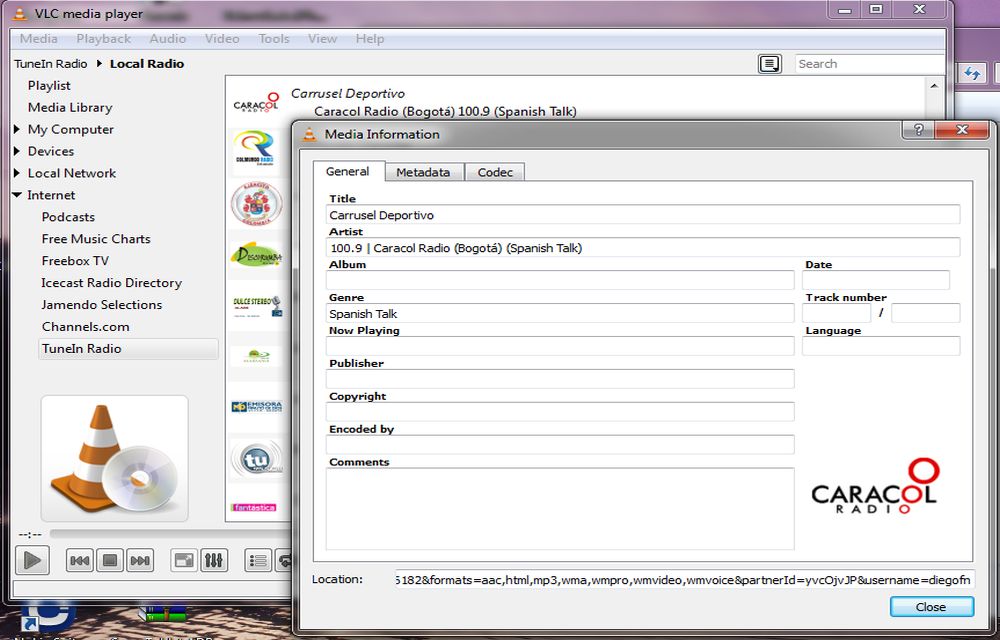
How To Listen TuneIn Radio In VLC Media Player
TuneIn is one of the popular radio networks among the Internet radio station listeners. The facility to listen to TuneIn radio in smartphones comes in the form of an app. But unfortunately, the TuneIn lacks a desktop app to enjoy the service. Luckily, we have a simple tip to enjoy the TuneIn radio on a…
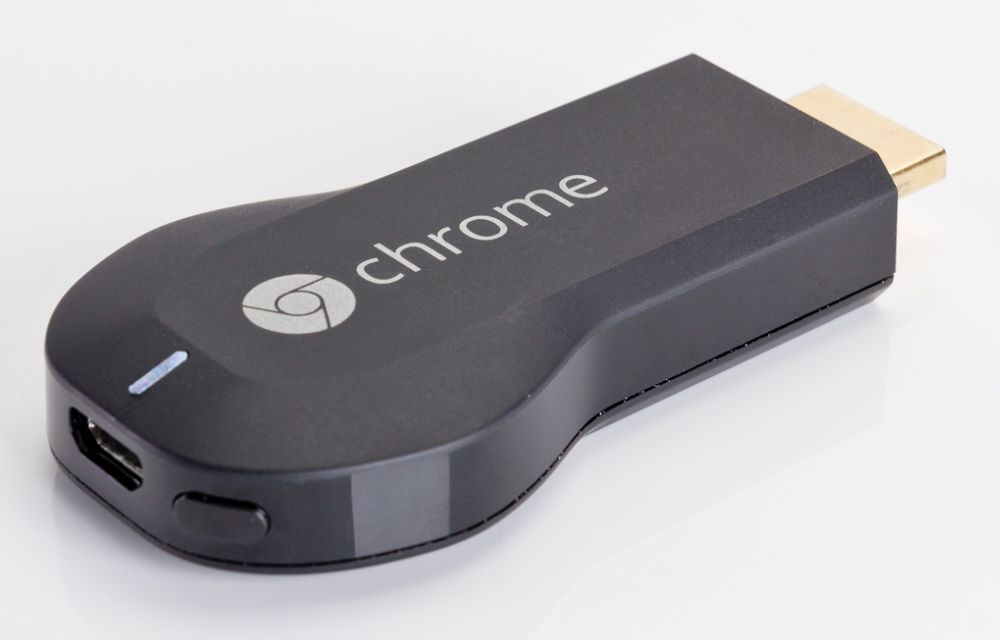
Steps Required To Stream From VLC to Google Chromecast
Google Chromecast is a premium streaming device used to establish connectivity with your Television. VLC has added support for Chromecast. With VLC, you can stream media files directly from the VLC media player on your PC to your Chromecast.

How to Convert MKV to MP4
The first decade of the 21st century gave birth to a lot of technological advancements, many of which revolved around the internet and computers. The birth of the Mkv (Matroska Video Files) file format in Russia in 2002 is a typical example. We aren’t studying the history of Mkv files, rather we’d like to see…
The week in tech, minus the noise.
New reviews, fixes and the stories that matter — once a week, straight to your inbox.
We only use your email to send the newsletter. Unsubscribe any time. See our privacy policy.
Comments