


When you click the Xbox app, nothing happens. Maybe a quick flash of the window, and then poof, gone. No error, no explanation. Gaming Services, the background component that makes the app tick, is usually to blame. If this issue has happened for you and you are looking for a fix, this article is for you. Here’s how to get it running again.
1. Repair and Reset Gaming Services & Xbox App
This fixes most cases without tools.
-
Win + I > Apps > Installed apps.
-
Search Gaming Services, three dots > Advanced options > Repair, then Reset.
-
Repeat for Xbox app.
-
Restart PC and test.
Clears corrupted cache and re‑registers services.
2. Run the Official Gaming Services Repair Tool
Microsoft’s hidden gem.
-
Visit Xbox support > search Gaming Services Repair Tool.
-
Download/run it (admin mode).
-
Let it diagnose and fix.
-
Restart.
Auto‑handles installs and dependencies.
3. Full Uninstall/Reinstall
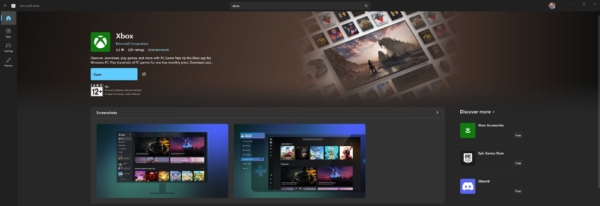

If resets fail, wipe and start fresh.
-
PowerShell (admin):
get-appxpackage Microsoft.GamingServices | remove-AppxPackage -allusers -
Restart PC.
-
Microsoft Store > Search Gaming Services > Install.
-
Search Xbox > Install (it pulls Gaming Services too).
-
Sign in and test.
Removes all traces of broken installs.
4. Clear Microsoft Store Cache
Corrupted cache blocks app updates.
-
Win + R >
wsreset.exe> Enter. -
The blank window closes, and the store opens.
-
Check Xbox/Gaming Services updates.
-
Restart.
Quick refresh for Store‑related hangs.
5. Check Services and Windows Updates
Background services may be off.
-
Services.msc (Win + R) > Find Gaming Services (two entries) > Right‑click Restart or Start if stopped.
-
Settings > Windows Update > Check for updates.
-
Restart.
Updates often patch app compatibility.
Prevention Tips
-
Update Xbox/Gaming Services via Store regularly.
-
Avoid force closing from Task Manager—it corrupts state.
-
Run store cache reset monthly.
FAQ
1. Why won’t the Xbox app open on Windows 11?
Gaming services corruption after updates or failed installs is the top cause.
2. Does repairing Gaming Services fix it?
Yes, Repair + Reset in app settings works for most users.
3. How do I reinstall Gaming Services?
Uninstall PowerShell, restart, and reinstall from the Store.
4. What is wsreset.exe for?
Clears Microsoft Store cache blocking app installs/updates.
5. Will this affect my games or Game Pass?
No, an Xbox app reinstall keeps your library and progress intact.