

How to Back Up Your Business Data: Cloud Backup Options Compared (2026)
A plain-English guide for US small businesses on backing up files, email, accounting data and Microsoft 365 or Google Workspace, with a simple 3-2-1 setup that holds up against ransomware.

Business-Data-Backup-Featured
So a lot of small business owners think they already have backups. What they’ve actually got is a bunch of files sitting in OneDrive, Google Drive or Dropbox, and a fuzzy hope that “the cloud” is keeping a copy of everything somewhere. And honestly? That works fine. Right up until somebody deletes the wrong folder, or a laptop gets stolen, or ransomware scrambles the shared drive (and every synced copy with it).
This is the setup I’d want if I were running a US business with anywhere from 5 to 50 people. I’m skipping the enterprise jargon. I’m also skipping the 40-page policy, because nobody reads those. What you’ll get is what to back up, where it should live, how to keep ransomware’s hands off it, and how to prove it actually works before the day you really need it.
CISA (that’s the Cybersecurity and Infrastructure Security Agency, part of the US government) keeps putting out #StopRansomware advisories. A recent one was about a group called SafePay. The good news is their core backup advice is pretty simple, and I’m going to lean on it a lot here.
Quick answer: Keep at least three copies of your data, on two different types of storage, with one copy off-site and out of reach of ransomware. For most small businesses that means your live data, a local NAS (a small network storage box) that backs up every PC and server automatically, and a cloud backup service with offline or immutable copies. Back up Microsoft 365 or Google Workspace separately, because sync folders and recycle bins are not backups. Then test a real restore on a schedule, because a backup you’ve never restored is just a guess.
The 3-2-1 Rule, Explained Without the Buzzwords
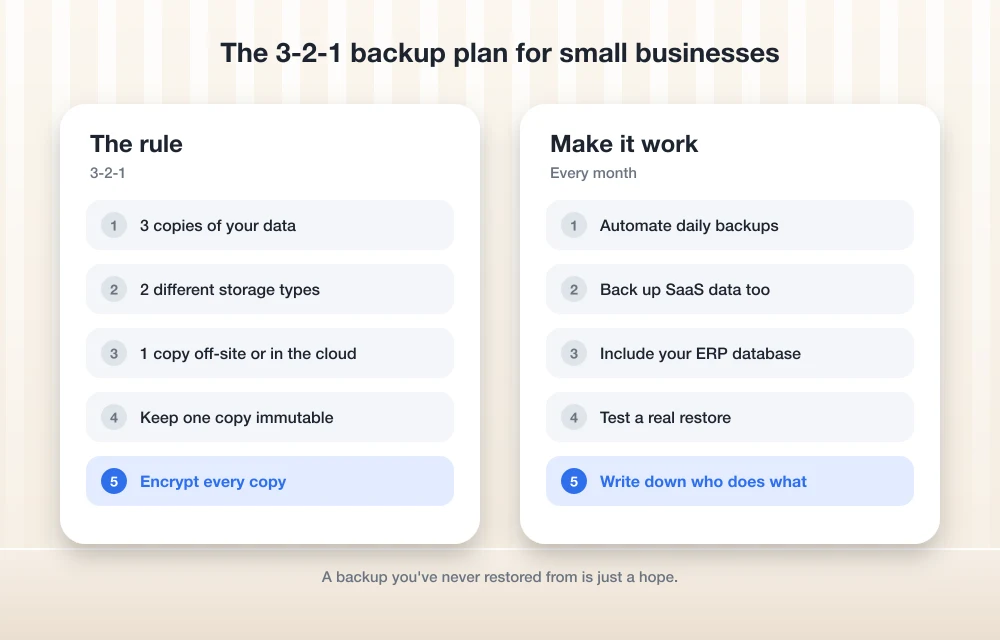
First thing: the 3-2-1 rule isn’t a law. It’s not a government standard either. It’s just common industry practice, and it goes like this. You keep three copies of your data, on two different kinds of storage, and one of those copies lives somewhere else.
Why so many? Because each copy breaks in its own way. The drive in your laptop can just die. The NAS sitting in the office gets hit by the same fire or flood or burglar that hits everything else in the building. And a cloud account can get locked, or compromised, or wiped by an admin who clicked the wrong thing. If the copies are spread out, one bad day can’t wipe out all of them.
I’d add one more condition these days, though. At least one copy should be offline or immutable. That’s the one ransomware can’t get to, and it’s the one CISA keeps bringing up again and again.
What Your Business Actually Needs to Back Up
Most people hear “backup” and think “files” and that’s it. But in a real business the losses that really hurt are usually the stuff nobody thought about.
Files and shared folders
Okay, this one’s obvious. Documents, spreadsheets, design files, contracts, scanned receipts. Just make sure the shared drives and team folders are in there too, not only whatever’s on each person’s laptop. And go ask around. I promise someone has an important folder on their desktop that never made it to the shared drive.
Email is basically your paper trail. Quotes, approvals, angry customers, vendor agreements, all of it. If your mail is in Microsoft 365 or Google Workspace, I cover that in the SaaS section below. But if you’re still running an older mail server, or people use desktop mail files, you need to put those in your backup plan on purpose. They won’t get covered by accident.
Accounting and ERP databases
Your accounting system or ERP (enterprise resource planning software, which is the thing that runs your orders, inventory and finances) is probably the most valuable digital thing you own. Full stop. And databases are fussy. If you copy a database’s files while it’s running, you can end up with a copy that won’t even open later. So use whatever backup method your software vendor recommends.
If the vendor hosts it for you, ask them two things. How often do they back up? And can you export your own copy? If you’re on a custom ERP system, get whoever built it to document exactly how to back it up and restore it. In writing. Seriously.
SaaS data: Microsoft 365 and Google Workspace
This is the biggest blind spot I see, by a mile. Cloud providers keep their service up and running. But protecting your data from your own mistakes, or from an employee who’s leaving and deletes stuff on the way out, or from a hacked account? That’s mostly on you. Trash folders and recycle bins do help a bit, but they only hold deleted items for a limited time, and those windows aren’t the same across products and settings. Look up the current numbers for your plan instead of trusting your memory.
Google does give Workspace admins an official way to export everything. According to Google’s help page on exporting all your organization’s data, it goes roughly like this:
- Sign in to the Google Admin console.
- Head to Menu, then Data, then Data import & export, then Data export.
- Pick “Export all user data for the entire organization” (that one covers all users plus shared drives).
- Hit Start export. Your data ends up in a Google Cloud Storage bucket.
Google flags a few things you’ll want to know before clicking anything. Once the export starts, you can’t cancel it from the Admin console. Core data like Gmail, Drive and Chat only gets exported while your subscription is active, so if the account is canceled or suspended, that data gets left out. (That alone is a pretty good reason to sort backups out now and not in the middle of a billing dispute.) Some data isn’t included at all, like Google Workspace with Gemini data. If you’ve got more than 1,000 users or FedRAMP authorization, Google wants you to contact Workspace support first. And exporting just part of your data depends on your plan; Google lists editions like Enterprise Plus and Education Plus for that.
Oh, and one more. Google Vault is built for retention and eDiscovery (keeping and searching data for legal reasons). It’s not a backup and restore tool. Don’t count it as your backup.
Microsoft 365 is the same story really. Get a dedicated backup tool that copies Exchange mail, OneDrive and SharePoint to storage outside your main tenant. And check Microsoft’s own docs for the current retention defaults and backup options, because those change.
Laptops, PCs and servers
For servers and the machines that matter most, CISA recommends keeping up-to-date “golden images.” Those are clean, ready-to-go copies of a fully set-up system. CISA also warns that an image might not install on different hardware, so swapping out really old hardware now could save you a nasty rebuild down the road.
Cloud Backup vs Cloud Sync: Not the Same Thing
If I could fix one mistake first, it’d be this one. Sync tools like OneDrive, Google Drive and Dropbox mirror changes across your devices. Great for teamwork! But here’s the thing: sync copies bad changes just as fast as it copies good ones. Delete a folder and it’s gone everywhere. Ransomware encrypts a laptop and those encrypted files can sync straight up to the cloud.
CISA actually says this outright in its guidance. Automated cloud backups may not be enough by themselves, because infected files can sync to the cloud.
I do still like sync services for day-to-day work, and I’ve written about why Dropbox is still a strong choice for cloud storage. Version history helps a ton. Just think of sync as your working copy and not your safety net. A real backup keeps separate, older versions on separate storage, with its own retention rules and its own login.
Comparing Your Backup Options
So this is roughly how the main options compare for a small business. Pricing is all over the place (some charge for storage used, some per user per month), so I’m not going to quote numbers. Go check current pricing with the vendor directly.
| Option | What it protects | Ransomware resistance | Watch out for |
|---|---|---|---|
| Cloud sync (OneDrive, Google Drive, Dropbox) | Working files, sharing | Low on its own; bad changes sync | Not a backup; version history has limits |
| Local NAS with backup software | PCs, servers, shared folders | Medium; better with snapshots and separate logins | Same location as your office; can be hit if on the same network with shared admin passwords |
| Cloud backup service | Off-site copy of PCs, servers and NAS | High if immutable or offline copies are offered | Restore speed over the internet; setup mistakes |
| SaaS backup for Microsoft 365 or Google Workspace | Email, OneDrive/Drive, SharePoint, shared drives | High if stored outside your main tenant | Per-user cost; check what data types are covered |
| Google Workspace full export | All user data plus shared drives | Depends on how you secure the storage bucket | Manual, can’t be canceled, some data excluded |
| Offline external drives (rotated) | Critical data snapshot | Very high while disconnected | Relies on someone remembering to swap them |
Want actual tool names? I put together a list of the top backup and data recovery software for US businesses.
Making Your Backups Ransomware-Proof
Ransomware these days doesn’t stop at encrypting your files. CISA says a lot of variants go hunting for any backups they can reach and then delete or encrypt those too, so you’ve got no way to recover without paying. So your backup plan has to assume the attacker is going to try exactly that.
Keep one copy offline or immutable
CISA’s #StopRansomware Guide says to “Maintain offline, encrypted backups of critical data.” Offline just means disconnected. A drive in a drawer, say, or storage the attacker simply can’t log into.
Immutable means nobody can change or delete the backup for a set period. Not even an admin. Some cloud vendors offer it, and CISA notes it can protect data without needing a separate environment. But CISA also says to “Use immutable storage with caution”: it doesn’t meet some compliance rules, and if you set it up badly it can get expensive. So read the settings really carefully before you lock anything in.
CISA also suggests thinking about more than one cloud provider for cloud-to-cloud backups, just in case every account with one vendor gets hit at the same time. If all your data and all your backups are with one company under one login? That’s a single point of failure.
Encrypt everything
Encryption scrambles the backup so it’s useless to anyone who doesn’t have the key. Turn it on for backups at rest (sitting in storage) and in transit (moving across the internet). Then keep the encryption key somewhere safe and separate. A business password manager plus a printed copy in a secure spot works. Lose the key and, well, you’ve lost the backup.
Separate the logins
Don’t run your backup system on the same admin account you use for everyday IT stuff. Give it its own strong password and switch on multi-factor authentication. That way if an attacker steals your main admin login, they don’t get your backups thrown in for free.
Retention: How Far Back Can You Go?
Retention is just how long you hang on to old versions. It matters way more than people think. Say you only keep seven days of backups and nobody spots a problem for two weeks. Every single copy you have is already bad.
For a small office I’d start with daily backups kept for a few weeks, weekly ones kept for a few months, and monthly ones kept for a year or more. That’s a starting point though, not a rule. Some industries have legal record-keeping requirements, so talk to your accountant or lawyer about what you have to keep and for how long.
RTO and RPO in Plain English
These two acronyms sound kind of scary. They’re really just two questions.
RPO (recovery point objective): How much work can you live with losing? If you back up once a night and the server dies at 4 p.m., there goes a day. If losing a day of invoices would be a disaster for you, that system needs more frequent backups.
RTO (recovery time objective): How long can you afford to be down? Pulling a few terabytes back from the cloud over an office internet connection can take ages. A local NAS gets you back up way faster, and that’s a big part of why I’d have both.
Jot your answers down for each key system. I’d bet your accounting database needs a tighter RPO and RTO than last year’s marketing photos.
Automate It, Then Test the Restore
If a backup depends on somebody remembering to do it, at some point it won’t get done. Schedule everything. Set up email alerts for failures. And then (this is the part people skip) actually read the alerts.
Testing is the step almost everyone skips, honestly. CISA says to regularly test that backups are available and intact in a disaster recovery scenario. Personally I’d restore a random file or folder every month, and do a full restore drill on one important system at least once or twice a year.
And if you do get hit someday, CISA’s advice is to restore from offline, encrypted backups onto a clean network, starting with whichever services matter most. Figure out that order now, while everything’s calm.
A Simple Backup Setup for a 5 to 50 Person Business
This is the plan I’d actually put in place:
- List out every system that holds business data: shared files, email, accounting or ERP, line-of-business apps, servers and laptops.
- Set an RPO and RTO for each one, even if it’s rough.
- Get a NAS with backup software that backs up PCs, servers and shared folders automatically, on its own separate admin account.
- Push those NAS backups to a cloud backup service that offers encryption and immutable or offline copies.
- Add a SaaS backup tool for Microsoft 365 or Google Workspace that stores data outside your main account.
- Use the backup method your accounting or ERP vendor recommends, and check that you can export your own copy.
- Keep golden images for your key servers and machines.
- Rotate an encrypted external drive off-site for your most critical data.
- Switch on failure alerts and put restore tests on the calendar.
- Write up a one-page recovery plan covering who does what, and in what order.
If your team’s tiny and the IT person is also the office manager, just keep it simpler. A cloud backup service, plus SaaS backup, plus regular restore tests already puts you ahead of a lot of businesses out there.
Where I’d Start This Week
Please don’t try to build all of this on a Friday afternoon. Start with the data that would hurt the most to lose (usually that’s accounting and email) and get one off-site, encrypted backup of it working. Then test a restore. I’ll be real, that one step lowers your risk more than any amount of planning will.
After that, add the NAS, the SaaS backup and the offline copy, one at a time. And when you’ve got half an hour, read through CISA’s guide. It’s free and it’s practical. It’s also about as close to an official checklist as a US small business is going to get.
Frequently Asked Questions
Is OneDrive, Google Drive or Dropbox a backup?
Not by itself, no. They’re sync and storage tools, so deletions and ransomware-encrypted files can sync to every device. CISA warns that infected files can sync to the cloud. Use them for daily work, sure, but keep a separate backup with its own versions and its own login.
Does Google back up my Google Workspace data for me?
Google runs the service, but your options for recovering from your own deletions or a hacked account are limited. Admins can use the Admin console’s full data export to send all user data and shared drives to a Google Cloud Storage bucket. The catch is it only exports core data while the subscription is active, and it leaves some data out, like Gemini data. A dedicated SaaS backup tool gives you more regular protection.
What is an immutable backup?
It’s a backup that can’t be changed or deleted for a set period, even by an admin, so ransomware has a hard time destroying it. CISA notes some cloud vendors offer it, but says to use it with caution, since it doesn’t meet some compliance rules and a bad setup can get costly.
How often should I test restoring my backups?
CISA says to regularly test that backups are available and intact. What I’d do in practice is restore a random file or folder every month and run a full restore drill on an important system once or twice a year.
Do I need a NAS if I already pay for cloud backup?
Not strictly. But a local NAS restores a lot faster than downloading everything over the internet, so you’re down for less time. Running a NAS plus cloud backup also follows the 3-2-1 practice of keeping copies on different storage in different places.
You might also like
Top 5 Backup & Data Recovery Software for Businesses in USA (2026 Guide)
In 2026, US businesses will face challenges related to data loss due to numerous causes — including ransomware attacks and hardware failures — as well as the potential for accidental deletions or outages related to their cloud computing environments. When trying to scale your business, selecting the best backup and recovery solutions should be a…

List of Cloud Email Backup Services
Every day most of us wake up with messenger and email notifications. While comparing to messenger usage, we use emails mostly for serious business communications. After we started handling emails from many devices based on our situations, the security of email accounts losing its base. Also, loss of email data is possible with any email…
Top 5 Cloud Hosting Providers for Performance & Security
Choosing a good cloud host is essential to having fast response times and consistent uptime, as well as being able to secure your data and resources reliably. This list contains 5 of the best options for 2026 that balance all of these needs. Cloud hosting provides more flexibility than shared hosting in terms of resource…
The week in tech, minus the noise.
New reviews, fixes and the stories that matter — once a week, straight to your inbox.
We only use your email to send the newsletter. Unsubscribe any time. See our privacy policy.
Comments