

How To Hide Unwanted Google Search Results In Firefox?
Tired of getting unwanted results when searching on Google? You can easily hide them by using a simple add-on in Firefox. The Firefox extension called Hide Unwanted Results of Google Search really helps you hide unrelated or any particular keyword-based results in Firefox. This extension is designed for only Firefox; it will not have any…

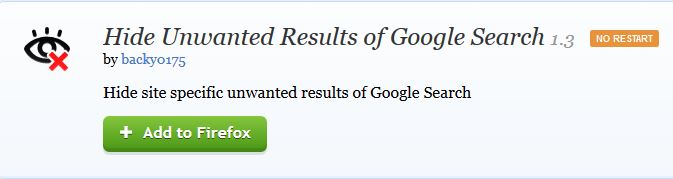
Tired of getting unwanted results when searching on Google? You can easily hide them by using a simple add-on in Firefox. The Firefox extension called Hide Unwanted Results of Google Search really helps you hide unrelated or any particular keyword-based results in Firefox.
This extension is designed for only Firefox; it will not have any effect on any other search engines, such as Bing, Yahoo, or Yandex. This extension is based on Google’s “Block Site” feature, which is no longer offered by Google.
How to Hide Unwanted Google Search Results in Firefox?
Method 1:
- First, you need to download and install the Hide Unwanted Results of Google extension from the Mozilla Firefox add-on store.
- After downloading the add-on, you can tweak its settings from the Extensions window.
- The add-on allows you to hide any keyword, URL, or domain from the search results.
- Now onwards, you can see filtered search results from Google in Firefox.
Method 2:
- Download and install the DuckDuckGo Hide Unwanted Results add-on from the Mozilla Firefox add-on store.
- After downloading the add-on, you can tweak its settings from the Extensions window.
- The add-on allows you to hide any keyword, URL, or domain from the search results.
- That’s it. Now you can filter the Google search results in Mozilla Firefox.
Method 3:
We have another add-on available for Firefox users to modify the Google search results. Install the Highlight or Hide Search Engine Results add-on from the Mozilla add-on store and customize it according to your preferences.
How to specify the blocked sites are as follows
- Open Add-on manager
- Press “Option” button on “Hide Unwanted Results of Google Search.”
- Press the “Settings” button to open the panel.
- Type a URL that you want to hide, then press the “Add” button.
- Press “OK” to apply and close the panel.
You can also temporarily disable the add-on by unmarking its checkmark. Also, temporarily re-enable the added sites. It is a very good simple addon for Firefox to get rid of unwanted search results in Google. By using this extension, you can easily filter all unwanted keywords and URLs in Firefox. For example, if you want to block adult content in search results, you can block it by adding specific keywords to the extension.
Overall, it is a pretty good extension to block unwanted content in Google search results in Mozilla Firefox.
We hope this article helped you block unwanted site results in Firefox. Please share your views and comments in the comment box below.
More in Internet

Cake Browser is a New Mobile Optimized Browser for Android and iOS
Everyone loves faster browsing experience on mobile devices. The internet traffic on mobile devices like smartphones and tablets has increased to 51.2% by surpassing the traditional desktop searches. Generally, we use Google Chrome or Safari on smartphones. The main responsibility of a good browser is faster browsing experience. I regularly use smartphone browsers for quick…
Advantages and Disadvantages of Google Chrome Browser
Google Chrome is the global leader among the browsers. Launched in 2008 and continued to be the most popular browser till now. The Google engineers had expressed their handiness in the design and the performance of the chrome. The entry of the Chrome affected so many siblings like Firefox, Safari, Opera, etc… The uniqueness in…
How to Block a Website from Google Search Results
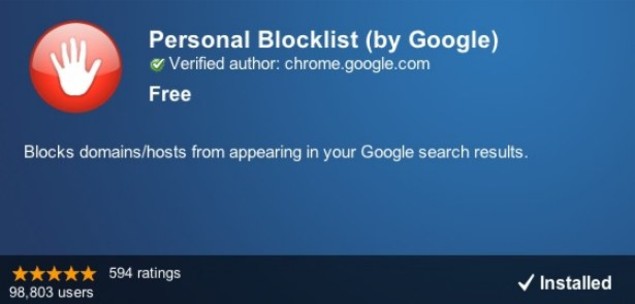
Tired of seeing unwanted Websites again and again in search results? You can easily block an unwanted website in Google search results. In this article, we will show how to block a website from Google search results. In Google Chrome, a simple extension is there called Personal Blocklist (by Google). Previously Google offered a feature to their search…
The week in tech, minus the noise.
New reviews, fixes and the stories that matter — once a week, straight to your inbox.
We only use your email to send the newsletter. Unsubscribe any time. See our privacy policy.
Comments