

How to Speed Up your Mac?
Mac is a nice piece of personal computer that is reliable, good working and long lasting. If you own one, your tasks will be better and faster than before. But, if the things are not like that and if your Mac makes you wait for a long, it is the time to do something to…

Speed Up your Mac
Mac is a nice piece of personal computer that is reliable, good working and long lasting. If you own one, your tasks will be better and faster than before. But, if the things are not like that and if your Mac makes you wait for a long, it is the time to do something to speed up. So, we are sharing some quick tips that can considerably increase the speed of your Mac. Have a look at them ad make those changes in your make if possible.
1. Replace your Hard Drive with an SSD
Replacing that traditional spinning hard drive is one of the best things that you can do to improve the performance of your Mac. You could go for an SSD that can perform several times faster than the ordinary hard drives. As per the studies, the SSD can outperform the HDD by upto 20 times more speed and reliability. That’s the some companies are providing upto 10 years of warranty for the SSD’s when they are giving maximum 3 years for the HDD’s. But, a fact is that the SSD’s are very costlier when compared to the HDD’s. But they worth it.
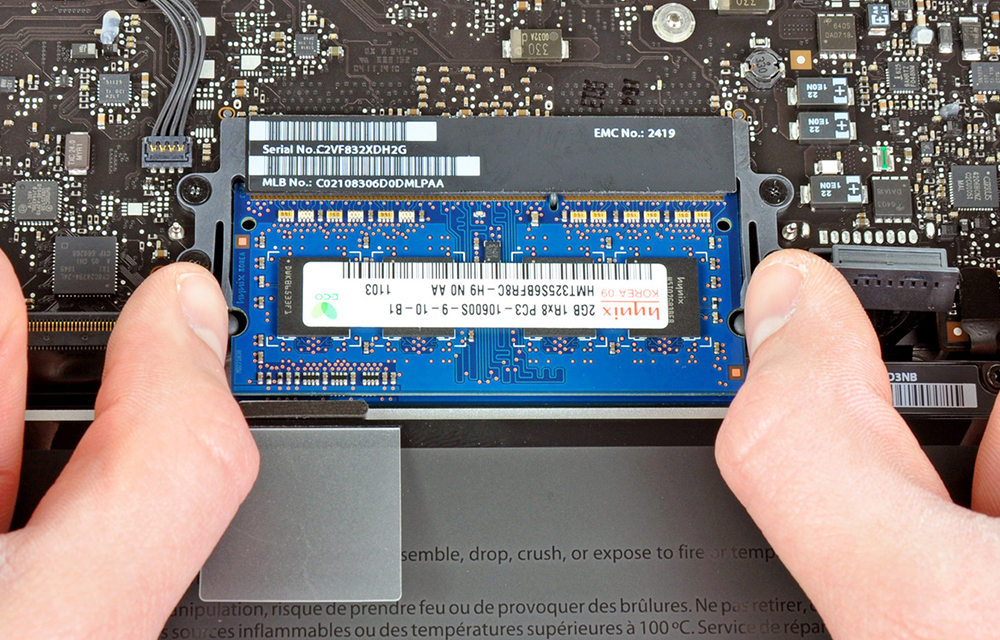
2. Increase RAM
RAM or Random Access Memory is a crucial part of each and every computer. If you are opening your Mac for replacing your HDD with an SSD, going for a RAM upgrade will also be a good option. As it is not that much easy to apply new RAM on modern day Mac books, you may need to consult a hardware technician to do the job for you.
3. Clean your Hard Drive
Cleaning your hard drive means not doing it physically. But, you can do it by some softwares on the market. Disk cleaning softwares can clean up your hard drive by removing the junk files and fixing the corrupted sections. As such corrupted areas can slow down your Mac, it is better to go for a system hardware cleanup using some disk cleanup and defragment tools.
4. Reduce the Startup apps
Startup apps will create a lot of load while the Mac is being booted up. So, disabling unnecessary startup applications can save up some of the resources, and can make Mac boot faster. You can do it by going to System Preferences > Users & Groups and then clicking on the Login Items tab. Then disable the unnecessary apps that causing the system load.
5. Update your OS X
If you have an internet connection to update your Mac OS X to the latest version, it will be good to increase the speed if any bugs are causing the problems. As Apple is being improved day by day, the will be releasing new technologies to make their OS to the best. So, staying latest will be a good idea.
So, these are the five important things that you can do to improve the speed of your Mac. These are the basic things that you could do quickly. So, try them if you have enough money and resources to do so.
More in Mac

Mac running slow? Speed up Mac with these easy fixes
Is Mac running slow? Speed up Mac with these easy fixes: Mac’s are fantastic machines designed for pure productivity. We can’t imagine a slow running mac. It is like a sports car with an old engine. Many people feel Mac won’t slow down. It is a myth and they will go slow down over time.…

GeekTool Is A Rainmeter Alternative To Mac
Customization of the desktop is a habit of some creative people. When it comes to PC customization Rainmeter comes in our mind. Rainmeter is a great program to makeover Windows PC with a ton of great customization option. But sadly Rainmeter is not available for Mac. So GeekTool is a great Rainmeter alternative for Mac. Using…
How To Check CPU Temperature On Mac
Apple Mac machines are very popular among passionate users. They offer many features for video editors, Business people, and students. Upon continuous usage, every machine will heat up, and even Mac’s too. If you are looking to find a way to check CPU temperature on Mac this tutorial will help you. It is pretty easy…
The week in tech, minus the noise.
New reviews, fixes and the stories that matter — once a week, straight to your inbox.
We only use your email to send the newsletter. Unsubscribe any time. See our privacy policy.
Comments