

How to Get MAC Address in Windows
The MAC Address stands for “Media Access Control.” This address is a unique identifier that is assigned to network devices. It is mostly referred to as the physical address. The MAC addresses are 48-bits or 6-byte when it comes to length. They are written in the format of MM:MM:MM:SS:SS:SS. Here, the manufacturer’s ID number are the…

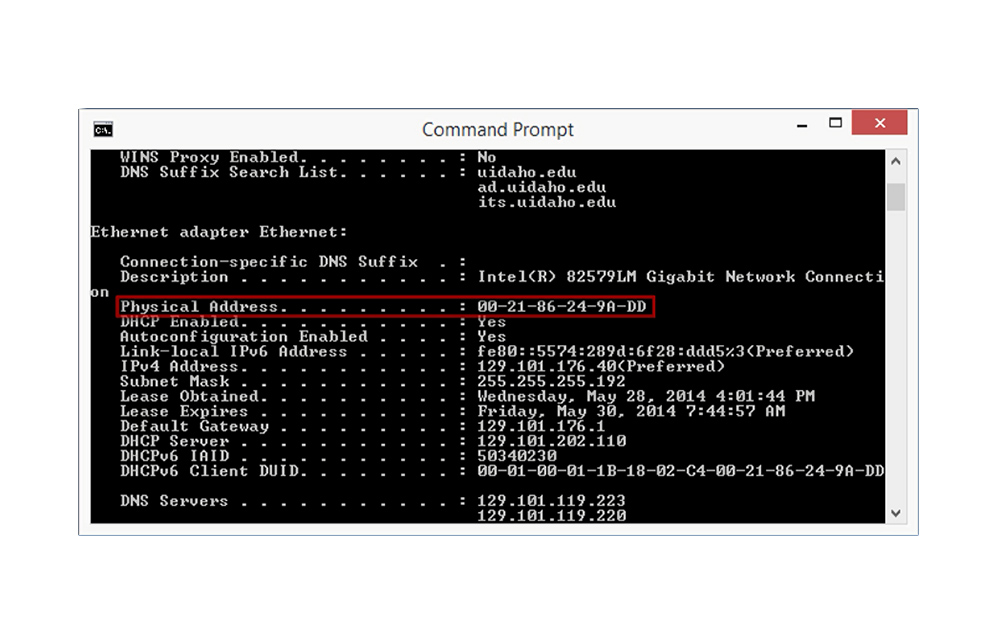
The MAC Address stands for “Media Access Control.” This address is a unique identifier that is assigned to network devices. It is mostly referred to as the physical address. The MAC addresses are 48-bits or 6-byte when it comes to length.
They are written in the format of MM:MM:MM:SS:SS:SS. Here, the manufacturer’s ID number are the first three bytes. This is given by the Internet standards body. For the second three bytes, these are numbers that are given by the manufacturer. Now you know what the MAC stands for and what it is.
If you ever need to look for the MAC Address of your Windows computer, that can be done. Finding a computer’s MAC address in Windows is fairly easy. In this post, we’ll show you two ways on how to do it.
- The first thing you have to do is to click the “Start” button. This can be found at the bottom left of the screen.
- At the bottom, you will see “Search programs and files.” (“Search Windows in Windows 10.”)
- Type “ncpa.cpl” and press Enter.
- Your “Local Area Connection” windows will appear. Right-click on the connected network and choose “Status.”
- Click on “Details.” The “Physical Address” that will show up is your MAC Address.
- And that’s it! You’ve found your MAC Address.
There is another way to do this. Here’s your second option.
- Again, click the Windows Logo on the bottom left corner of your screen.
- In the “Search programs and files,” type “cmd” and press Enter.
- A command prompt window will show up. There, you have to type “getmac” and then press Enter.
- You will see the results there next to “Physical Address.” That is the MAC Address.
Now you have two options on how to get MAC Address in Windows. Simply choose the one that is easiest for you to do and you are good to go.
More in Windows

10 Best Software to Fix Wifi Problems in Windows
I wish that things are sometimes very simple, especially on my PC and smartphone. It’s true that most stuff today is very simple to do, but if you didn’t know, your WiFi can also create some complications that need to be fixed. Also, it’s not just turn on your PC and hope that internet will…

Inky is a Cloud Based Email Client For Windows
Inky Is A Cloud-Based Email Client For Windows: Generally, Windows has a very limited number of Email clients. People normally use Outlook or Thunderbird. Outlook is an enterprise office suite bundled with other apps. Inky is an email client app which offers a very simple user interface with best features. No need to configure email setting…
How to Turn Off Login Password in Windows 10
Securing your computer with a password is one of the most important things you should do. Especially if the system holds your important business documents and personal details. However, sometimes, you may not have such important things that you want to protect and need quick access to the OS without waiting for the login screen.…
The week in tech, minus the noise.
New reviews, fixes and the stories that matter — once a week, straight to your inbox.
We only use your email to send the newsletter. Unsubscribe any time. See our privacy policy.
Comments