

How to Create E-Signatures in Adobe Acrobat
An electronic signature or e-signature is a very useful way to sign documents without printing them. Instead of printing, signing with a pen and scanning the page again, you can add your signature to a PDF in a few clicks. Adobe Acrobat is widely used software that lets you sign PDF documents, and it can…

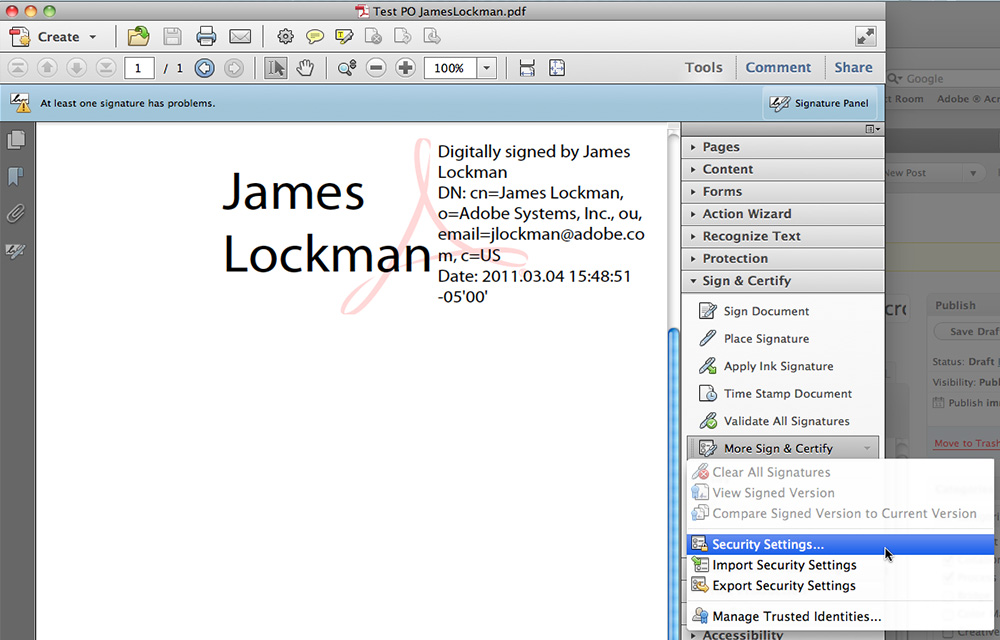
An electronic signature or e-signature is a very useful way to sign documents without printing them. Instead of printing, signing with a pen and scanning the page again, you can add your signature to a PDF in a few clicks. Adobe Acrobat is widely used software that lets you sign PDF documents, and it can also add more secure, certificate-based digital signatures. So, in this guide, we will walk you through the steps to create e-signatures in Adobe Acrobat.
E-signature vs digital signature: what’s the difference?
Acrobat offers two kinds of signatures, and it helps to know which one you need:
- E-signature (Fill & Sign): An image of your signature that you type, draw or upload and place on a PDF. This is what most people need for everyday forms, letters and agreements.
- Digital signature (certificate-based): Uses a digital ID to sign the document. Acrobat can then show whether the file was changed after it was signed. Some businesses, government offices and legal processes require this type.
How to create an e-signature in Adobe Acrobat
This works in both paid Adobe Acrobat and the free Adobe Acrobat Reader on Windows and Mac. Acrobat’s layout has changed in recent versions, so labels may look slightly different on your computer.
- Open the PDF you want to sign in Adobe Acrobat or Acrobat Reader.
- Open the Fill & Sign tool. In the current version, you can find it under All tools, or by clicking the signature (pen) icon in the toolbar.
- Click Add signature (it may appear under a Sign yourself option).
- Choose how to create your signature:
- Type: Enter your name and pick a signature style.
- Draw: Draw your signature with a mouse, touchpad or stylus.
- Image: Upload a photo or scan of your handwritten signature.
- Keep Save signature checked if you want to reuse it later, then click Apply or Done.
- Click where you want the signature on the page. You can drag it to move it and use the corners to resize it.
- Save the PDF. You can also add initials, today’s date or text in the same tool.
How to create a digital ID for digital signatures
The original version of this guide used the Advanced > Security Settings menu, which was from much older Acrobat versions and no longer exists. Here is the current way to create a self-signed digital ID in Acrobat:
- Open Adobe Acrobat and go to Preferences. On Windows, open it from the main menu (or Edit > Preferences); on Mac, it is under the Acrobat menu.
- Select Signatures in the left panel.
- Under Identities & Trusted Certificates, click More.
- Select Digital IDs in the left panel, then click the Add ID button.
- Choose A new digital ID I want to create now and click Next.
- Choose where to store it. New PKCS#12 digital ID file saves your ID in a password-protected file you can back up or move to another computer. On Windows you can also store it in the Windows Certificate Store. Click Next.
- Enter your details, such as name, organization and email address. The name you enter will appear in the signature field of signed documents. You can tick Enable Unicode Support if your name uses non-English characters.
- From the Key Algorithm menu, choose a strong option such as 2048-bit RSA.
- From Use digital ID for, choose Digital Signatures, then click Next.
- Choose a location for the file and set a strong password, then click Finish.
To sign with it, open your PDF, search All tools for Use a certificate, choose Digitally sign, draw a box where the signature should go, and pick your digital ID.
Keep in mind that a self-signed digital ID proves the document hasn’t changed, but it doesn’t prove your identity to others in the way an ID issued by a trusted certificate authority does. If your organization requires official digital signatures, ask your IT team which certificate to use.
How to request e-signatures from others
If you need someone else to sign a PDF, use the Request e-signatures tool in Acrobat. Add the signers’ email addresses, place signature fields on the document and send it. Signers receive a link and can sign in their browser without installing Acrobat. This feature needs a paid Acrobat plan or Acrobat Sign.
Troubleshooting
- Can’t edit the PDF after signing: This is normal. Once a document is signed, Acrobat may lock it to protect the signature. Make changes before you sign.
- Signature shows “validity unknown”: This usually appears for self-signed digital IDs, because the recipient’s Acrobat doesn’t trust your certificate yet. It doesn’t mean the signature is broken.
- Fill & Sign option missing: Update Acrobat to the latest version and check under All tools.
- Forgot your digital ID password: It cannot be recovered. You will need to create a new digital ID.
Frequently asked questions
Can I create an e-signature in Acrobat Reader for free?
Yes. The Fill & Sign tool is available in the free Acrobat Reader. Requesting signatures from others needs a paid plan.
Is an Acrobat e-signature legally valid?
In many countries, e-signatures are legally accepted for most everyday documents, but rules differ by country and document type. For important legal documents, check what is required where you live.
Can I use the same signature on my phone?
Usually, yes. If you are signed in to the same Adobe account, saved signatures can typically be used in the Acrobat Reader mobile app as well.
That’s all you have to do to create e-signatures in Adobe Acrobat. We hope this guide helped you. Please do share your views and feedback in the comment box below. Also, please don’t forget to share the article on your social media.
More in How-to
How to Convert PNG to PDF
Ever wondered how your friend was able to convert those files you sent him from one format to the other? It’s not magic, there are paid and free tools out there that helped him with the file conversions. Conversion from PNG to PDF isn’t a herculean task like many have claimed especially if you know…
How to Convert CAD file to PDF
For professionals in the field of architecture, interior designing, as well as engineering to mention a few, the AutoCAD software makes the job easy to some extent. But then comes the issue of sending samples to clients who may not have AutoCAD installed on their computer. The only way to do that is to convert…
How to Customize Gmail for More Productivity
How to Customize Gmail for more productivity: Gmail is the best Email provider around. You can customize Gmail for more productivity. You can tweak Gmail very easily with simple steps. Follow these steps to grab more from Gmail. Want to set up a signature to your Gmail? hmm line up with your name, website, company,…
The week in tech, minus the noise.
New reviews, fixes and the stories that matter — once a week, straight to your inbox.
We only use your email to send the newsletter. Unsubscribe any time. See our privacy policy.
Comments