

How to Print Email In Easy Steps
There are plenty of reasons to take a hard copy of an email. It is better to go paperless but in some cases a physical printout is necessary. For example, an invoice or a legal document received by email is necessary to take a print out. So, it is necessary to know how to print…


How to Print Email In Easy Steps
There are plenty of reasons to take a hard copy of an email. It is better to go paperless but in some cases a physical printout is necessary. For example, an invoice or a legal document received by email is necessary to take a print out.
So, it is necessary to know how to print an email. So, in this guide, we will focus on the same and will present you different methods to print email.
How to Print In Easy Steps
The printing process of email is most common for all email services. However, we have given detailed steps for popular services like Gmail, Outlook, and Word document.
1. How to print email from Gmail
- Log in to your Gmail account.
- Open the mail that you want to take a copy of.
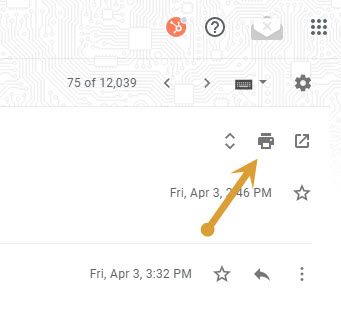
- Click on the “Printer button” on the top right side of the email.
- Press Ctrl+P.
- Choose the printer and other options from the left panel.
- Click on “Print” button.
2. How to Print an Email From Microsoft Outlook
- Log in to your Outlook account.
- Open the mail that you want to take a copy of.
- Click on the “…” three dots menu on the top right side of the email.
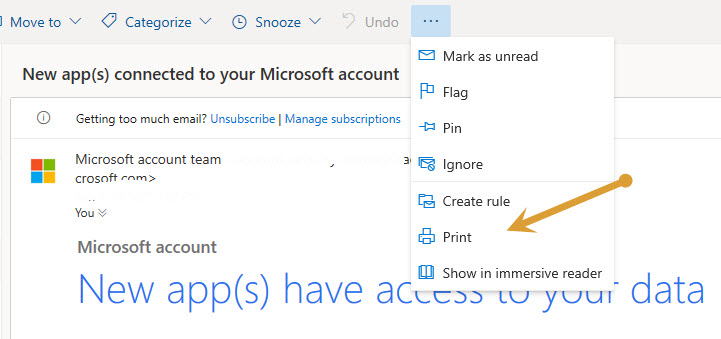
- There you will see “Print” option, and click on it.
- Now, select the printer you installed on your computer and give the print command.
3. Print email using Word
- Login to your Gmail account.
- Open the email that you want to copy.
- Copy all the text either before pressing Ctrl+P or after it.
- Now, open Microsoft Office Word.
- Create a Blank document.
- Paste the copied mail there.
- Change the formatting if needed.
- Press Ctrl+P.
- Choose the printer and change configurations if needed from the left panel.
- Click the “Print” button.
This is how you can print emails. Let us know your valuable feedback in the comment section below.
More in How-to
How to add printers on macOS
Even after digitalizing everything, printers are still used by many. To save paper and trees many services are turned into soft copies which are emails, reports and other computer-related services. But still, somethings can’t be changed like copies of our certificates, reports, contract agreements etc are still needed to be printed. Mac’s are evergreen machines…
How To Remove PDF Password Using Google Chrome
If you are using Internet Banking or any other digital payment system, you would receive monthly statements via email in the form of password-protected files. The file prompts you to enter a specific code in the form of last for digits of your phone number and your last name. The main purpose behind the implementation…
How to Convert CAD file to PDF
For professionals in the field of architecture, interior designing, as well as engineering to mention a few, the AutoCAD software makes the job easy to some extent. But then comes the issue of sending samples to clients who may not have AutoCAD installed on their computer. The only way to do that is to convert…
The week in tech, minus the noise.
New reviews, fixes and the stories that matter — once a week, straight to your inbox.
We only use your email to send the newsletter. Unsubscribe any time. See our privacy policy.
Comments