

Copy and Paste Between iPhone and Mac Not Working? 9 Fixes for Universal Clipboard
You copy a link on your iPhone, walk over to the Mac, press Command + V, and… nothing. Or worse, it pastes something you copied an hour ago. If that sounds like your day, you’re dealing with Universal Clipboard, the Apple feature that’s supposed to make copy and paste between iPhone and Mac feel like…

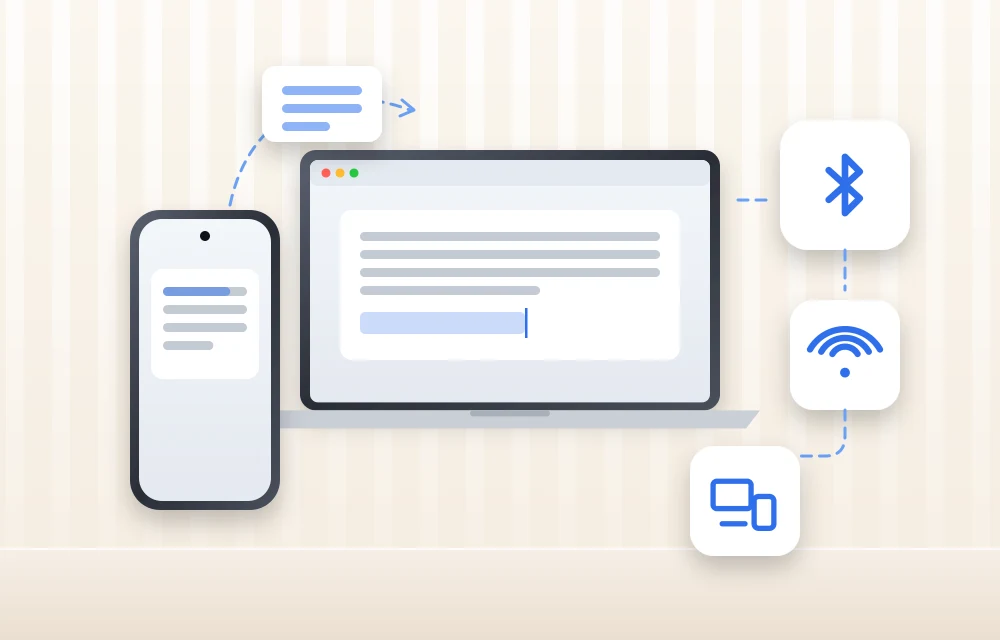
iPhone to Mac Copy Paste Not Working
You copy a link on your iPhone, walk over to the Mac, press Command + V, and… nothing. Or worse, it pastes something you copied an hour ago. If that sounds like your day, you’re dealing with Universal Clipboard, the Apple feature that’s supposed to make copy and paste between iPhone and Mac feel like magic. When it works, it’s brilliant. When it doesn’t, there’s no error message, no warning, nothing to tell you what went wrong. So let’s go through why iPhone to Mac copy paste is not working and how to get it back, one check at a time.
If copy-paste is broken even inside your iPhone, between two apps on the same phone, that’s a different problem. We covered it in our guide to fixing iPhone copy-paste not working between apps on iOS 26. This one is only about moving text, links and images between your iPhone, iPad and Mac.
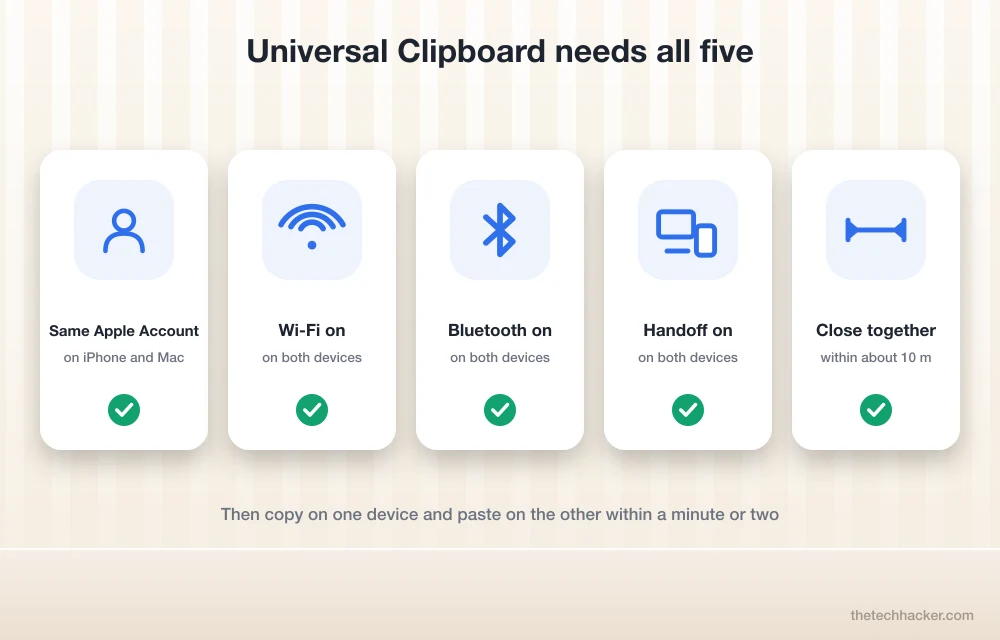
Quick answer: For Universal Clipboard to work, your iPhone and Mac need the same Apple Account, Wi-Fi and Bluetooth switched on, Handoff turned on, and they need to be fairly close to each other. Handoff lives in Settings > General > AirPlay & Continuity on the iPhone, and in System Settings > General > AirDrop & Handoff on the Mac. And don’t wait too long between copy and paste, because the copied item doesn’t stick around for long.
How Universal Clipboard Actually Works
Here’s the thing most people don’t realise. Your clipboard isn’t stored in iCloud and synced all day long. When you copy something on the iPhone, the phone quietly tells your nearby Apple devices over Bluetooth that there’s something new on the clipboard. When you paste on the Mac, the Mac fetches it from the iPhone over a direct wireless connection. So Bluetooth, Wi-Fi, Handoff and your Apple Account all have to play along at the same time. If even one of them is off, it just quietly fails, and you’re left pressing Command + V like it owes you money.
It also explains the time limit. Apple’s support page says the copied content stays on the clipboard only briefly, so if you copy on the iPhone, make a coffee and come back ten minutes later, don’t expect it to be waiting for you.
Why Is Copy Paste Between iPhone and Mac Not Working?
Usually it’s something small. A classic one is two different Apple Accounts, which is easy to miss when someone else set up the Mac for you. Handoff can also get switched off, sometimes by a big iOS or macOS update. Then there’s Bluetooth or Wi-Fi being off on one device, and that includes a Mac on Ethernet with Wi-Fi turned off.
Distance matters as well. Apple’s Handoff page says to keep the devices within about 10 metres (30 feet), so a phone left in the bedroom won’t help a Mac in the study. A big gap in software versions, like iOS 26 on the phone and a much older macOS, can cause it too. And once in a while the clipboard process on the Mac simply gets stuck and needs a nudge.
How to Fix iPhone to Mac Copy Paste Not Working
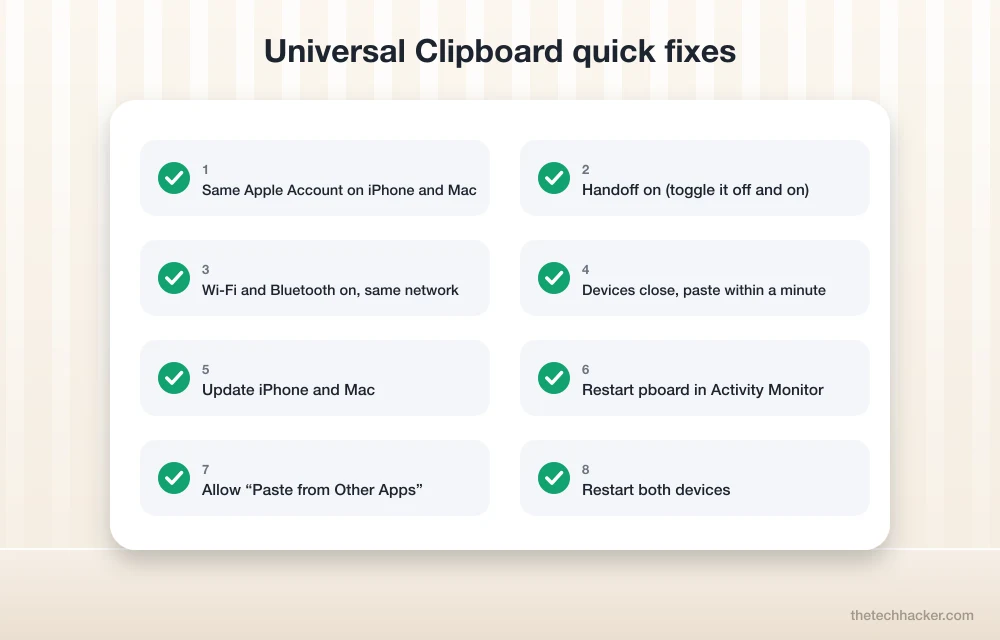
Work through these from the top. The first three cover the usual suspects, so there’s a good chance you won’t need to go further.
1. Check both devices use the same Apple Account
This sounds too obvious, but check it anyway. Tap your name at the top of Settings on the iPhone, then click your name in System Settings on the Mac, and compare the email addresses. They have to match exactly. It’s easy to end up with two different accounts, say an old Gmail address on the Mac and your newer iCloud address on the phone, and then Universal Clipboard, Handoff and even AirDrop between your own devices all stop talking.
2. Turn on Handoff on the iPhone and the Mac
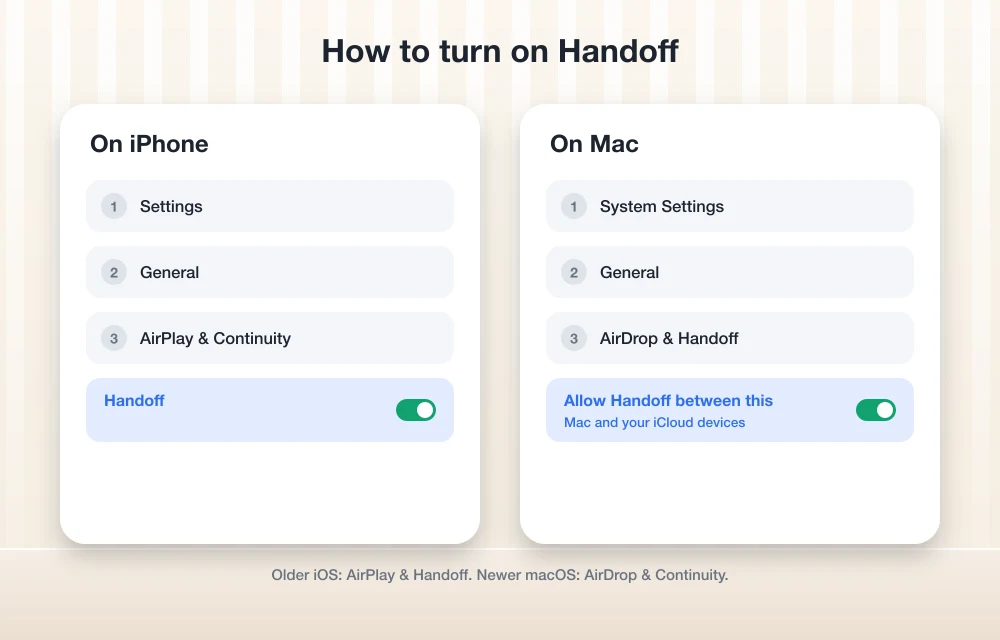
Universal Clipboard rides on Handoff, so if Handoff is off, copy-paste between devices is off too. On the iPhone you’ll find it under Settings > General > AirPlay & Continuity (older iOS calls it AirPlay & Handoff). On the Mac, it’s in System Settings > General > AirDrop & Handoff, or AirDrop & Continuity on newer macOS, where you want “Allow Handoff between this Mac and your iCloud devices” switched on. Already on? Flip both off, count to five, and flip them back on. Weirdly, that often gets things talking again.
3. Turn on Wi-Fi and Bluetooth on both
Both have to be on, even on a Mac that’s plugged into Ethernet. That catches a lot of desk setups, because people turn Wi-Fi off on a wired Mac and never think about it again. While you’re there, put the phone and the Mac on the same Wi-Fi network if you can. A phone on the guest network and a Mac on the main one is asking for trouble.
4. Keep them close and copy-paste quickly
Try it with the iPhone sitting right next to the keyboard. Copy, then paste straight away, within a minute or so. If it works like that but fails when the phone is in the other room, you’ve found your problem, and it’s distance, not settings.
5. Update both devices
Mixing a brand new iOS with a much older macOS (or the other way round) can confuse Universal Clipboard. Several people on Apple’s forums said it broke right after they updated just one device to iOS 26 or macOS Tahoe. So update both, the iPhone from Settings > General > Software Update and the Mac from System Settings > General > Software Update.
6. Restart the clipboard on your Mac
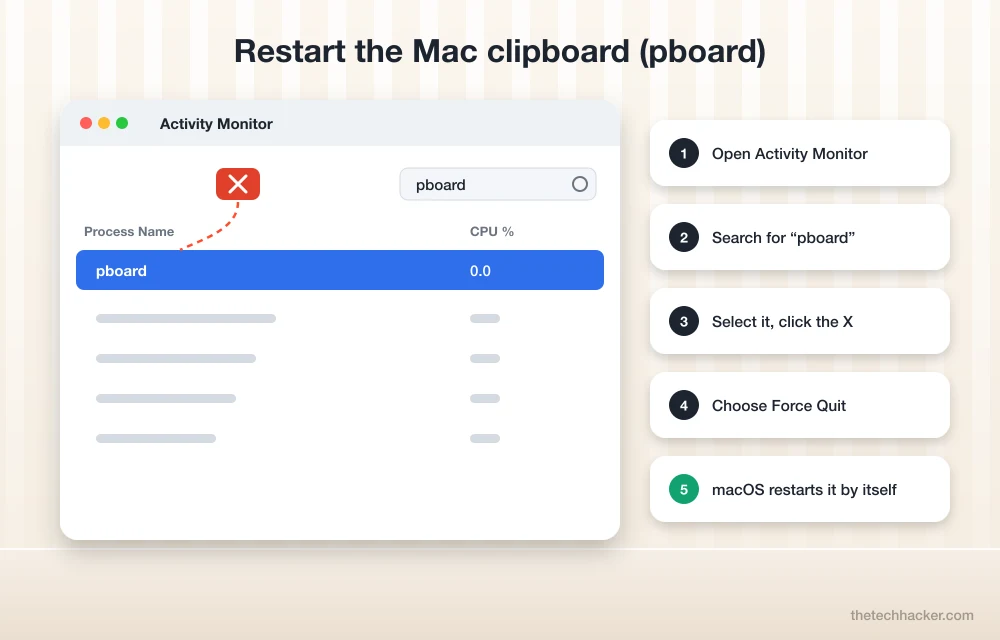
Don’t worry, this one is safe even though it sounds technical. The Mac’s clipboard is handled by a small background process called pboard, and sometimes it simply gets stuck. Open Activity Monitor (Command + Space, type “Activity Monitor”), search for pboard, select it, click the X button at the top and choose Force Quit. macOS starts it again on its own a second later, fresh. Now try copying from your iPhone again.
7. Allow paste permission in the iPhone app
Here’s a sneaky one. Sometimes the copying works, but the app you’re pasting into on the iPhone keeps showing an “Allow Paste?” prompt, or just refuses. Apps have their own permission for this. Head to Settings > Apps, tap the app, and set Paste from Other Apps to Allow.
8. Restart both devices
Old trick, still works. Switch the iPhone off and on, restart the Mac, and try again. Bluetooth and Handoff sometimes just need a clean start.
9. Sign out of your Apple Account and back in (last resort)
Only go here if nothing else helped. Signing out of your Apple Account on one device and signing back in resets how your devices recognise each other. Be careful though, because signing out can take some iCloud data off that device until you sign back in, so make sure everything’s backed up and synced first.
Does It Work Between iPhone and iPad Too?
It does. iPhone to iPad, iPad to Mac, Mac back to iPhone, it’s all the same Universal Clipboard underneath, so everything above applies. One handy test: if copying from iPhone to iPad works fine but the Mac won’t join in, you can stop worrying about the phone and look at the Mac, usually its Handoff or Bluetooth setting.
Using a Windows PC or an Android phone with your iPhone? Universal Clipboard doesn’t work there at all, it’s Apple-only. And if you want to keep your iPhone and Mac in sync in other ways too, see how to clear space when your iPhone storage is full, or how to fix Reminders not syncing between iPhone, Mac and Apple Watch. Wi-Fi acting strange since the update? Our guide on Wi-Fi drops after iOS 26 might help too.
Frequently Asked Questions
Why can’t I copy and paste from my iPhone to my Mac?
Most of the time it’s one of three things: the iPhone and Mac use different Apple Accounts, Handoff is switched off on one of them, or Wi-Fi or Bluetooth is off. Fix those, keep the two close together, and paste right after you copy.
How do I turn on Universal Clipboard?
You won’t find a switch called Universal Clipboard. It comes with Handoff. Turn on Handoff on the iPhone in Settings > General > AirPlay & Continuity, and on the Mac in System Settings > General > AirDrop & Handoff, and Universal Clipboard is on too.
How long does Universal Clipboard keep what I copied?
Not long. Apple only says it stays there briefly, so think of it as a minute or two. Copy something new and the old item is gone anyway.
Does Universal Clipboard need the same Wi-Fi network?
It needs Wi-Fi and Bluetooth turned on, and putting both devices on the same network can help a lot. They should also be near each other, within about 10 metres according to Apple.
Why did copy paste between iPhone and Mac stop working after an update?
Updates sometimes turn Handoff off, or leave your iPhone and Mac on software versions that don’t get along. Update both, switch Handoff off and on again on each device, then restart them.
Final words: Universal Clipboard is one of those little things you never think about until the day it stops. Most of the time the culprit is the Apple Account, Handoff or Bluetooth, and once those are sorted, it quietly goes back to working. If yours is still being stubborn, leave your iPhone model and macOS version in the comments and we’ll have a look.
More in iOS
How to fix iPhone Copy-Paste Not Working Between Apps on iOS 26
Universal Clipboard is one of Apple’s most useful Continuity features, but it does not always work perfectly. On iOS 26, some users have reported a copy-paste failure where the iPhone still copies content, but the Paste option does not appear across apps or devices. In many cases, the issue appears to be linked to a privacy permission…
How to Fix Reminders Not Syncing on iPhone, Mac and Apple Watch
Reminders sync between your iPhone, iPad, Mac and Apple Watch through iCloud. When they stop syncing, it’s almost always because Reminders is turned off in iCloud on one device, the devices are signed in to different Apple Accounts, or your reminders are saved to a non-iCloud list. Check those three things first and most people…
Top 8 File Manager Apps For iPhone To Manage Files On The Go
Recently purchased iPhone or any other iOS device? You may notice that it don’t have any file manager app to browse or manage your files. Apple iOS ecosystem not allows the users to access its internal file system. However, we have few File Manager apps for iPhone, iPad. Don’t worry you don’t need to Jailbreak…
The week in tech, minus the noise.
New reviews, fixes and the stories that matter — once a week, straight to your inbox.
We only use your email to send the newsletter. Unsubscribe any time. See our privacy policy.
Comments