

How to Delete Pending Print Jobs
Pending print jobs can create problems sometimes. If you have a long list of files to print and some of them run into errors, the pending print jobs quickly become an irritation. In many offices, this problem is most common when there is a long print queue. If you don’t clear it in time, it…

Pending print jobs can create problems sometimes. If you have a long list of files to print and some of them run into errors, the pending print jobs quickly become an irritation.
In many offices, this problem is most common when there is a long print queue. If you don’t clear it in time, it creates more confusion and you may end up printing the same pages again. To avoid this kind of situation, Windows gives us simple ways to clear the print queue.
When you print, Windows first saves each job as a temporary file in the “print spooler.” Once you cancel a print job, Windows normally removes it from the spooler automatically.
But in some cases, due to errors or other problems, Windows may not be able to remove the jobs from the queue. Those jobs show a “Deleting” status and stay there until you remove them manually.
So, in this article on how to delete pending print jobs, you will find the complete steps to remove pending print jobs on your PC, starting with the easiest method.
Method 1: Cancel print jobs from the print queue
Always try this first. It works for most stuck jobs.
Windows 11
- Open Settings and go to Bluetooth & devices > Printers & scanners.
- Click your printer, then click Open print queue.
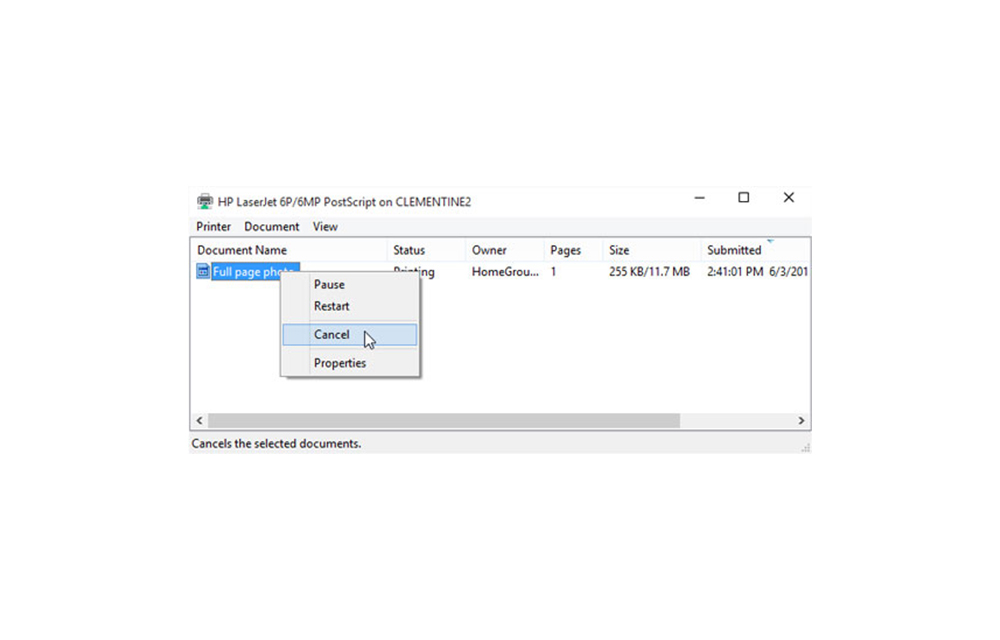
- Right-click a job and choose Cancel, or use the menu at the top of the queue window to cancel all jobs at once.
Windows 10
- Open Settings > Devices > Printers & scanners.
- Click your printer and select Open queue.
- Right-click a job and choose Cancel, or open the Printer menu and choose Cancel All Documents.
Tip: You can also double-click the small printer icon that appears in the taskbar’s notification area while something is printing to open the queue quickly.
Method 2: Restart the Print Spooler and delete the spool files
If the jobs refuse to leave the queue, clear them by hand. You need to be signed in with an administrator account.
- Press Win+R, type
services.mscand press Enter. - Scroll down to Print Spooler, right-click it and choose Stop.
- Press Win+R again, type
%systemroot%\System32\spool\PRINTERSand press Enter. Click Continue if Windows asks for permission. - Delete all the files inside this folder. Do not delete the folder itself.
- Go back to the Services window, right-click Print Spooler and choose Start.
Your print queue should now be empty.
Method 3: Create a one-click script to delete pending print jobs
If this happens to you often, you can save the commands in a small file and run it whenever you need it. The command in the original version of this article was printed on one line, which does not work. Here is the corrected version, with each command on its own line:
- Click on the Start menu, type Notepad and open it. Type or paste the following commands into the Notepad window:
- In Notepad, click File, then choose Save as.
- Set Save as type to All files so Notepad doesn’t add a .txt extension, name the file DeletePrintJobs.cmd and save it on your desktop.
- Right-click DeletePrintJobs.cmd on your desktop and choose Run as administrator. Click Yes when asked.
- Open System Settings > Printers & Scanners.
- Select your printer and click Printer Queue.
- Select a job and click the X button to delete it.
- Restart the printer and your PC: Turn the printer off, wait a few seconds, and turn it back on after clearing the queue.
- Check the connection: Make sure the USB cable is plugged in, or that the printer is on the same Wi-Fi network as your computer.
- Run the troubleshooter: Windows includes a printer troubleshooter. Search for “troubleshoot” in Settings or the Start menu to find it.
- Update or reinstall the printer driver: Download the latest driver from your printer maker’s website, or remove the printer and add it again.
- Check for paper jams and ink: A physical problem with the printer can also keep jobs waiting in the queue.
net stop spooler
del /Q /F %systemroot%\System32\spool\PRINTERS\*.*
net start spooler
This stops the Print Spooler service, deletes the stuck spool files, and starts the service again.
The script will clear the print queue and close automatically when it is finished. It must be run as administrator, because stopping the spooler needs admin rights. Keep the file on your desktop to delete stuck print jobs in future.
How to delete pending print jobs on a Mac
You can also open the queue by clicking the printer icon in the Dock while printing. To cancel every job at once, open Terminal and type cancel -a, then press Return.
Still stuck? Try these fixes
Frequently asked questions
Is it safe to delete files in the spool\PRINTERS folder?
Yes. That folder only holds temporary print jobs. Just make sure the Print Spooler service is stopped first, and do not delete the folder itself.
Why do my print jobs keep getting stuck?
The most common causes are an outdated printer driver, a weak network connection to the printer, or a very large or damaged document. Updating the driver fixes the problem in many cases.
Will clearing the queue delete my documents?
No. It only removes the print jobs. Your original files stay on your computer, and you can print them again.
That’s all you have to do to delete pending print jobs. We hope this guide helped you clear your print queue. Let us know your valuable feedback in the comment section below.
More in Windows
13 Windows Keyboard Shortcuts Everyone Should Know
Keyboard shortcuts are something that designed to reduce the works of the users by providing a simpler way to do complicated tasks. In windows OS, the tasks are much easier when compared to other operating systems in the globe. Even though, a lot of keyboard shortcuts helps the users to increase the productivity of the OS.…

Readiris Corporate 15 Review – Easily Extract Text From Scanned Images
In this digital era, we are dealing with so many digitalized paper formats like an invoice, ebooks in pdf formats, soft copies of documents and other digital documents. Many of us use OCR (Optical Character Recognition) software’s to convert scanned image to text documents. A best OCR software reduces the typing workload and automates the…
How to Fix Windows Hello Fingerprint Not Working After Reboot on Windows 11
Fingerprint login works great during your session but sometimes fails to recognize after a reboot. The sensor goes silent or Windows says it can’t recognize your print. This happens more than it should, especially after updates. Power management, driver glitches, or Enhanced Sign-In Security (ESS) are usually behind it. Here’s how to get it working…
The week in tech, minus the noise.
New reviews, fixes and the stories that matter — once a week, straight to your inbox.
We only use your email to send the newsletter. Unsubscribe any time. See our privacy policy.
Comments