

How to Convert Jpg to Ico
If you’re a PC owner and you’re wondering how your friend was able to use his favorite pictures as icons on his computer, or perhaps you’re a software developer looking to create a new catchy icon for your desktop application, then this post is for you. Why beg someone to do it for you when…


If you’re a PC owner and you’re wondering how your friend was able to use his favorite pictures as icons on his computer, or perhaps you’re a software developer looking to create a new catchy icon for your desktop application, then this post is for you.
Why beg someone to do it for you when you can do it for yourself using the following methods?
Convert Jpg to Ico using free online converters
There are tons of free online tools and converters to help you convert your JPG image to ico.
- Visit OnlineConvert. Navigate to Choose File on the page > Upload your JPG file > input the dimensions in pixels (e.g. 128 x 128) > Convert file. Online Convert resizes your images automatically to a maximum of 256 x 256 pixels if you don’t enter an image dimension. To convert your image to a small .ico format, simply set the dimensions to 16 x 16.
- Visit ConvertICO, to use one of the fastest online converters. Simply click on the cloud icon on the page and upload up to 10 JPG files you’d like to convert to ico and in the twinkle of an eye, your file is automatically converted. Click the downward pointing arrow to download the converted ico
- Visit ZamZar. Navigate to Step 1 to Choose Files > select the JPG files you’d like to convert > on step 2, select ico as the format to convert to > enter your email address if you’d like to receive the converted files in your email inbox > Convert.
- Visit Pic2Icon. On the left side of the page, navigate to upload and upload your file > Set your preferences and filters > generate your icon image > Download.
Convert using this free Chrome app Online Image Converter
Here’s a quick and easy to use Chrome app that allows you to convert images from one format to another.
- Upload an Image File.
- Select ico as the destination image format.
- Enter a size or leave it to be converted to the default size.
- Get your converted image.
Convert using Microsoft Paint
Microsoft paint is a basic image editing app that comes with the Windows operating system. It can be used to convert your JPG image to ico.
- Launch Microsoft Paint.
- Open the JPG image you’d like to convert to ico.
- Navigate to File menu > Save as > BMP picture > enter a file name and type .ico at the end (e.g. mypictureconvert.ico) > Save.
To resize the image to your desired size, navigate to Images on the menu bar > Attributes > enter image dimensions > OK.
Also, check out how to convert your JPG files to PDF or your PNG files to PDF.
More in How-to

How to Convert JPG to PDF
In the past, a lot of people found it difficult to convert files into different formats owing to the unavailability of conversion applications. Advancements in technology have brought those difficulties to an end, and people can now convert files from one format to the other effortlessly. Converting JPG files to PDF is as easy as…
How to convert WEBP images to JPG or PNG formats on Windows 10
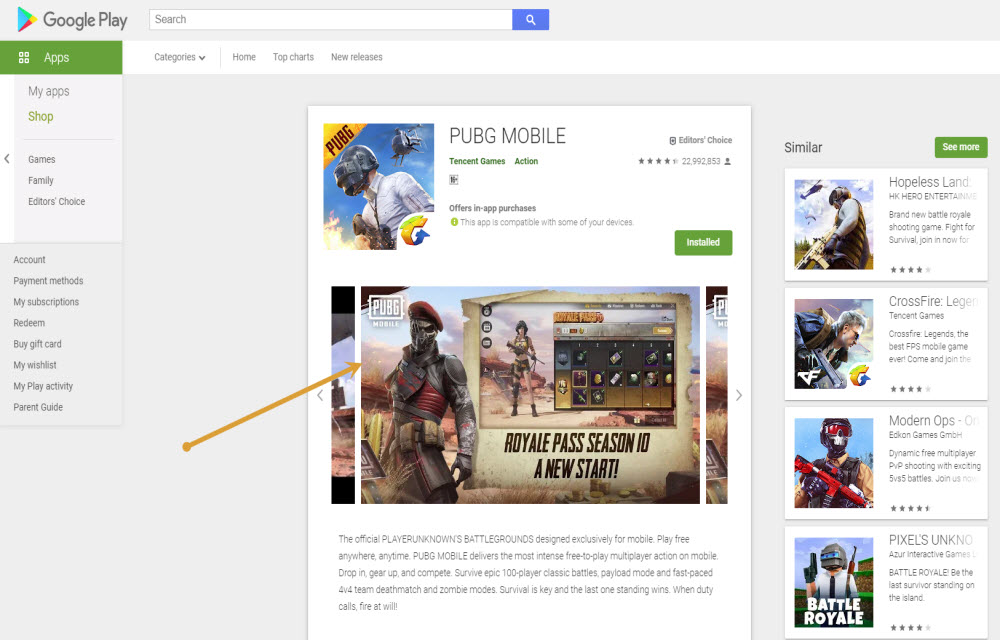
WEBP format is developed by none other than Google and it is largely used on Google-related services. If you visit the Google Play store and try to save the app screenshots on the computer then it will be saved as WEBP format. If you compare with popular image formats like JPG and PNG, WEBP format…

How to convert videos into GIFs on WhatsApp?
WhatsApp is a popular messaging application. The Facebook-owned company has been adding new features from time to time to provide an impressive user experience. In 2016, the messaging app was reloaded with the long pending video call capability. The latest development is that the WhatsApp has been updated with the ability to create GIFs from…
The week in tech, minus the noise.
New reviews, fixes and the stories that matter — once a week, straight to your inbox.
We only use your email to send the newsletter. Unsubscribe any time. See our privacy policy.
Comments