

How to Retrieve Data From an Android Phone With A Broken Screen
No matter how careful you are, your mobile phones are prone to falling to the floor, and the chances of the screen getting cracked are dependent upon factors like the height from which it fell, and if it landed face down.

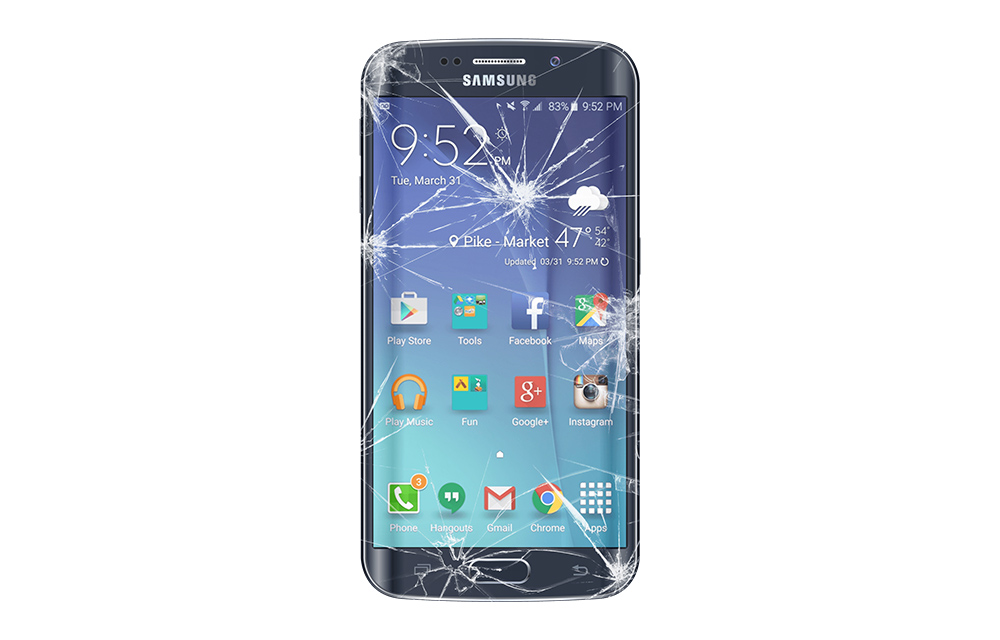
No matter how careful you are, your mobile phones are prone to falling to the floor, and the chances of the screen getting cracked are dependent upon factors like the height from which it fell, and if it landed face down.
If this as happened to you, and you’ve got valuable data which you’d like to retrieve from the phone, but you can’t because the screen has become unresponsive, this step by step guide is for you.
How to recover data from your Android phone with a broken unresponsive screen
Part 1
To start fixing the broken screen, you’ll need
- A USB OTG (USB On-The-Go) cable,
- A mouse (Most Android smartphones support the use of an OTG cable and a mouse on it),
- A laptop or desktop computer.
Got all the tools ready?
- Connect the OTG cable to your Android phone’s USB port and plug in the mouse to the OTG cable. The mouse pointer will appear on your screen.
- Simply draw your pattern, enter your pin or your password to unlock your phone as the case may be (regard your mouse pointer as your finger).
If the USB Debugging option has already been turned on before on your Android phone, then you can simply plug in a USB cable to the phone and connect it to a computer to retrieve your files. However, if the USB Debugging option isn’t turned on, follow steps 3 to 4 to turn it on. - Using the mouse pointer, tap the app drawer button > locate the “Settings” menu on your phone > scroll down and tap “About phone” > tap on “Build number” about 5 – 7 times (stop when you get a pop-up message that “USB debugging is now enabled”).
- Tap the back button to go back to “Settings” > scroll down and tap “Developer options” > tap the “USB Debugging” option and turn it on.
You’ve successfully turned USB Debugging on. Now connect your phone to your computer using your USB cable.
How to recover data from your Android phone with a broken or blank screen
Part 2
If the situation comes to a point where you can only see a tiny portion or none of your screen, here’s how to recover data from your phone with a broken blank screen.
Get the following tools.
- An HDTV Adapter with OTG and Card Reader (aka HDMI Connection Kit)
- An HDMI cable and an HDMI-enabled TV
- A mouse.
If perhaps your Android phone has an HDMI port, then there’ll be no need for the HDMI Connection Kit.
- Turn on your HDMI TV and connect the HDMI cable you plugged to the HDTV adapter.
- Plug in your mouse to the HDTV adapter.
- Connect the HDTV Adapter to your phone which and turn it on.
WOW! You’ve successfully mirrored your phone’s screen to your HDMI enabled TV.
Follow the steps in Part 1 to retrieve your files.
You can also add an external SD Card to the SD Card Slot on the HDTV Adapter with OTG and Card Reader, and move all your files to it.
More in Android
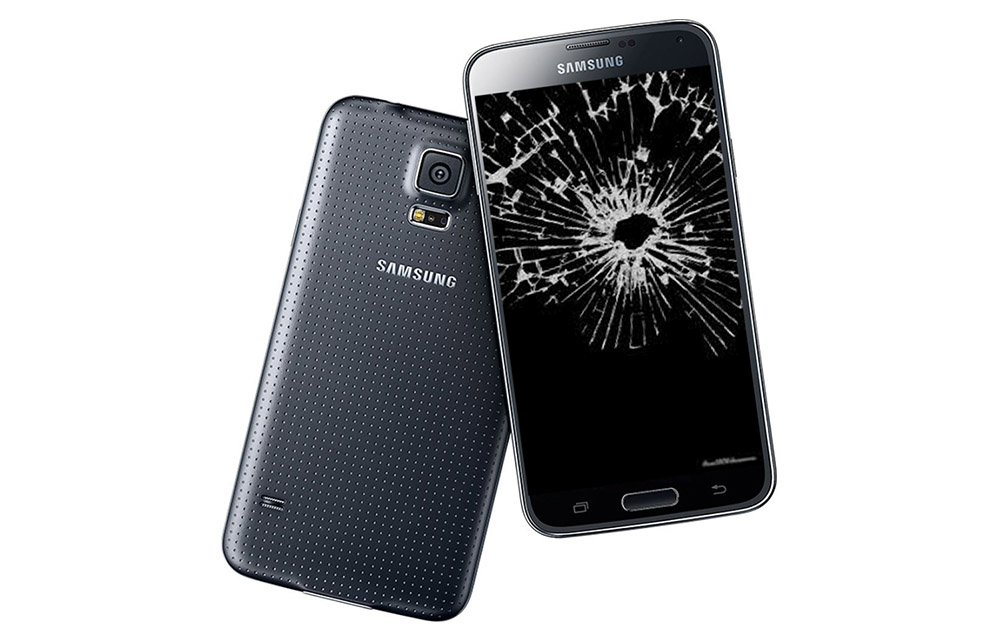
How to Get your Data Back from a Broken Android Device
Android devices are very common these days. Like that, the damages to those Android devices are also plenty. The careless usage, or accidental drops either make few scratches and in the worst cases, can even break your screen which makes it completely unusable. In such situations, any operations can’t proceed on the device because even…

How to Recover Deleted Messages from Android Phone
Today, a lot of individuals are using the Android-powered smartphone or tablet to enjoy its efficient features. When it comes to the mobile phones, sending messages is the most common feature used my several people. Messages are a very simple and easy to reach the way of communication to inform something to someone. Unfortunately, at…
Must Have Apps For Rooted Android Devices
Rooting your Android means you are unleashing its hidden superpowers. If you want to know what the benefits of rooting Android are, it is clear: you can access unavailable features of Android like WiFi and Bluetooth Tethering, performance updates, a better keyboard, etc. But before starting, you must be aware of the disadvantage of rooting…
The week in tech, minus the noise.
New reviews, fixes and the stories that matter — once a week, straight to your inbox.
We only use your email to send the newsletter. Unsubscribe any time. See our privacy policy.
Comments