

Easy Way To Take Webpage Screenshot In Microsoft Edge
Every Windows users are aware of Edge Browser. Microsoft launched the Edge browser exclusively for Windows users with advanced browsing features. It is a Microsofts big step towards the browser are with great features like better PDF reading support, a narrator for address bar and bug fixes. But coming to screenshot features, Microsft hasn’t added…


Easy Way To Take Webpage Screenshots in Microsoft Edge
Every Windows users are aware of Edge Browser. Microsoft launched the Edge browser exclusively for Windows users with advanced browsing features. It is a Microsofts big step towards the browser are with great features like better PDF reading support, a narrator for address bar and bug fixes.
But coming to screenshot features, Microsft hasn’t added a particular option or shortcut to take. But you can take screenshots quickly using below steps.
Take Screenshot In Microsoft Edge Using Built-In Tools
- First, open the website or web page you want to capture.
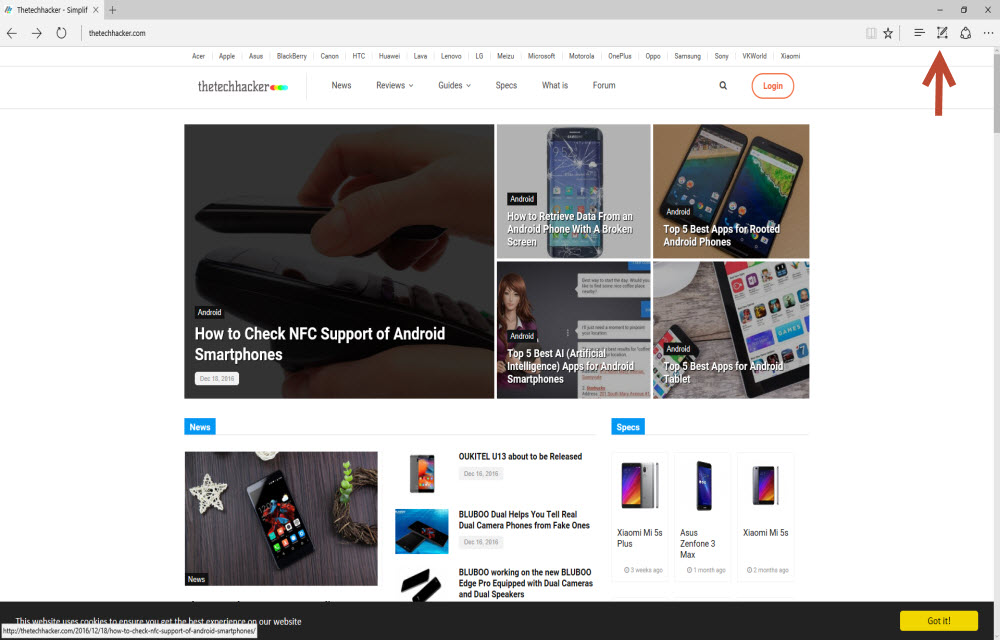
- Here, click on the pencil and selection icon present on the top right corner of the browser.

- If you want to take a full page screenshot of the page, click on the “Save” icon in the purple menu bar.

- Or if you are looking to take a portion of the window, click on the scissor icon in the top left the menu.

- Click on any of the above options will let you take a screenshot, it will darken the image and show “Drag to copy region.”
- Here, the darkened area is your unwanted section and highlighted portion would be the screenshot section.
Using External Tools To Take Screenshot In Microsoft Edge Browser
There are some tools available to take a screenshot in Microsoft Edge Browser. Using these tools you can take any screenshot easily. Here, I want to mention two good tools; one is paid, and another is a free program.
Snagit
Snagit is a very popular tool available to take screenshots. Apart from the screenshot feature, you can record on-screen video too. The program has robust features which make simple to take screenshots. To avail its features, you have to pay $49.
Greenshot
Greenshot is a free tool for screen capturing. It is packed with best features to capture a window or fullscreen.
More in Internet

10 Best Mozilla Add Ons
One of the prominent reasons why users love Mozilla Firefox is its huge collection of Add-Ons. In comparison, Firefox does not each much RAM, either. We think these are enough for any user to shift from Google Chrome or Edge to Firefox, which is available for Windows, Mac, and Linux. Plus, you have all the…
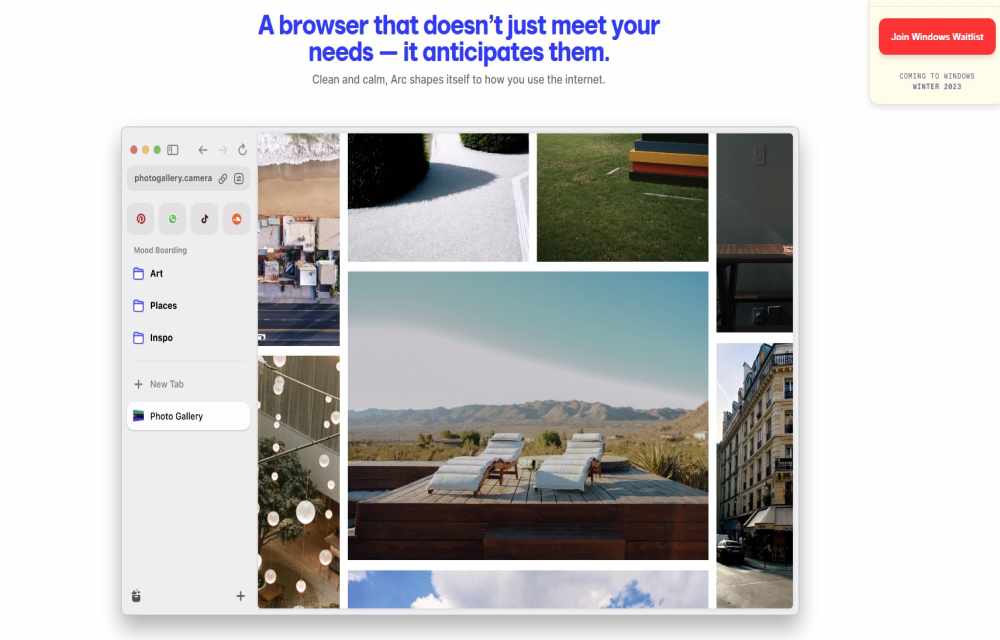
What is Arc Browser? Why it is so popular?
When choosing a web browser for your Mac, you have plenty of options like Safari, Chrome, Firefox, and Edge—familiar choices that have held the fort for years. Yet, these browsers, despite their familiarity, have largely remained unchanged in their design and functionalities. However, the Arc browser by The Browser Company seeks to redefine the browsing…

Fixing Slow Internet Connection Speeds | 5 Fast Ways To Speed Up My Internet
If you’re wondering about how you might be able to speed up your slow Internet connection, then there are several easy, helpful options for you to consider. Having a slow, stuttering Internet connection can be a real pain; especially for those who are trying to do business, play immersive games and stream videos. While we’re…
The week in tech, minus the noise.
New reviews, fixes and the stories that matter — once a week, straight to your inbox.
We only use your email to send the newsletter. Unsubscribe any time. See our privacy policy.
Comments