

How to Set Passcode on iPhone, iPad, and iPod Touch
Apple devices are coming with pretty good security features. The Passcode is one such feature that lets users set a specific access number to their iPhone, iPad or iPod Touch devices. If you’ve just purchased a new iPhone and setting it up for the first time, and you missed the passcode part, you can still…

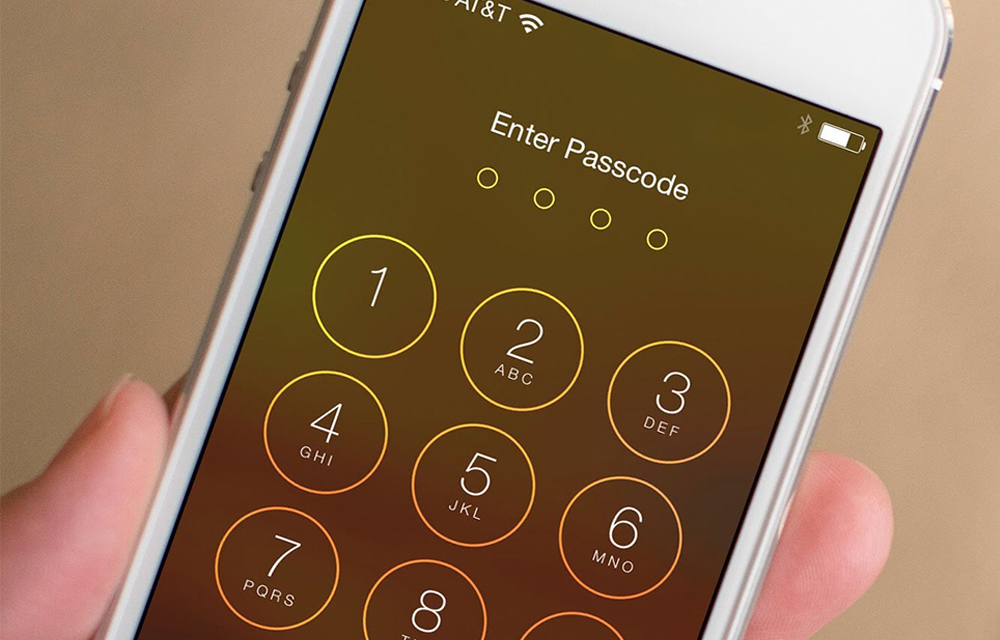
Apple devices are coming with pretty good security features. The Passcode is one such feature that lets users set a specific access number to their iPhone, iPad or iPod Touch devices. If you’ve just purchased a new iPhone and setting it up for the first time, and you missed the passcode part, you can still do it by following some simple steps as given in this article. Just make sure that you carefully follow all the instructions listed below. If you do so, you can successfully set passcode on iPhone, iPad or iPod Touch devices in your hand.
Note: Be cautious when setting a new passcode on your device. Note it down somewhere safe. In case you forget it in future, you can look back to the note to unlock your Apple device without going for a password reset. So, be sure to back it up.
How to Set Passcode
- Go to Settings > Touch ID & Passcode. If the Touch ID is not available in your device, go to Settings > Passcode.
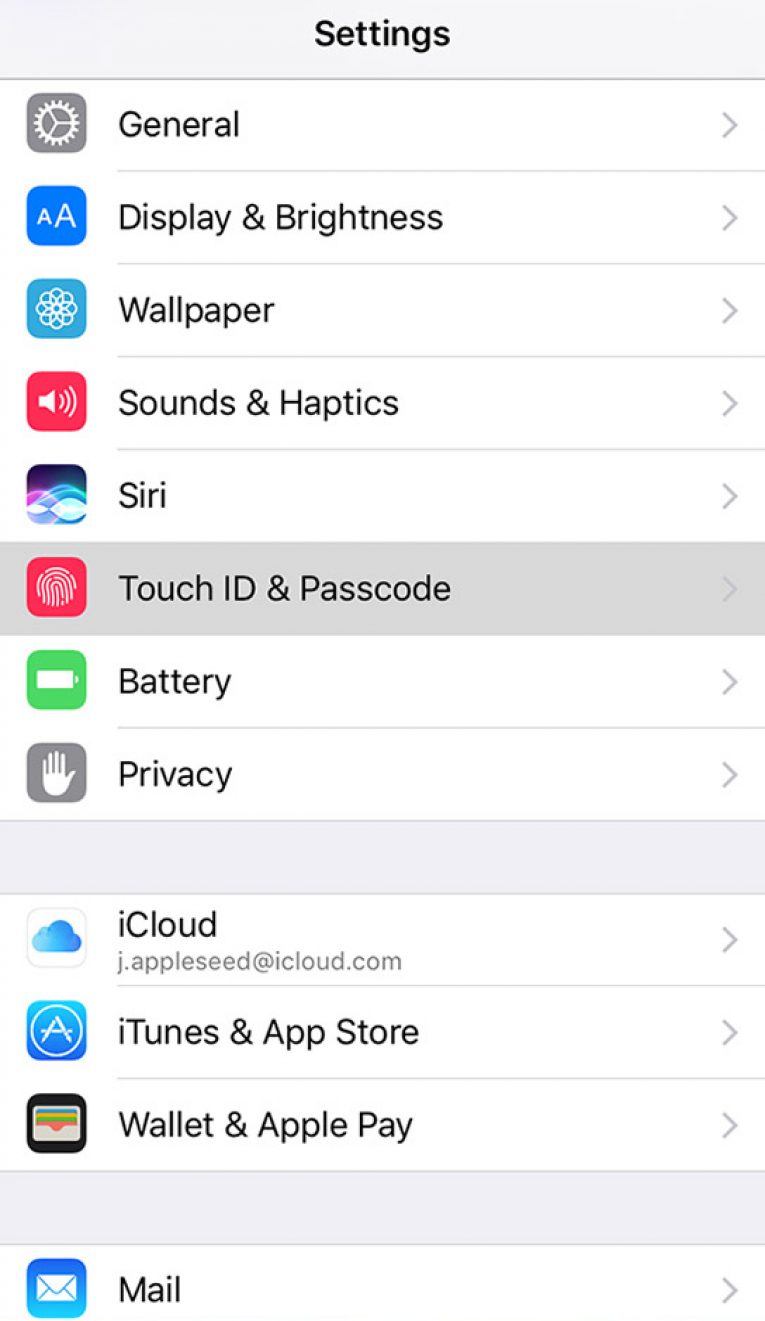
- Tap the Turn Passcode On option.
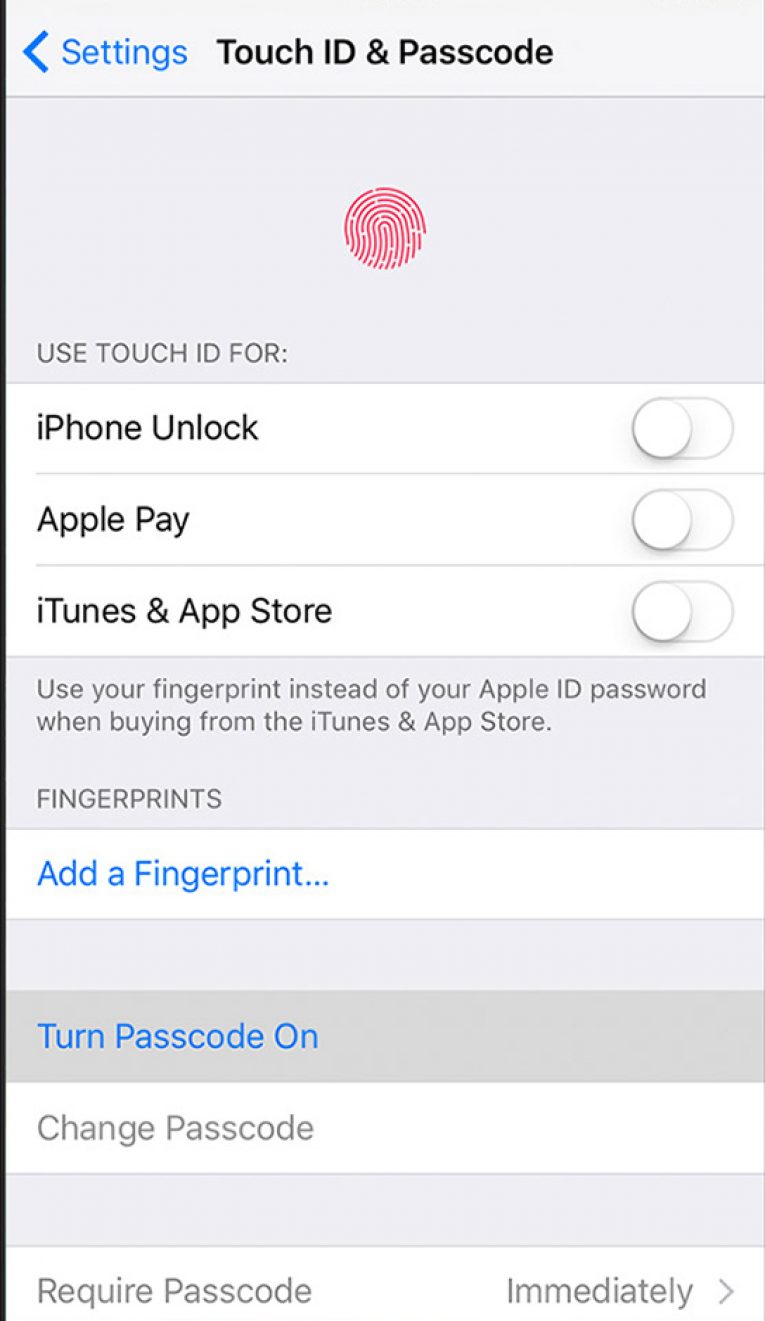
- Now, enter a six-digit passcode you wish to set. You can also set any four-digit numeric code, a custom numeric code, or a custom alphanumeric code by tapping “Passcode Options” on the screen.
- Confirm the passcode by entering it again.
- Now the passcode is successfully activated on your iPhone or other Apple devices.
A Quick Look at the Passcode settings
Go to the passcode settings screen as you have done before. Here, we have few configurations which can be tweaked as per your needs. Let’s give a quick look at them.
- Turn Passcode Off: At any point, you want to disable the passcode of your Apple device, this does the job within a tap.
- Change your passcode: If you ever felt bored of the current passcode or wanted to strengthen it for better security, you can use this option. You can also change the passcode mode from this option. It is recommended to change your passcode frequently in order to protect it from others.
- Require Passcode: Usually, after setting a passcode on your iPhone or other Apple devices, you need to enter your passcode to unlock the screen each time. If you feel this annoying and boring to type it every time, you can simply turn off this feature. But, always make sure that your device is safe with you and no one else has easy access to it.
- Allow Access When Locked: This option to lets you use features including Today View, Notifications View, Siri, Reply with Message, Home Control, and Wallet when your device is locked.
- Erase Data: If your device got stolen and you want to delete all your data after ten failed passcode attempts, just turn on this feature. But make sure that you have the backup before turning this ON.
Now you know almost of the passcode features in your lovely iPhone, iPad, or iPod Touch devices. You also learned how to set a passcode on them. If you need further assistance, use the following comment section.
More in iOS

How to Text or Message from your Mac using iOS Devices (iPhone, iPad, etc.)
Even the domination of the touch screen had already happened, the 2 fingers can never beat the power of the 10 members in your hand. So, texting will be easier from your traditional Mac keyboard than the iPhone, iPad or iPod touch screens. If you ever wanted to find an easy solution for sending texts…
How To Set Up Touch ID Fingerprint Scanner on iPhone
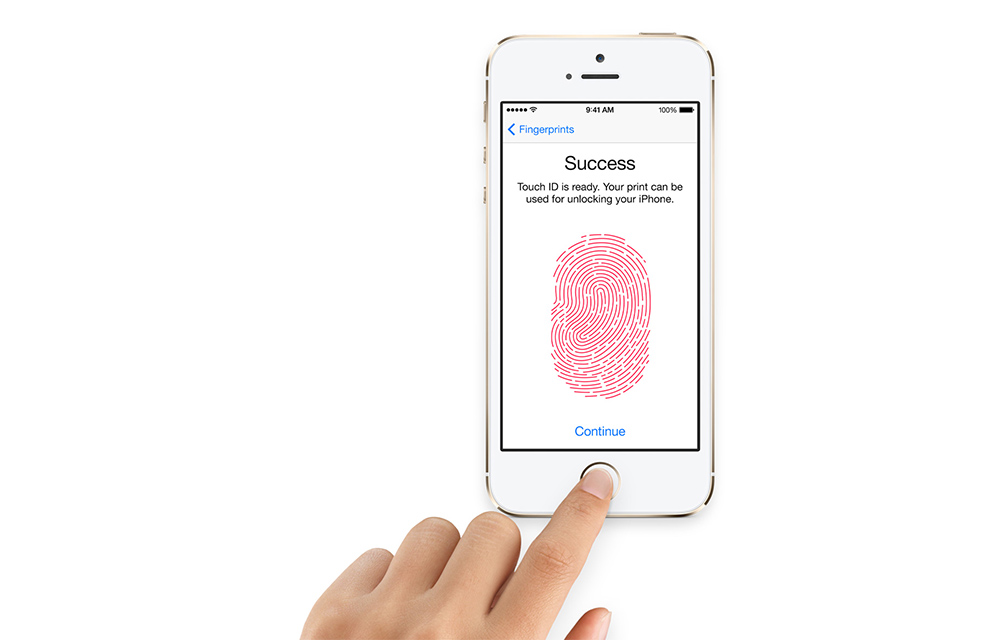
Touch ID in iPhone is one of the most known and secure ways to lock your iPhone from external threats. If you haven’t already set up the Touch ID during the initial iPhone setup, you can do it anytime. It is always easy to use your own fingers to unlock your lovely device. You can use…
Top 8 File Manager Apps For iPhone To Manage Files On The Go
Recently purchased iPhone or any other iOS device? You may notice that it don’t have any file manager app to browse or manage your files. Apple iOS ecosystem not allows the users to access its internal file system. However, we have few File Manager apps for iPhone, iPad. Don’t worry you don’t need to Jailbreak…
The week in tech, minus the noise.
New reviews, fixes and the stories that matter — once a week, straight to your inbox.
We only use your email to send the newsletter. Unsubscribe any time. See our privacy policy.
Comments