

Speed Up GTA V in Windows 10 and Fix Game Lags
Admit it. GTA V is a very popular open world game. And gamers simply love to play GTA V on Win10 machine. But sometimes excessive lags and stutters in GTA V hurt you. Every Windows user should follow these steps in order to fix game lags in GTA 5. How To Speed Up GTA V in…

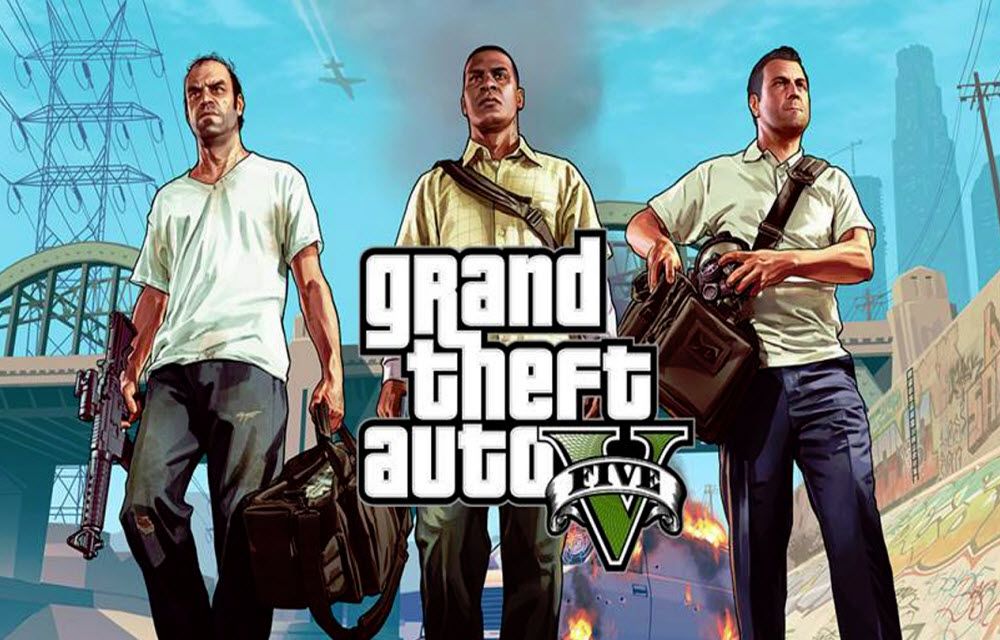
Speed Up GTA V in Windows 10 and Fix Game Lags
Admit it. GTA V is a very popular open world game. And gamers simply love to play GTA V on Win10 machine. But sometimes excessive lags and stutters in GTA V hurt you. Every Windows user should follow these steps in order to fix game lags in GTA 5.
How To Speed Up GTA V in Windows 10
Step 1. Stay Away from Weird Programs
Yes, it’s a pre-requirement. Stay away from weird programs, automatic email signers, or products to keep your system oh-so-wonderfully safe. Unless the software comes from a well-reputed company (like Microsoft) whom you trust most and you know exactly why you need it, do not install it. Don’t let the products that claim to clobber imaginary infections fool you. If you’ll, you end up with a never-ending barrage of hassles and hustles. Win10 goes a long way in culling the junk, but still problems persist. Download these programs:
DirectX
- Visit https://www.microsoft.com/en-us/download/details.aspx?id=8109 and download DirectX.
Visual C++
- Visit https://www.microsoft.com/en-us/download/details.aspx?id=5582
- Select language (your system language. English, for example)
- Click Download.
Rockstar Social club
- Visit http://patches.rockstargames.com/prod/socialclub/social%20club%20latest%20setup.exe. It prompts you to download the application.
- Click Save and later install it.
Step 2. Update Your Graphics
First thing first: What sort of graphics you’re running? Check this out by right-clicking on your Desktop and selecting Personalize > Display Settings.
Remember: GTA V is a hardware-intensive game. It uses a most powerful high-resolution graphics technology available. Updating your graphics driver solves most video woes. Two companies constantly introduce newer, more powerful chips: Nvidia and AMD.
Nvidia
- Launch Internet Explorer.
- Visit: http://www.nvidia.com/Download/index.aspx?lang=en-us
- Found the grey-colored Graphics Drivers button? Click it. It starts scanning your system.
It happens sometimes that your scan shows no results. If that happens, download Java runtime environment (which is very important to run the scan).
AMD
- Visit http://support.amd.com/en-us/download
- Click Download Now (right in the Automatically Detect and Install Your Driver).
- Downloaded? Install this app to get the latest drivers for your graphics.
Step 3. Disable Power Saving Mode.
A low-power usage plan equals lower power consumption. This plan slows down your processor to maximize the battery life. (You can use this if you work primarily with non-graphics-intensive apps, such as Word and Outlook.) For GTA V, you have to disable it. Here’s how:
- Click Start. Search Power Options. Open it.
- Now find Show additional plans. Click it to collapse its panel.
- Now check High performance. It needs you to restart your system.
Step 4. Lower the Settings
It should be your last option. If none-of-the-above-mentioned steps worked your system isn’t fit enough to run GTA V at its default settings. You’ve to lower the settings. Don’t worry, this will not harm you. It is recommended you also turn unwanted services off. You can use the Game Boost feature of RegInOut System Utilities to speed up GTA V and fix its lagging problem.
Follow these steps:
- Download the settings file
- Copy that file on your Desktop.
- Open dxdiag from Start menu.
- Now move to Display tab. Find out the name of your graphics driver (the same way I did).
- Now open setting file you saved on your Desktop. Edit it with Notepad++ (or any text editor readily available).
- Scroll down. Found VideoCardDescription? Change its name (refer to step 4)
- Here you go! Save your file and copy it here: %userprofile%\Documents\Rockstar Games\GTA V
More in Gaming
10 Best Action Games for PC
A term ‘action’ in video games industry is a very broad term. When speaking about video games, an action is usually used if the certain game contains elements of shooting, fighting or even driving. Action games are usually symbiosis of two or more elements aside of action, so we have action-adventure games, action RPG games,…
Advantages and Disadvantages of Gaming Laptops
We are experiencing so many interesting games coming for Windows Platform. PUBG is the best example of it, it is an exclusive title for Windows and not available for PS4 or Xbox. The trend of gaming increases day by day not in the gamers but also for in the organizations, schools, and workers. Because of…
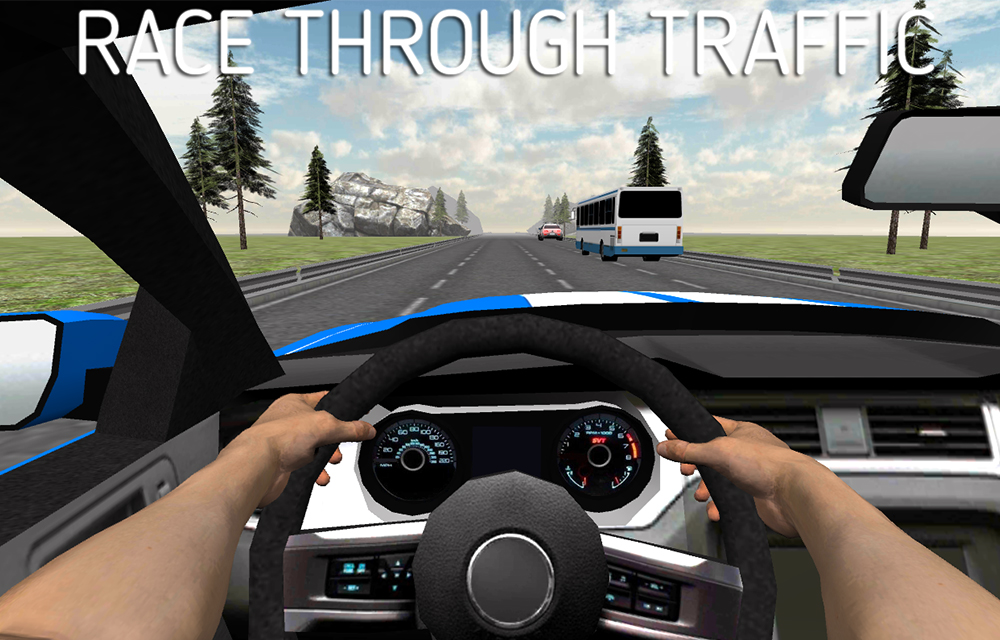
Traffic Racing – Drivers View: Game Review
Traffic Racing is a game where you control the vehicle by sitting behind the steering. You could drive through the high traffic roads and control your vehicle seamlessly. You will be rewarded as long as you drive without hitting other vehicles. You will also get rewarded for near-misses. The points will be rewarded as coins…
The week in tech, minus the noise.
New reviews, fixes and the stories that matter — once a week, straight to your inbox.
We only use your email to send the newsletter. Unsubscribe any time. See our privacy policy.
Comments