

Steps Required To Batch Uninstall Windows 8 Default Apps using PowerShell
Windows 8 created huge waves among people with the brighter user interface coupled with Metro screen. Even though Windows 8 is outdated, the operating system is still used by several people across the world. If you had worked with Windows 8, you would know about few default apps that will serve your daily requirements. If…

Windows 10 Powershell
Windows 8 created huge waves among people with the brighter user interface coupled with Metro screen. Even though Windows 8 is outdated, the operating system is still used by several people across the world. If you had worked with Windows 8, you would know about few default apps that will serve your daily requirements.
If you install third-party apps, the default apps will occupy plenty of space on the Metro screen. If you need not require the default apps and are not using them on a daily basis, you can batch uninstall them with Powershell. It is possible to manually uninstall each app. However, it will be time consuming and tedious task. Hence, it is advisable to make use of PowerShell script, which will be capable of uninstalling the apps quickly.
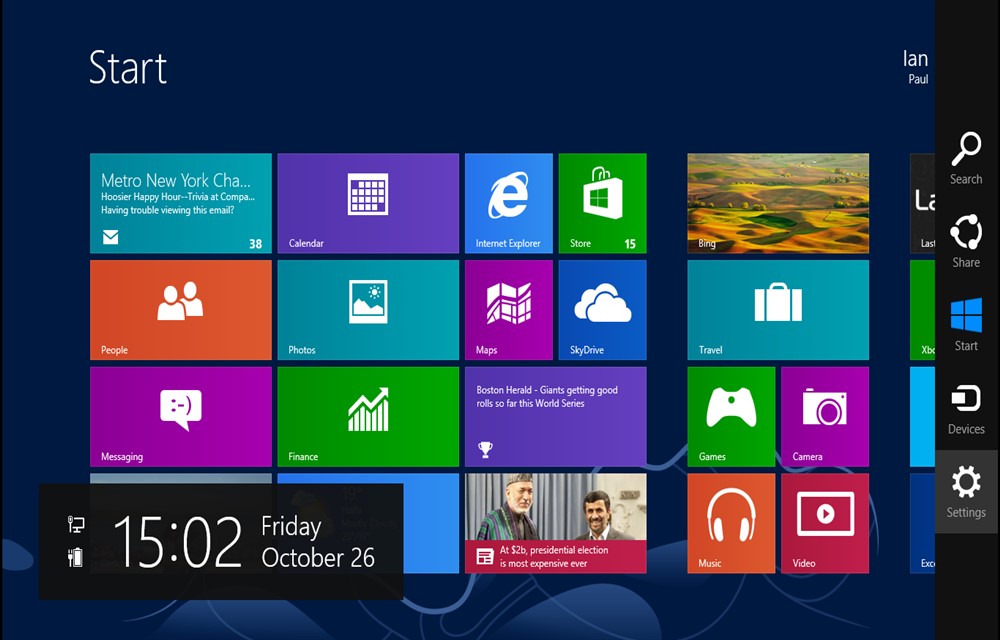
To batch uninstall Windows 8 default apps, you need to navigate to the Windows 8 start screen and search for Powershell. You should right click on Windows PowerShell and select Run as Administrator option. You then need to provide the required permission for Windows 8 to run PowerShell as an Administrator by providing the below command
Get-AppxPackage –AllUsers
The main purpose of the above command is to load all the data on the default applications pre-loaded with Windows 8. The batch uninstall process will start as soon as you type in the following command.
Get-AppxPackage –AllUsers | Remove-AppxPackage
The execution of the above command will take few minutes to complete depending upon your system speed. If you have a system with latest processor, it will run fast. Otherwise, it will take few minutes to complete. You should note that there is no script available that enable you to select the default apps that are uninstalled using Powershell.
Alternative Method
You can also remove the default programs by using a program called Windows 8 App Remover, which is a desktop program used to automate the process of uninstalling modern UI apps.
You will be able to remove the apps with just a few clicks. The tool is compatible with Windows 8, Windows 8.1 or Windows 8.1.1. You will view a list of all the apps installed on Windows 8. You need to select the checkbox alongside each other and select the Remove Apps button.
You might also like
How to fix application was unable to start correctly 0xc0000018 error in Windows
This application was unable to start correctly 0xc0000018 error in Windows error appears when launching an app and usually closes the program with only an OK button. In most cases it is fixable with a few steps. Follow the sequence below from simple to advanced, and stop once the error disappears. Always reboot and test…
How to Remove Unwanted Built-In Apps from Android Device
Many smartphone manufacturers are installing their default apps and sponsors apps on their devices. Only a few of them are useful, and many are consuming a lot of space on your device without productivity. Nowadays every Android phone comes with built-in apps; most probably they are not required by regular usage. These apps consume a lot…

How To Fix Microsoft Store Error 0x80D03805 In Windows 10
Microsoft Store Error 0x80D03805 is a kind of error we usually get when trying to download or update an app from Microsoft store. It is the most common error according to the reports available online. Many people are searching on the Internet to get a fix for this issue. In case, if you faced this…
The week in tech, minus the noise.
New reviews, fixes and the stories that matter — once a week, straight to your inbox.
We only use your email to send the newsletter. Unsubscribe any time. See our privacy policy.
Comments