

How to Set up Guest Mode on Chromecast
Chromecast guest mode allows users to cast their favourite media to the Chromecast without any complicated setup. During a gathering, you or your friends can show off their favourite videos to all of the people in the room. All you have to do is setting up the guest mode on the Chromecast as a host…

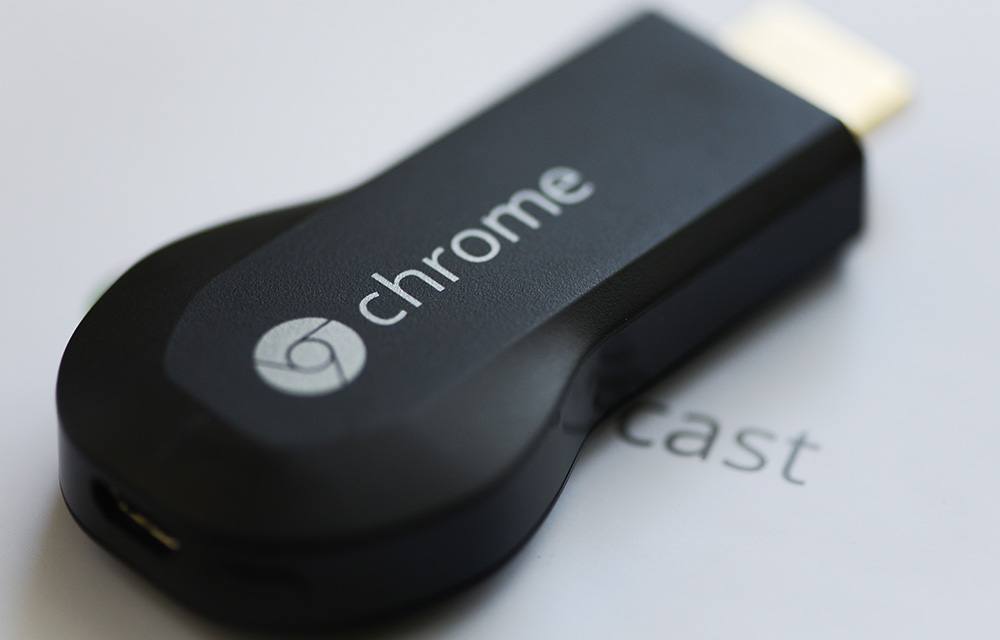
Chromecast guest mode allows users to cast their favourite media to the Chromecast without any complicated setup. During a gathering, you or your friends can show off their favourite videos to all of the people in the room. All you have to do is setting up the guest mode on the Chromecast as a host and connecting to it from the desired device. In this article, we are going to look through the steps for enabling guest mode on Chromecast and connecting to it using a smartphone to cast media.
Setup Chromecast Guest Mode on Host Side
The first step of casting media to the Chromecast is setting up the Chromecast guest mode. To do this, follow the instructions as given below.
- Open Google Home app.
- Tap Devices to see available Chromecast devices. You can find this option in the upper right corner of the home screen.
- If you haven’t signed in using a Google account, do it. If yes it won’t ask to sign in.
- The available devices will be listed on the screen. In the top right corner of the device tap the device card menu (three vertical dots) > Guest Mode.
- On the screen, make sure that the guest mode toggle is On.
Connect to Guest mode as Guest
Now, the guest can connect to the Chromecast by following these steps.
- Open a Chromecast-enabled app (like Google Chrome) and tap the Cast button or the cast option which is on the menu.
- Select the Nearby device option and follow the steps to connect to the Chromecast.
- You may also need to enter the 4-digit PIN from your host. If asked enter it. You can usually find the 4-digit PIN on the Chromecast backdrop.
You are now successfully connected to the Chromecast guest mode and can enjoy casting media files to the Chromecast without any difficulties. Be sure to be in the same room as the Chromecast. In other words, don’t go too far from the device or the network. It might result in connection difficulties thus resulting in a bad media casting. Hope you were able to cast your media without any difficulties.
There are also few more things to note. The host can set up the Chromecast guest mode on any mobile/tablet device that supports the Google Home app. Like that, the guest can cast content using Android 4.3+ or iOS 8+ devices. On iOS devices, the Bluetooth feature must be turned on in order to enjoy casting using Guest mode.
You will be able to opt-out from the guest mode at any time you need. It is very easy to setup and use on any device which meets the requirements mentioned above. If you face any difficulties in the process, do not hesitate to share it with us. We will help you with pleasure.
More in How-to
How to Switch to Guest mode in Android Smartphones
If you let someone borrow your smartphone, the things are not that much silly because you are giving them one of your personal assets. So, android coming with a built-in feature namely, Guest mode that will hide your personal info, contacts, messages and photos from the users till you turn it off manually. This feature…
How To Install Windows 11 In VMware Workstation
Virtualization has become a significant aspect of computing, as it enables users to run multiple operating systems on a single machine. VMware Workstation is a popular virtualization tool that allows users to run various operating systems concurrently. In this article, we’ll discuss how to install Windows 11 in VMware Workstation, so you can explore the…
How To Secure Wifi Network?
Surfing the Internet using neighbors WiFi is enjoyable. But if you’re the owner of an unsecured network, you should be aware of the suspicious activity on your network. If the LED of your wireless router is constantly blinking and none of the family members are using the Internet, this might indicate that someone is stealing…
The week in tech, minus the noise.
New reviews, fixes and the stories that matter — once a week, straight to your inbox.
We only use your email to send the newsletter. Unsubscribe any time. See our privacy policy.
Comments