

Control Your Mac On iPhone with Remote for Mac
Controlling Mac from your iPhone is not a new thing. From the past few years, the Apple ecosystem is evolved and the connectivity between devices is so much advanced with the help of apps. If you are looking for a good remote for Mac over iPhone then this article is for you. During our usage…


Control Your Mac On iPhone with Remote for Mac
Controlling Mac from your iPhone is not a new thing. From the past few years, the Apple ecosystem is evolved and the connectivity between devices is so much advanced with the help of apps. If you are looking for a good remote for Mac over iPhone then this article is for you.
During our usage at least one time we feel lazy to connect or navigate Mac from a distance. Personally, I faced this situation when I want to pause Netflix movie on Mac which is placed few steps away from me. At that time I thought a good remote control app for Mac is a life saver for the scenario.
Then my hunt began for a good remote control app for my Mac. So, I started searching for a remote for Mac app not only for media controls, which control my Mac system settings and other purposeful options too.
How to use Remote for Mac app?
To get started, first you need to download 2 apps. First, download the companion Remote for Mac app from developer Evgeny Cherpake. After installing, it starts working from your Mac menu bar.

Now install the app on your iOS device. To add a device, go to Mac Menu bar and click on the Remote Control icon, now click on “Show QR code” option. Now open your iOS device app and scan the QR code showing on the Mac. That’s it, now you connected your iOS device to Mac.
Here the real game begins. After connecting the iOS device to the Mac you can use your iPhone as a remote for Mac.
It can replace your media center Keyboard
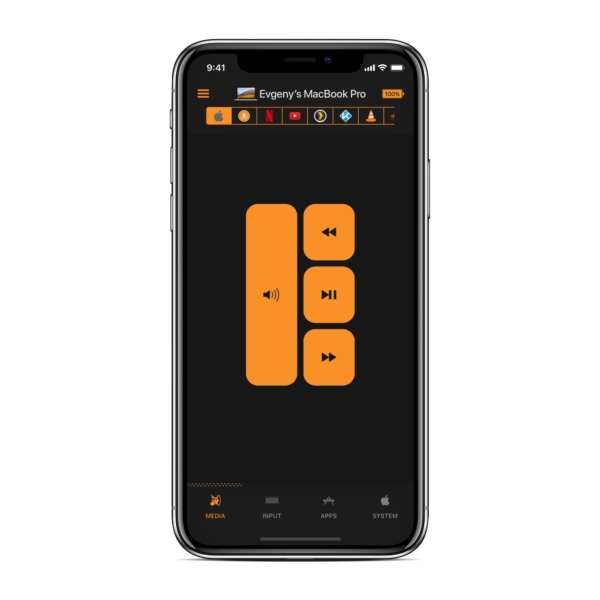
If you are using Mac as a media center for watching videos and movies, this app will help you as a remote for media center. You can really watch movies on Mac at a distance and play, skip and pause the options from iPhone.
Other Options
The user interface of Remote for Mac is very easy to understand. The top and bottom part of the screen dedicated to the toggling options. The middle of the screen is for using the particular option you chose.
Apart from media controls, this app offers system actions too. At the bottom of the app, it has options for every controllable thing on Mac. The first section contains Media controls, the Input section contains touchpad, the third section contains Apps. In the app section it shows a list of supportive apps, clicking on each app shows a list of options which are executable on your Mac. for example, you can start an app, bring to front, add to favorites, quit, force quit and many more options from your iOS device.
Conclusion
Overall, it is a great app to operate your Mac from iPhone or iPad. I personally liked the touchpad option iPhone, this makes very comfortable using touchpad from a distance. The Remote for Mac comes in both free and paid versions. The free version is ad-enabled and has limited options. The paid version unlocks all the features and ad-free.
That’s all for now. I hope you enjoyed our article, please do share your views in the comment box below.
You might also like
How to get Mac Address in iOS
Whether you use a PC, smartphone, tablet, Mac or any other device to access the internet, you are more or less familiar with the MAC address. Essentially, MAC stands for Media Access Control address and it’s a unique identifier that’s different for every hardware. This means that every phone or PC has a different MAC…
How to Record iPhone Screen
When somebody asks you how to do a certain operation or a process on your iPhone, you usually take some screenshots and send it to the person. It can sometimes be very time-consuming as you have to take several screenshots. Instead, you can record your iPhone screen and keep it as a high-quality video. This…

Easy Way To Share Screen On Zoom (Desktop And Mobile)
Screen Sharing is a feature of Zoom that has made it the most powerful video conferencing app among others like Google Meet, Microsoft Teams and similar other apps. Here you get powerful options to control what you share. With advanced functionalities like audio sharing, choosing what portion of the screen to share, annotations, whiteboard and…

The week in tech, minus the noise.
New reviews, fixes and the stories that matter — once a week, straight to your inbox.
We only use your email to send the newsletter. Unsubscribe any time. See our privacy policy.
Comments