

Ubuntu No Sound Fix
Ubuntu users often face issues with their system sound. Especially after installing Ubuntu or upgrading to the latest version, the sound on the system stops working. If you are facing the same issue in any of your Ubuntu versions, this article is for you. The no sound issue can occur as a result of a…

Ubuntu users often face issues with their system sound. Especially after installing Ubuntu or upgrading to the latest version, the sound on the system stops working. If you are facing the same issue in any of your Ubuntu versions, this article is for you.
The no sound issue can occur as a result of a faulty hardware, unsupported drivers, or simply the absence of a driver. In any of the scenarios, the sound will not be outputted from the device resulting in a very bad situation. Especially if you love listening to music or watching movies from your Ubuntu PC, this can be annoying.
So, here are the methods that you can try to fix the Ubuntu no sound issue. We recommend to follow them in the same order like we listed them. This will make sure that you tried the easiest fixes before getting into the complex ones.
1. Make sure that your Hardware is working fine
The first and most important thing you should check before going to fix the no sound issue is the hardware of your computer. If you enjoyed the sound on your system just hours before upgrading to the new OS, your sound hardware might be doing good and no further diagnosis required. But, if you are having this sound issue on an old PC which you just turned on after several months, you should suspect the hardware as well. If you are not proficient in checking the hardware, you could consult an expert to help you out.
If you don’t want to consult an expert and wanted to make sure that the hardware is working fine, you could try installing a Windows OS (Preferably Windows 10) which comes with the audio driver built-in. If the audio is working fine on Windows, you can confirm that the hardware is working fine. You can also try unplugging and plugging the audio devices such as headphones, speakers, etc. to diagnose the hardware.
2. Check volume and speaker settings
You cannot hear the sound without turning the volume up. Make sure that your speaker is not muted and the volume is high enough. If everything seems to be alright in that part, now let’s dig a little deeper in your Ubuntu speaker settings screen. Click on the Sound icon > Sound Settings. It will open the sound settings window where you can adjust the settings of your speaker.
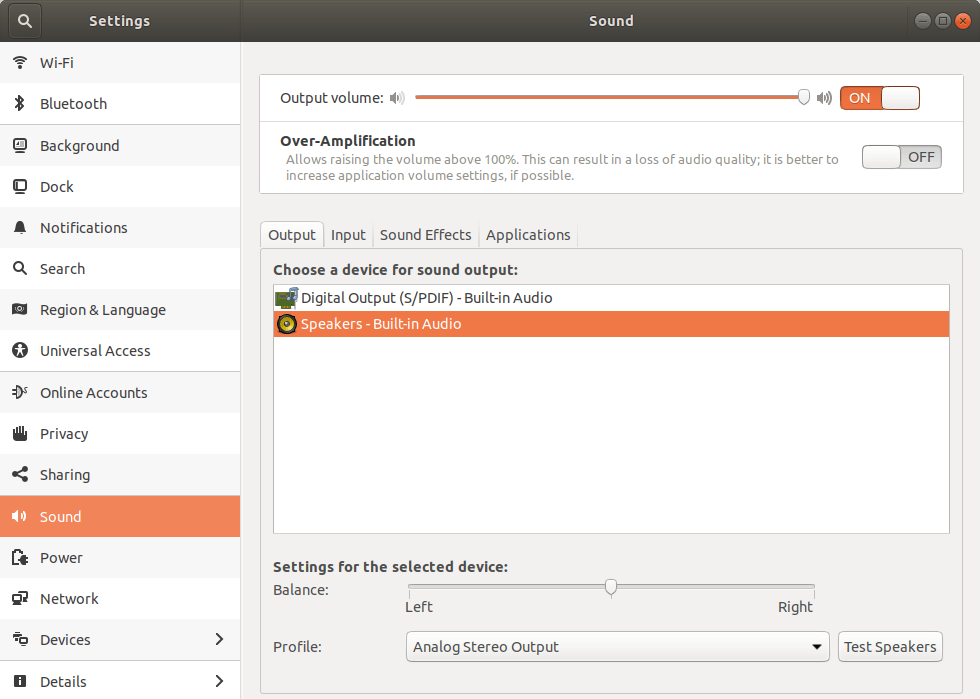
Based on the version of the Ubuntu you are using, this screen may vary slightly. In the Sound settings, make sure that the correct speaker is selected, the volume is not muted, and the profile is correct. You can try changing them and use the Test Speakers button to test the output. Also, you can turn off the Over-amplification feature to see if it is working.
3. Check the ALSA Mixer and Reload
For those who don’t know, alsamixer is a graphical mixer program for the Advanced Linux Sound Architecture (ALSA) that is used to configure sound settings in the Ubuntu. In simple terms, we can use it to diagnose the issue with your Ubuntu sound. To configure it yourself.
- Open the terminal in your Ubuntu.
- Type
alsamixerand press the Enter. You will see something like this in your terminal.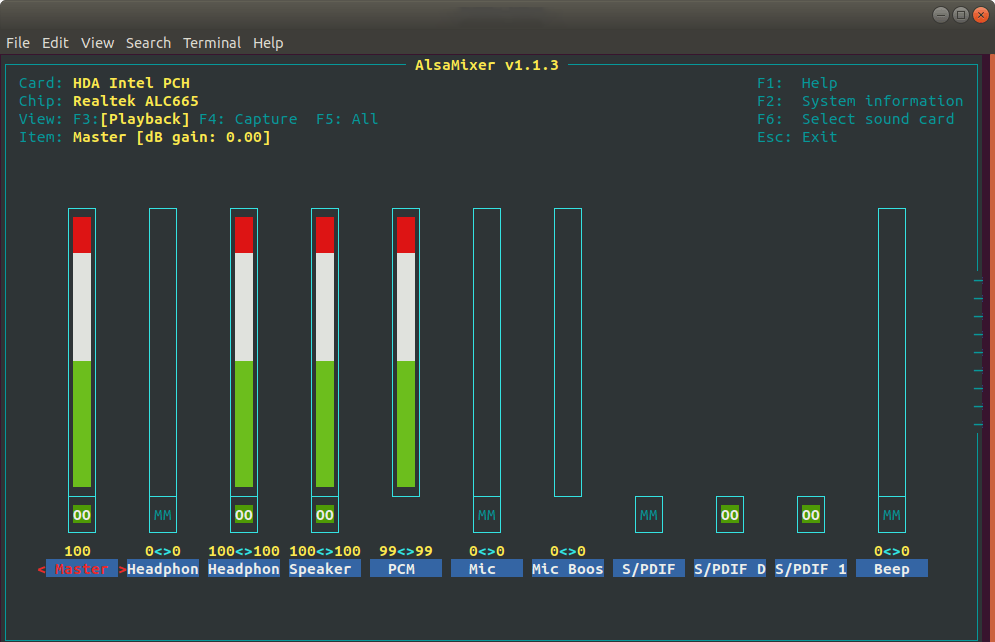
- Press F6 and choose the sound card installed on your system. In most of the cases, the system will automatically detect the correct sound card. If not, you can manually change it.
- You can select the volume control using the left and right keys and up and down arrow keys to increase and decrease volume levels.
- The muted volume control will display “MM” below the volume bar. So if your audio mixer is muted, just press the M button on your keyboard and it will change to “OO” which means the mixer is not muted.
- Once you are done with the configuration, press Esc.
Now, to make sure that all the changes take effect, you can reload the ALSA by typing sudo alsa force-reloadin the terminal.
4. Reinstall the ALSA Mixer and Pulse Audio
If configuring the ALSA mixer doesn’t solve the issue even after reloading it, you can now try reinstalling them using the following commands.
sudo apt remove --purge alsa-base pulseaudio

sudo apt install alsa-base pulseaudio
This will reinstall the ALSA mixer and the Pulse audio on your Linux machine and make sure that everything is working fine. Many of our readers reported that this method worked for them. So, if any of the above methods didn’t work for you, just reinstall the ALSA mixer and Pulse audio on your Ubuntu system.
5. Edit speech-dispatcher file
This method doesn’t have much success rate. However, you can still give it a try. Speech-dispatcher is a daemon that programs can use to output speech. So, in case this function is creating complications with your audio devices or programs, we can simply turn it off by running the following command in the Ubuntu terminal.
sudo gedit /etc/default/speech-dispatcher
In here, change RUN=yes to RUN=no
6. Install Ubuntu Audio Development Team Driver
Like in any operating systems, Ubuntu also comes with a bunch of sound drivers to support the hardware. So, if your system is extremely outdated and you have the most advanced hardware powering it, this can sometimes cause issues with the sound output. So, you can install the Ubuntu audio development team driver by running the following commands. If the driver is already present in your OS, the commands will simply upgrade them to the latest version.
sudo add-apt-repository ppa:ubuntu-audio-dev

sudo apt-get update

sudo apt-get dist-upgrade
We hope you fixed the issue by now. If not, do not hesitate to leave a comment and let us know what are the problems you are facing. We will try our maximum to help you out and provide the necessary guides which will help you to solve the problem.
More in Linux

How to Install Spotify on Linux
Spotify doesn’t need any introduction and it is the finest music streaming service available online. The installation of Spotify is a pretty straightforward process for platforms like Windows, Mac, Android, and iOS. But when it comes to Linux, you have to depend on the commands to install Spotify. Spotify has been officially supporting the Linux…

How To Install New Fonts In Ubuntu
Ubuntu is a most user-friendly version of Linux and comes with a great list of fonts when you install. If you are not satisfied with the available list of fonts in Ubuntu, you can install additionally from other sources. Installing a font file on Linux is a pretty simple process. The below procedure works for…

How to Install Linux on Chromebook
Chromebooks are fine but for the simple usage like surfing the web, sending some emails, and often watching some videos. Apart from that, if you want to do something advanced or have complete control over your OS, Chrome OS may not be the best choice out there. So, there is no wonder in that if…
The week in tech, minus the noise.
New reviews, fixes and the stories that matter — once a week, straight to your inbox.
We only use your email to send the newsletter. Unsubscribe any time. See our privacy policy.
3 comments
I have recently upgraded my RAM and now I longer have any audio. System sounds work (mute/unmute clicks, shutdown sounds), but no other audio (music, youtube, etc.). I have tried every solution here, but I’m getting nowhere. Memory modules are different sizes (4GB and 8 GB), but the same frequency (DDR3, 1600 MHz). Audio works when I boot back to Windows, so I’m guessing it must be a driver problem, but I haven’t been able to find a fix that works.
Please help!
Thank you!
After rebooting, the fix did work. My apologies!
I’m still facing the problem. i have tried all the methods mentioned above, but none of them worked. im using Ubuntu 16.4. Im not getting any sound output from laptop speakers or earphones. Can you help me to sort out his problem.
Thankyou..