

How to hide photos you liked accidentally on Instagram
This is one of those things that happens to every one of us, and it is surely embarrassing. It is related to Instagram and other platforms, so we feel that most of our readers can relate to it. Let’s take an example: you are in bed at night but cannot sleep, so you take your…

How to hide photos you liked accidentally on Instagram
This is one of those things that happens to every one of us, and it is surely embarrassing. It is related to Instagram and other platforms, so we feel that most of our readers can relate to it.
Let’s take an example: you are in bed at night but cannot sleep, so you take your phone out and randomly start going through people’s profiles.
The posts on a profile are shown with the newest first, so you scroll down and see posts from many weeks or even months ago.
However, you might be tired and not paying full attention, so you accidentally “like” a post. If that post is recent, there is no problem, but if it is weeks old, it can be awkward because you might come across as a stalker.
Also, it could be the profile of your ex or someone you have fallen out with, which can make it even more embarrassing. So, what can you do about a like you did not mean to give?
Can you hide a like on Instagram?
First of all, let’s make it clear: there is no way to hide a like on Instagram while keeping it. If your like is on a post, the owner of that post can see your username in the list of people who liked it. The only real fix is to unlike the post, and the faster you do it, the better.
Some older tips suggest changing the name, picture and description of your profile, or switching your account to private. These do not hide your like. Your username still appears in the list of likes, and a private account only hides your own posts, not your activity on other people’s posts. So we do not recommend relying on these tricks.
How to unlike a post you liked by accident
If you are still looking at the post, simply tap the heart icon again. It will turn from red back to outline, and your like is removed.
How to find and unlike posts using Your activity
If you scrolled away and cannot find the post again, Instagram keeps a list of posts you have liked.
- Open the Instagram app and go to your profile.
- Tap the menu icon (three lines) at the top-right corner.
- Tap Your activity.
- Tap Likes. You will see the posts you have liked, with the most recent first.
- Tap Select, choose the post or posts you want, and tap Unlike. Confirm when asked.
You can also use Sort & filter on this screen to show likes from a certain date range or by a certain account, which makes it easier to find the one you are looking for.
You can also open the post from this list and tap the heart to unlike it there.
Will the person know that I liked their post?
It depends on timing. When you like a post, the owner usually gets a notification. After you unlike it, your like is removed from the post and, in most cases, the notification disappears from their activity too. However, if they already saw the notification or a push alert on their phone before you unliked it, there is no way to take that back.
That is why speed matters. If you notice an accidental like, unlike it straight away.
Tips to avoid accidental likes
- Be careful with double-taps: Double-tapping a photo likes it. When scrolling through old posts, tap more gently or scroll from the edges of the screen.
- View profiles from a computer: On a computer, a stray tap is less likely, so browsing old posts there can be safer.
- Check Your activity now and then: A quick look at Your activity > Likes lets you catch any likes you did not mean to give.
Frequently asked questions
Does hiding like counts hide my likes?
No. Instagram lets you hide the number of likes on posts, but this only hides counts. It does not hide the fact that you liked a post. The post owner can still see who liked it.
Does Instagram tell someone when I unlike their post?
No. Instagram does not send a notification when you unlike a post.
Can I unlike many posts at once?
Yes. In Your activity > Likes, tap Select, pick several posts, and then tap Unlike.
We hope this guide helped you deal with that accidental like on Instagram. Let us know in the comment section below if it worked for you.
More in How-to
How To Hide or Password Protect Photos On Your iPhone or iPad?
Apple devices are not prone to vulnerable security issues. They can save you online threats, but what if your friend or sibling tries to access your photos on your iPhone or iPad. Smartphones come with so many features, one of them is instant photo saving. If you want to hide the pictures or images stored in…
Instagram DM Not Working? 9 Fixes That Actually Work
If your Instagram DMs are not working, first check whether Instagram itself is down, then force-close the app, update it, and switch between Wi-Fi and mobile data. If messages still will not send or load, clear the app’s cache (Android) or reinstall it (iPhone), and check your Account Status for a messaging restriction. DM problems…
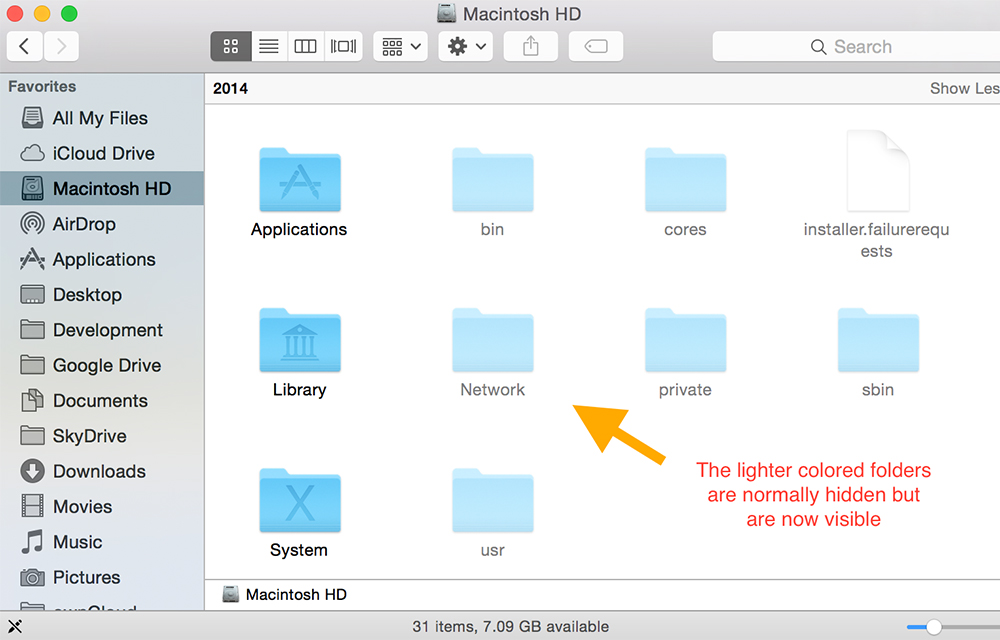
How to Show Hidden Files and Folders in Windows and Mac
You may face several situations where you need the access to hidden files in your computer. The system itself protects some important files by hiding them in various parts of the computer to keep them safe from accidental deletions or misplacement. So, the computer blocks the users from accessing the hidden files. Hidden files can’t…
The week in tech, minus the noise.
New reviews, fixes and the stories that matter — once a week, straight to your inbox.
We only use your email to send the newsletter. Unsubscribe any time. See our privacy policy.
Comments