

How to save a playlist in VLC player on Windows 10
VLC Player is one of the best players used for music and video playback by millions of Windows users. Therefore, it is obvious that a lot of people would want to know how to do certain things inside the player which they are not aware of. Among these things is the ability to save playlists…

How to save a playlist in VLC player on Windows 10
VLC Player is one of the best players used for music and video playback by millions of Windows users. Therefore, it is obvious that a lot of people would want to know how to do certain things inside the player which they are not aware of. Among these things is the ability to save playlists inside the VLC Player on Windows 10 which a many of you don’t know about.
Yes, you can definitely save playlists inside the VLC Player which you can then play so that your favourite songs are played in a loop and you don’t need to do anything extra after the first time that you have saved them. In this tutorial, we will tell you to have to save playlist on VLC Player inside Windows 10 so pay attention and follow along:
Save Playlist in VLC
- To save a playlist in VLC, you will have to first open the VLC Media Player on your Windows 10 PC.
- After that, go to View > Playlist and add as many files as you want inside this playlist.
- Once the files have been added, it is now time to save that playlist.
- So go to Media > Save Playlist to File and save the playlist and give it an appropriate name which you can recall afterwards.
Make sure to save the playlist to a location which is easily accessible and if you want to play that playlist, you just need to double-click and VLC Media Player will do the rest for you.
Limitations
It is worth noting that there are certain limitations with the playlists created on VLC player.
For example, these playlists are made for your local songs so you can’t play them online and they can’t be transferred to a different PC which doesn’t have those songs.
Also, it will be hard for the player to find those songs inside the playlist if they are renamed, moved or even deleted because they are stored based on their file location and name.
That’s all for now. Please leave your feedback in the comment section below.
More in How-to
How To Listen TuneIn Radio In VLC Media Player
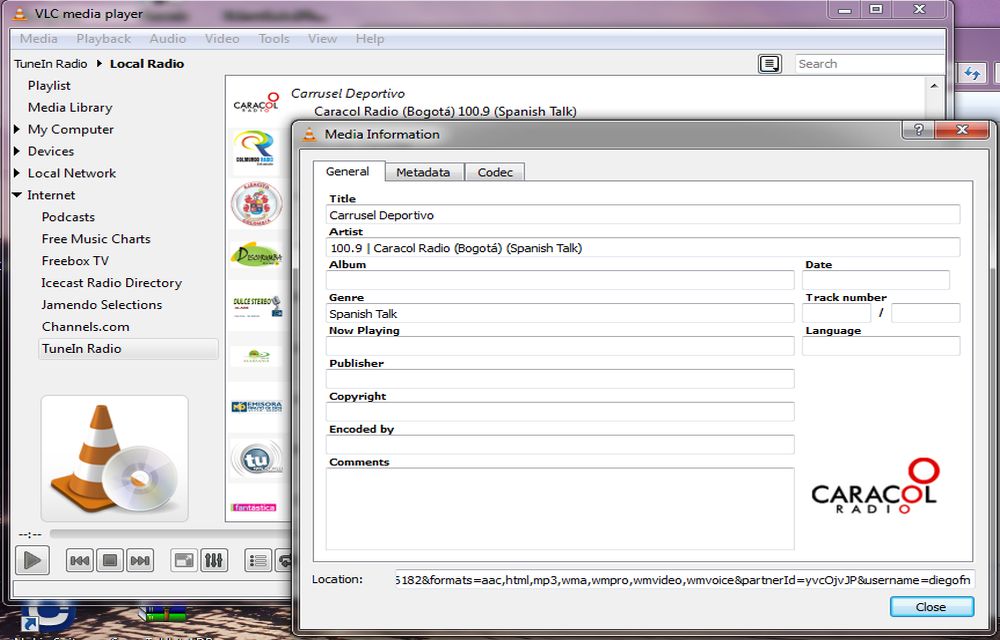
TuneIn is one of the popular radio networks among the Internet radio station listeners. The facility to listen to TuneIn radio in smartphones comes in the form of an app. But unfortunately, the TuneIn lacks a desktop app to enjoy the service. Luckily, we have a simple tip to enjoy the TuneIn radio on a…
How to Set Video as Desktop Wallpaper using VLC Media Player
Are you still using those static desktop backgrounds in your computer? Want a difference from the usual look and feel of your desktop? How it would be if you got your favorite videos playing on your desktop background? Instead of those statically stuck backgrounds which don’t make you comfy on your computer, set those moving…

How to Convert MKV to MP4
The first decade of the 21st century gave birth to a lot of technological advancements, many of which revolved around the internet and computers. The birth of the Mkv (Matroska Video Files) file format in Russia in 2002 is a typical example. We aren’t studying the history of Mkv files, rather we’d like to see…
The week in tech, minus the noise.
New reviews, fixes and the stories that matter — once a week, straight to your inbox.
We only use your email to send the newsletter. Unsubscribe any time. See our privacy policy.
Comments