

How to add, remove, delay startup items on Mac?
Once you start adding new apps to your Mac some of them will enter into the startup items. These apps launch automatically in the background when the Mac boot up. If the number of startup items increases, you feel slow down of your startup time. To get rid of this issue, you need to manually…


How to add, remove, delay startup items on Mac
Once you start adding new apps to your Mac some of them will enter into the startup items. These apps launch automatically in the background when the Mac boot up.
If the number of startup items increases, you feel slow down of your startup time.
To get rid of this issue, you need to manually uncheck the programs you don’t to boot with the Mac. But some programs are required from the beginning of the startup. So the issue is complicated now what to keep and remove programs.
How to add startup items?
Adding programs to startup is a pretty simple process. Here how it works given below.
- Open System Preferences from the Dock or the Applications folder.
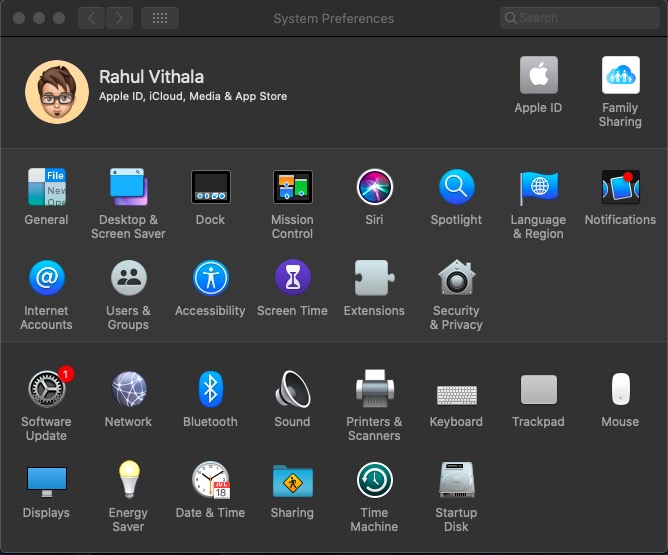
- Go to Users & Groups.
- Select your User ID.
- Choose Login Items.
- Click the lock icon and enter an admin password.
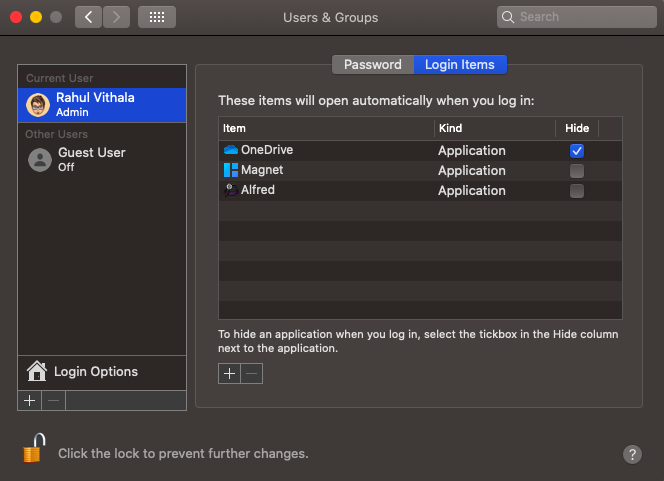
- Click the “+” button to select an app from your Applications folder.
- Or drag app icons across to Startup Items.
How to remove startup items on Mac?
To remove startup items from the Mac follow the below procedure.
- Open System Preferences from the Dock or the Applications folder.
- Go to Users & Groups.
- Choose your User ID on the left.
- Choose Login items tab.
- Check startup programs you want to remove.
- Press the “–” sign below.
- That’s it.
How to delay startup items on Mac?
There is one app comes handy in this situation. Yes, DelayedLauncher, the name is self-explanatory and it will slow down the programs loading time.
- Download DelayedLauncher, unzip the file and drag the .app file to your Applications folder.
- Now, open Login Items by going to Apple menu -> System Preferences -> Users & Groups -> Login Items. From here, remove all of the items that you plan to add to DelayedLauncher.
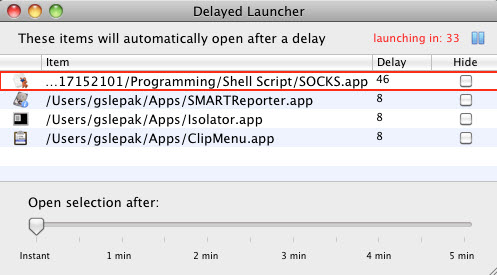
- You’ll also want to add the DelayedLauncher application to your Login Items. To do this, click on the + button and choose DelayedLauncher from your Applications folder.
- After adding all the desired apps to DelayedLauncher, you can tweak the delay time of each application.
- Click on an item and use the slider at the bottom of the window to choose a delay time.
- You can adjust the time from the beginning to 5 minutes.
That’s all for now. By following the above steps, you can add, remove and delay startup items on Mac easily.
More in How-to

How to fix application was unable to start correctly 0xc0000018 error in Windows
This application was unable to start correctly 0xc0000018 error in Windows error appears when launching an app and usually closes the program with only an OK button. In most cases it is fixable with a few steps. Follow the sequence below from simple to advanced, and stop once the error disappears. Always reboot and test…
Speed up Lenovo Laptop Running Slow in Windows 10
Your Windows 10 laptop may go slower and slower over time. There are several reasons why your Lenovo laptop is acting up and gone painfully slow over time. Run through the checklist given below to fix this issue permanently.

How to Access Two Dropbox Accounts In One Computer
How to Access Two Dropbox Accounts In One Computer: Dropbox is everyone’s favorite Cloud storage service. Some people maintain more than one Dropbox accounts.
The week in tech, minus the noise.
New reviews, fixes and the stories that matter — once a week, straight to your inbox.
We only use your email to send the newsletter. Unsubscribe any time. See our privacy policy.
Comments