

How To Enable Siri Suggestion In Mail App On iOS And macOS
Apple’s Siri suggestions can be helpful in many cases. Compared to the Google Assistant, Siri is a tough and worthy personal assistant and it proved in many ways. The integration with the third-party messaging apps is a noticeable feature which we can’t deny. The features are pretty useful to improve our productivity while messaging. Siri…


How To Enable Siri Suggestion In Mail App On iOS And macOS
Apple’s Siri suggestions can be helpful in many cases. Compared to the Google Assistant, Siri is a tough and worthy personal assistant and it proved in many ways. The integration with the third-party messaging apps is a noticeable feature which we can’t deny. The features are pretty useful to improve our productivity while messaging.
Siri learns new things every day. It keeps track of your usage and improves the personalized suggestion in prolonged use. As many people are doing work from home, it is necessary to remember every event and task. The Siri suggestions in the Mail app on iOS and macOS will improve the usage and it is pretty easy to add new events to the calendar and other tasks.
If you want to use Siri suggestion in the Mail app on iOS and macOS, this article will help you to enable the feature.
Steps to enable Siri Suggestions in the Mail app on iPhone, iPad, and Mac.
Before going to start, make sure Siri is allowed to offer suggestions in the Mail app. The process of enabling Siri in the mail app is a pretty simple process. Once you enable the Siri, it will give suggestions as alerts which you can accept or reject.
On iPhone and iPad
- Open the “Settings” on the iPhone or iPod and scroll down to the Mail app.
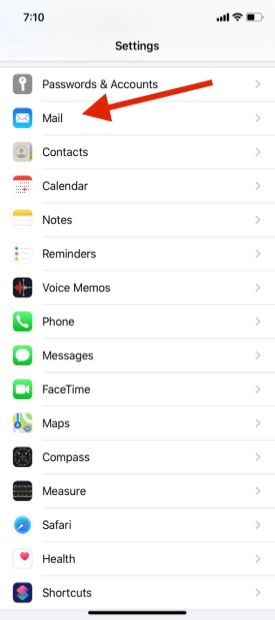
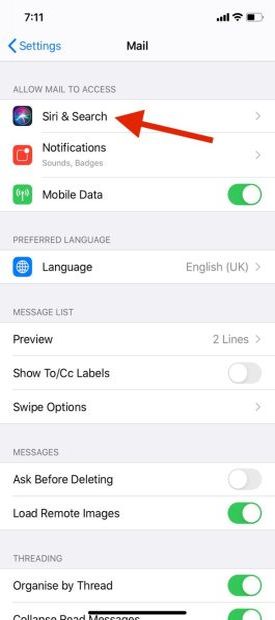
- Now tap on mail app and tap on Siri & Search.
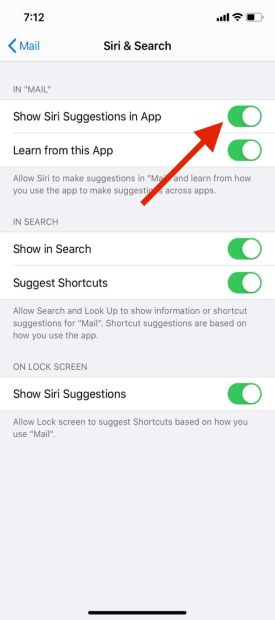
- Here, toggle the slider next to the “Show Siri Suggestions in App” option.
On macOS
- Open “System Preferences” on your Mac.
- Now click on Siri.
- Here, click on Siri Suggestions & Privacy.
- On the right side pane, choose Mail-in and check the box for Show Siri Suggestions option.
- Click on Done to finish the job.
Now onwards, Siri is ready to give suggestions whenever you want to add new events to calendar or people to address book. If you find the suggestion irrelevant, you can simply decline it by tapping “X”.
That’s it. This is the way to get most of the Siri Suggestions for the Mail app. However, Apple mail is not a feature-rich email client when compared to other popular third-party email options. But adding Siri suggestions to the mail app will improve a few features. Let us know your valuable feedback on the Apple mail and Siri suggestions integration in the comment section below.
More in How-to

How to fix Siri does not respond or answers correctly
Having trouble with Siri after an iOS update? Here’s how to fix it!

How to view full URL in Safari on macOS?
When Apple released macOS Yosemite in 2014, it came packed with multiple features to improve the overall performance and usability of the operating system meant exclusively for Apple’s Mac devices. Some of the noteworthy features of macOS Yosemite were Spotlight, Notification Center, Safari Mail and many other. It was a major macOS update that focused…

How to Fix iPhone Siri Activating Randomly Without Saying “Hey Siri” on iOS 26
Has Siri started activating randomly on your iPhone after the iOS 26 update? You may suddenly see the Siri interface appear even though you did not say “Hey Siri” or intentionally touch the screen. Apart from being frustrating, unexpected Siri activation can interrupt your work, trigger unwanted actions, or create privacy concerns when the phone…
The week in tech, minus the noise.
New reviews, fixes and the stories that matter — once a week, straight to your inbox.
We only use your email to send the newsletter. Unsubscribe any time. See our privacy policy.
Comments