

How to Clear Temp Files in Windows 10
Windows 10 stores a lot of temporary files in order to make sure that the operating system and its features work flawlessly. In addition to the operating system itself, applications installed on it also make use of temporary files that will no longer be needed after a certain period of time. So once in a…

How to Clear Temp Files in Windows 10
Windows 10 stores a lot of temporary files in order to make sure that the operating system and its features work flawlessly. In addition to the operating system itself, applications installed on it also make use of temporary files that will no longer be needed after a certain period of time. So once in a while, it is a good idea to clear these temporary files in order to save up some space. If you are seeing unusual disk usage without any significantly bigger files or frequent actions, you might want to check your temp folder size and clear it.
While the size of the temporary files can be anywhere from a few bytes to several GBs, clearing the temp files may not always help you to save a lot of space. However, we have had users saying there were even several gigabytes of temporary files stored on their computer created by various programs. So be sure to clear your Windows 10 temporary folder every once in awhile in order to make sure that your valuable disk space is not being used to by some unnecessary temporary files.
Steps to Clear Temp Files in Windows 10
Before continuing, make sure that you do not have any programs open just to be sure that we are not deleting any temporary files used by any active programs.
- Press Win + R to open the Run prompt.
- Type %temp% in the window.
- Press Enter. It will take you to the temp folder where Windows stores temporary files.
- Select all the files by pressing Ctrl + A.
- Then press the Delete button on your keyboard.
- Confirm the action by clicking Yes. Now Windows will start deleting the temporary files.
- During the process, it might tell you that some files are being used, your can Skip them.
- Once you have deleted the unnecessary temp files, you will see some disk space has been freed on Windows 10.
Your temp folder is located at C:\Users\<your username>\AppData\Local\Temp.
Do not worry because we are deleting some files. Temporary folders and files inside the temp folder are safe to be deleted. So there is no need to worry about any data loss. Repeat the same steps mentioned above every once in a while, especially if you actively work with your computer and programs.
More in Windows
How to Clear Windows Cache
Yup! just like your browser, your operating system also stores files/parts to make it seamless for you to use the environment. Caches allow Windows to make sure that it can deliver the fastest responses by serving them from the cache instead of accessing them from the location or performing a certain operation over and over…
How to fix “Working on it” message in Windows 10 File Explorer?
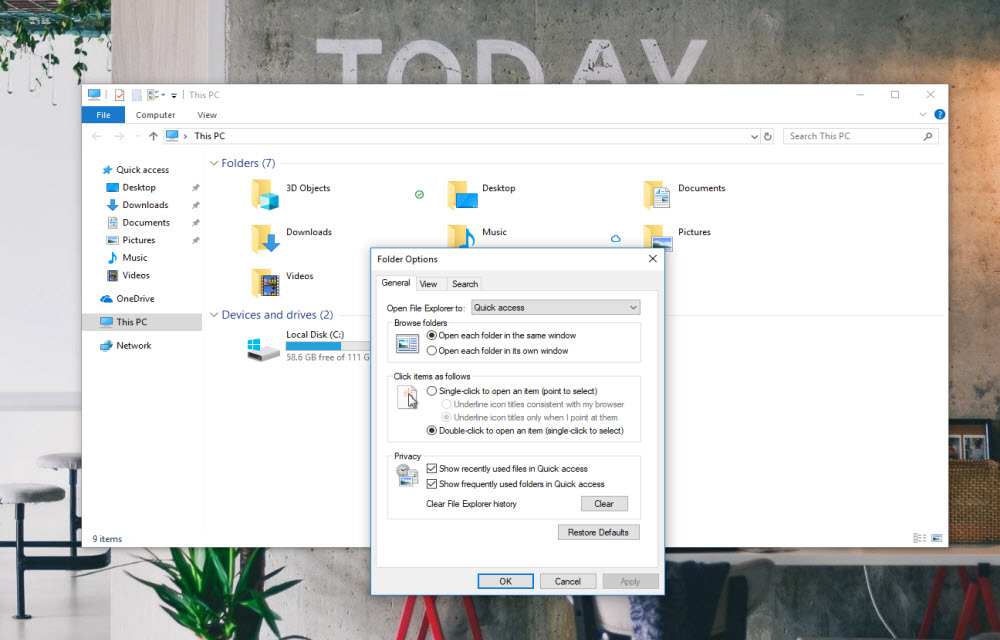
If you get the “working on it” message in the File Explorer of Windows 10, it could be the problem caused by Quick Access cache. “Quick Access” is a virtual location, where the updated recent files and folders are listed. Sometimes, the File Explorer may slow down because of an overloaded or corrupted cache of…
How To Check & Remove Junk Files in Windows 10
Users often complain of a significant reduction in the free disk space on their PC, once they’ve upgraded to Windows 10. We’ve been looking for the reasons and decided to write down some corrective measures we suggest. While it is mainly due to some additional applications in Windows 10, it still doesn’t consume more than…
The week in tech, minus the noise.
New reviews, fixes and the stories that matter — once a week, straight to your inbox.
We only use your email to send the newsletter. Unsubscribe any time. See our privacy policy.
Comments