

How to Show Hidden Files in Windows 11
Windows 11 is rolling out slowly for all compatible machines globally. It is easy to use and many advanced features are introduced in Windows 11. Many features are introduced in the Windows 11 to make our computing tasks quicker and much powerful. Many things are changed in Windows 11 including File Explorer. Now it is…


Windows 11 Guides
Windows 11 is rolling out slowly for all compatible machines globally. It is easy to use and many advanced features are introduced in Windows 11. Many features are introduced in the Windows 11 to make our computing tasks quicker and much powerful.
Many things are changed in Windows 11 including File Explorer. Now it is better and advanced for managing files on the computer. One of the options on the File Explorer ribbon in Windows 10 had an option called ‘Hidden items’. When this option is enabled, all the hidden files are visible and when disabled, the files will be hidden to see.
If you are looking to change the hidden files options in Windows 11, follow the below steps.
How to Show hidden files in Windows 11 using File Explorer
- Open the File Explorer on Windows 11 system.
- Click the view button on the ribbon.
- Select Show options and click Hidden items.
- Hidden items will now appear in File Explorer.
- To hide them, follow steps 1-3 and uncheck/disable the option.
How to Show hidden files in Windows 11 using Folder options
We have another option to show hidden files in Windows 11 using Folder options. Here is how it works.
- Open File Explorer on Windows 11 system.
- Click the more options button (three dots button).
- Select Options from the menu to open Folder Options.
- In the Folder Options window, go to the View tab.
- Now, look for Hidden files and folders.
- Here, enable the ‘Show hidden files, folders, and drives option.
- Now, hidden files will be shown in File Explorer.
By trying the above methods, you will enable showing the hidden files on Windows 11 system. Many popular locations such as the AppData folders and some user-specific folders are hidden by default.
The new UI of Windows 11 is a bit refreshing and simplified the many previous Windows 10 options in a straightforward way. These two methods will help you to show, and hide files on Windows 11 easily.
More in How-to
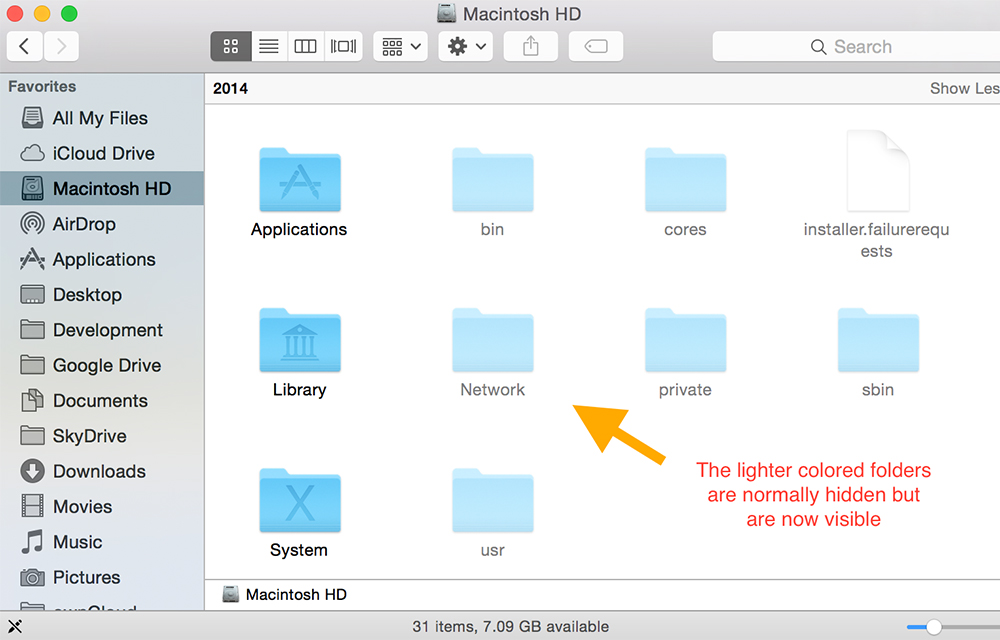
How to Show Hidden Files and Folders in Windows and Mac
You may face several situations where you need the access to hidden files in your computer. The system itself protects some important files by hiding them in various parts of the computer to keep them safe from accidental deletions or misplacement. So, the computer blocks the users from accessing the hidden files. Hidden files can’t…

How to Recover Deleted Internet History
Once you find that, your deleted internet history had some important websites you had forgot to note down, you will be embarrassed. You may try several methods to find it out. But, failed. The first thing I have to say is that. Don’t restart your computer if you lost the history in this session of computer usage.…
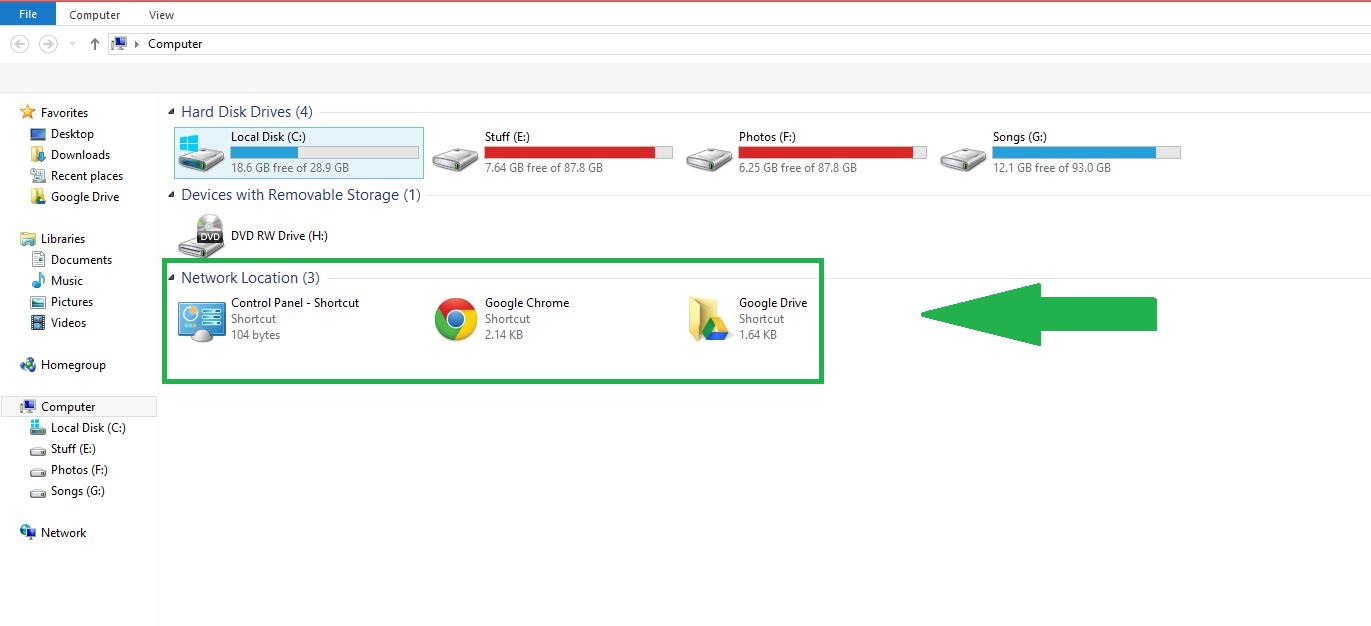
How to Add Programs and Folders to My Computer in Windows
My computer is an overview from which you can access all of the files, drives, and devices that are stored on the system. This is the primary and most often visited location on your system, and you can personalize it by adding the files and apps that you find most useful. It is a straightforward…
The week in tech, minus the noise.
New reviews, fixes and the stories that matter — once a week, straight to your inbox.
We only use your email to send the newsletter. Unsubscribe any time. See our privacy policy.
Comments