

How To Install Windows 11 In VMware Workstation
Virtualization has become a significant aspect of computing, as it enables users to run multiple operating systems on a single machine. VMware Workstation is a popular virtualization tool that allows users to run various operating systems concurrently. In this article, we’ll discuss how to install Windows 11 in VMware Workstation, so you can explore the…

Windows 11
Virtualization has become a significant aspect of computing, as it enables users to run multiple operating systems on a single machine. VMware Workstation is a popular virtualization tool that allows users to run various operating systems concurrently. In this article, we’ll discuss how to install Windows 11 in VMware Workstation, so you can explore the new features and enhancements of Microsoft’s latest OS without disturbing your existing setup.
1. Prerequisites
Before you start, ensure that your computer meets the minimum system requirements for Windows 11. Also, download the Windows 11 ISO file from Microsoft’s official website. Additionally, ensure that you have the latest version of the VMware Workstation installed on your computer. If you haven’t installed it yet, you can download it from VMware’s official site.
2. Create a New Virtual Machine:
Launch VMware Workstation and click on “File” > “New Virtual Machine.” Choose “Custom (advanced)” and click “Next.” On the next screen, select the “Hardware Compatibility” option that matches your VMware Workstation version, then click “Next.”
3. Choose the Windows 11 ISO File
In the “Guest Operating System Installation” section, select “Installer disc image file (ISO)” and browse to the location where you saved the Windows 11 ISO file. Click “Next” to proceed.
4. Select the Guest Operating System
From the dropdown menu, choose “Microsoft Windows” as the guest operating system, and select “Windows 11” from the version list. If Windows 11 isn’t available in the list, you can select “Windows 10” and modify the configuration later. Click “Next” to continue.
5. Customize the Virtual Machine Name and Location
Provide a name for your virtual machine and choose the location where you want to store its files. Click “Next” to proceed.
6. Configure the Processor and Memory
Configure the number of processors and cores per processor according to your computer’s capabilities. For the memory, allocate at least 4 GB of RAM to ensure a smooth Windows 11 experience. Click “Next” when you’re done.
7. Set up the Virtual Hard Disk
Select “Create a new virtual disk” and adjust the disk size as needed (we recommend at least 64 GB). Choose “Store virtual disk as a single file” for optimal performance, and click “Next.”
8. Complete the Virtual Machine Configuration
Review your settings and click “Finish” to create the new virtual machine.
9. Modify the Virtual Machine Settings (Optional)
If you selected “Windows 10” in Step 4, you’ll need to make a small tweak to ensure the virtual machine recognizes Windows 11. Right-click on the virtual machine in the VMware Workstation library, select “Settings,” and navigate to the “Options” tab. Change the guest operating system to “Windows 11” and click “OK.”
10. Install Windows 11
Power on the virtual machine, and the Windows 11 installation process will begin. Follow the on-screen instructions to install Windows 11 on your virtual machine.
That’s it! You’ve successfully installed Windows 11 in VMware Workstation. Now you can explore the latest features and enhancements of Microsoft’s newest operating system without affecting your existing setup. If you have any questions or suggestions, please share them in the comments section below. Happy virtualizing!
More in How-to
Virtual Machine Applications To Run More Than One Operating System – Windows / Linux / Mac
While we cross through an App or a software program that would be useful for us but only run in different OS that what we are using, we will think that we are not lucky to use that App or Software. But, there is an easy solution to run more than one OS in same…
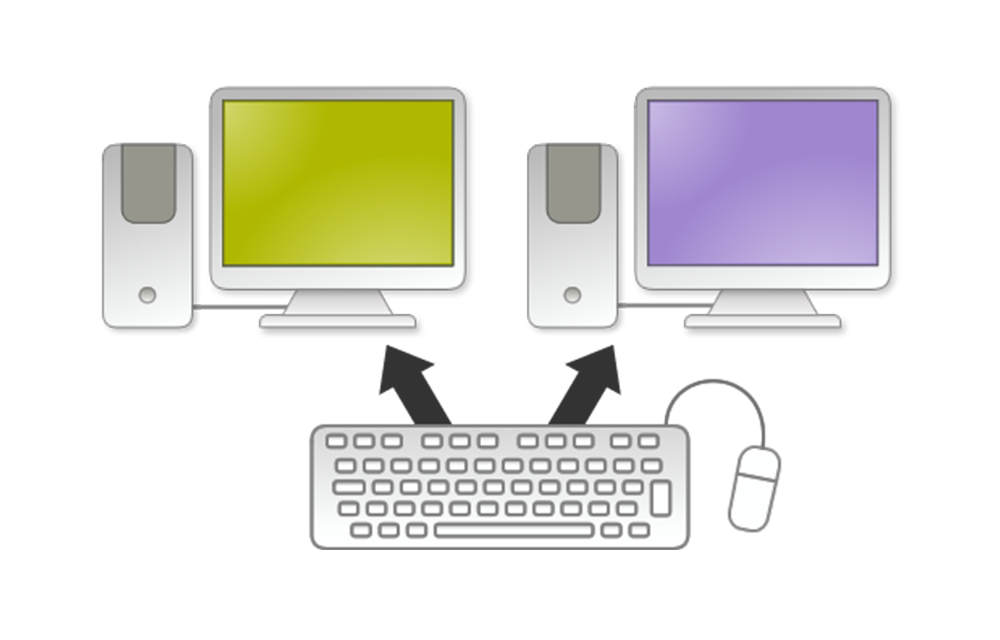
How to Share Mouse and Keyboard between Computers
Ever faced a situation where you have no mouse and keyboard for the second PC? Whenever you needed something from that PC, you kept changing the ports frequently. If you feel it very irritating, here we have a method to help you share mouse and keyboard between computers. We use two softwares namely Microsoft Garage for sharing…
How to Find Installation Date of Windows
You may be using your windows for a while and over the years of use, you may not remember when exactly the windows had installed on your computer. At any moment you need the installation date of your windows, it is not easy as looking at the calendar and calculating the date. Windows is intelligent enough…
The week in tech, minus the noise.
New reviews, fixes and the stories that matter — once a week, straight to your inbox.
We only use your email to send the newsletter. Unsubscribe any time. See our privacy policy.
Comments