

How to Find Installation Date of Windows
You may be using your windows for a while and over the years of use, you may not remember when exactly the windows had installed on your computer. At any moment you need the installation date of your windows, it is not easy as looking at the calendar and calculating the date. Windows is intelligent enough…


how-to-find-installation-date-of-windows
You may be using your windows for a while and over the years of use, you may not remember when exactly the windows had installed on your computer. At any moment you need the installation date of your windows, it is not easy as looking at the calendar and calculating the date. Windows is intelligent enough to store the whole system information and the history of the OS. So, it is very easy to find the installation date of your windows. We are sharing some of the quick and easy methods to do the same.
Find the Windows Installation Date with System Info
To find the Windows installation date using the system info, follow the simple steps given below.
- Open Run Command by pressing Win+R keys together.
- Type cmd in Run command box and press Enter.
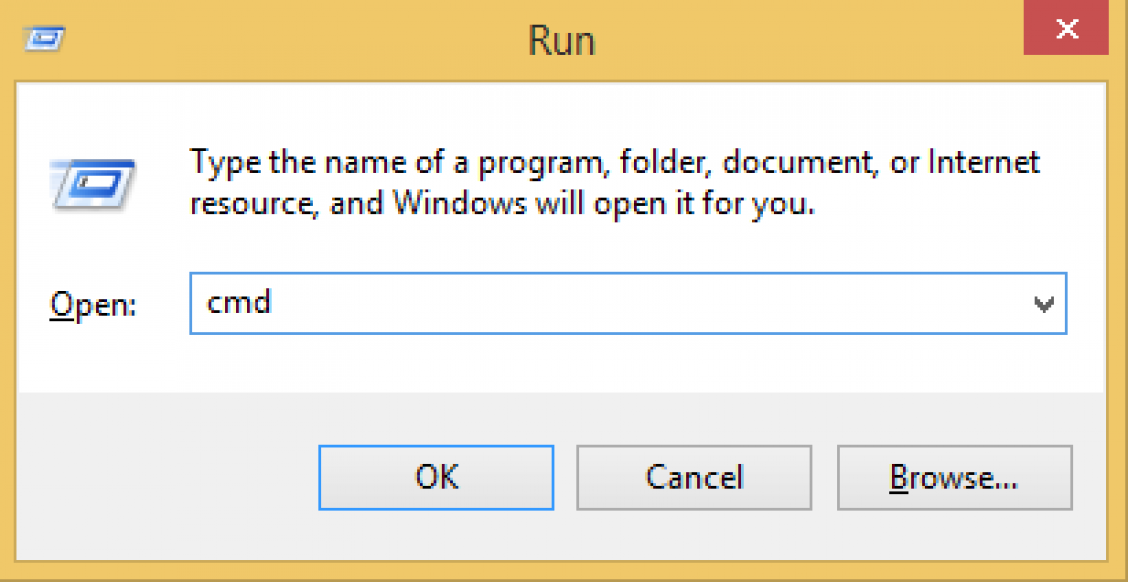
- Now, the command prompt window will pop up. Type the following command in Command Prompt window and press Enter.
- Open Run Command by pressing Win+R keys together.
- Type cmd in Run command box and press Enter.
- Now, the command prompt window will pop up.
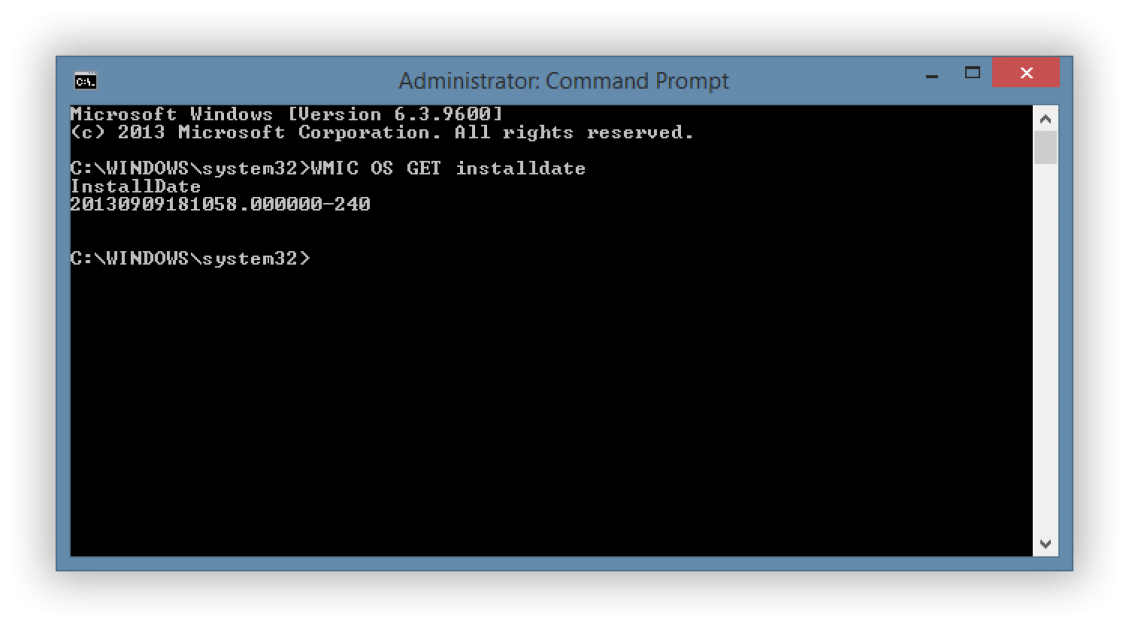
- Type the following command in Command Prompt window and press Enter.
wmic os get installdate - The installation date will be displayed in the format YYYYMMDDHHMMSS, with the time displayed in 24 hours.
systeminfo | find /i “Original”
Note: If you are using Windows 7 or Vista, use the following command
systeminfo | find /i “install date”
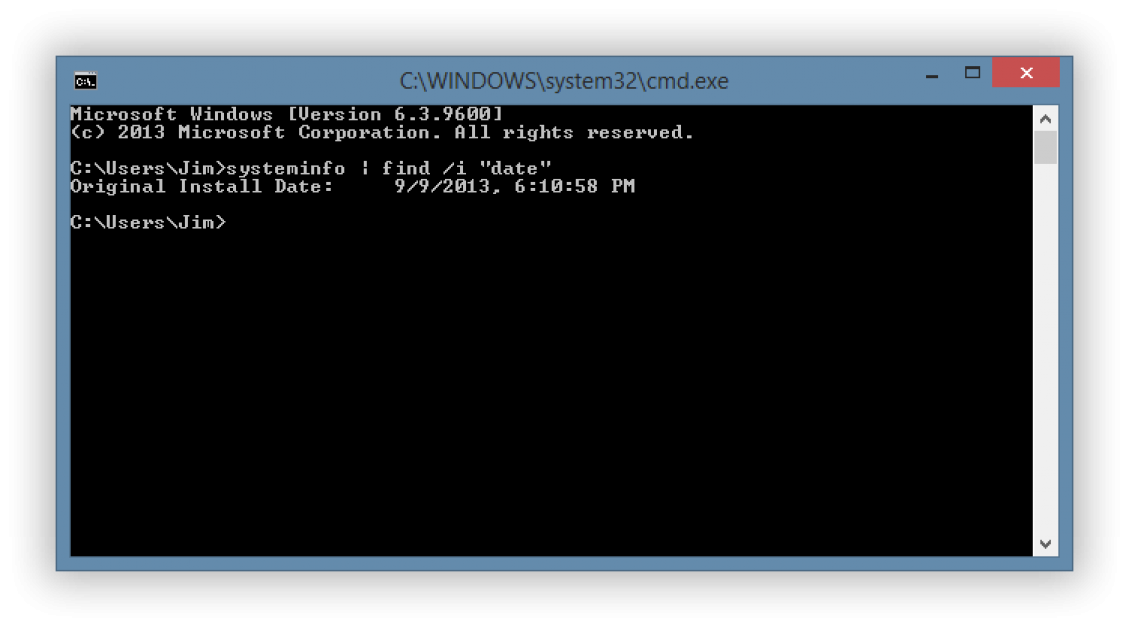
Now, it will show you the original installation date of your windows. If one of the above commands work, try the other one. Most probably in windows 10 and windows 8 the first command will work and the second one is preferred for the windows 7 and vista.
Find the Windows Installation Date with WMIC
Windows Management Instrumentation Command-line (WMIC) tool is another way of finding the windows installation date. To do this, follow the simple steps given below.
If the above method is not working, try opening Command prompt as admin. For this, press Win+X keys together and select Command Prompt (Admin) option. And enter the command in cmd.
Both of the above methods are tested and well working for us. We hope it will help you too to find the windows installation date. If so, don’t forget to thank us through your valuable comments and feedbacks. You could leave your comments on the following comment box and let us know your thoughts. We are always happy to see your finger marks there.
You might also like
How To Uninstall A Microsoft Windows OS Update
After installing updates sometimes, we face unexpected system crashing problems, errors and blue screen of death problems. It is always advisable to maintain your system up to date, but after updates if issues are raised you can uninstall Windows update manually.

How to Find the Version of your Windows 10 Installation?
If you don’t know which version of Windows 10 you are currently using, you can follow this guide to find it out. There are several situations you may need to know the version of the current Windows 10 installation. For example, to find the correct drivers for your graphics or other hardware without facing compatibility…
How to Find Google Chrome Version
To find the Google Chrome version, there are several methods available. Keeping the google chrome up to date is always important to get the latest changes and bug fixes from the developers. Google automatically updates in some cases. If the google chrome browser is not updating automatically, you need to do it yourself to get…
The week in tech, minus the noise.
New reviews, fixes and the stories that matter — once a week, straight to your inbox.
We only use your email to send the newsletter. Unsubscribe any time. See our privacy policy.
Comments