

Instagram DM Not Working? 9 Fixes That Actually Work
If your Instagram DMs are not working, first check whether Instagram itself is down, then force-close the app, update it, and switch between Wi-Fi and mobile data. If messages still will not send or load, clear the app’s cache (Android) or reinstall it (iPhone), and check your Account Status for a messaging restriction. DM problems…
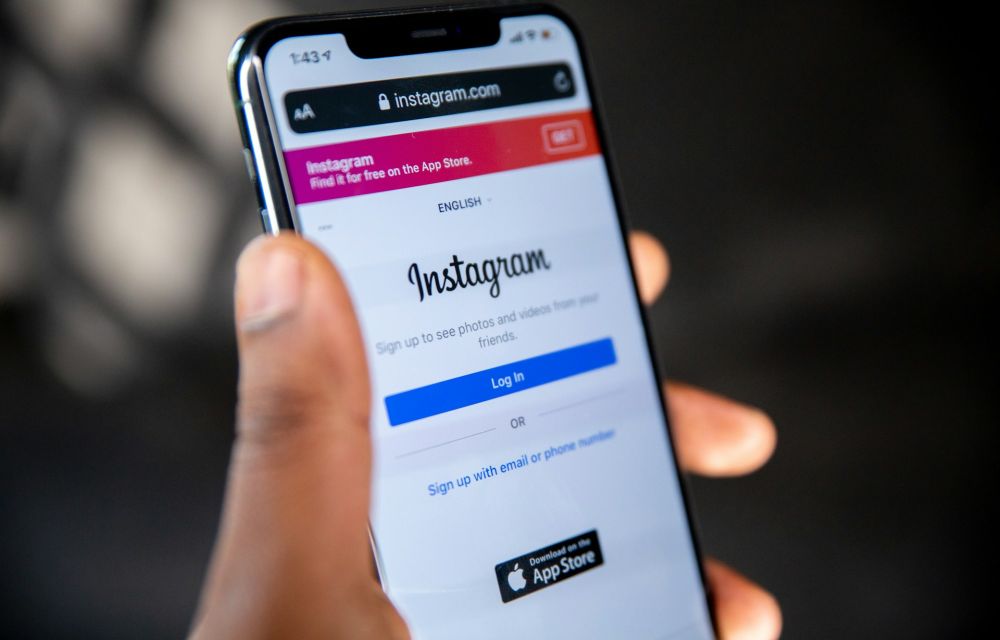
How to Fix Instagram DM not working problem
If your Instagram DMs are not working, first check whether Instagram itself is down, then force-close the app, update it, and switch between Wi-Fi and mobile data. If messages still will not send or load, clear the app’s cache (Android) or reinstall it (iPhone), and check your Account Status for a messaging restriction.
DM problems show up in different ways: messages stuck on “Sending”, a “Couldn’t send” error, chats that will not load, missing messages or no DM notifications. The good news is that most of them are caused by a temporary glitch, an old app version or a network issue, and you can fix them in a few minutes. In this article, we will go through the fixes in the order that most often works.
Why is Instagram DM not working?
These are the most common reasons:
- Instagram’s servers are having an outage.
- The app is outdated or its stored data is corrupted.
- Your internet connection is weak or blocking Instagram.
- Your account has a temporary messaging limit (for example, after sending many messages quickly).
- The other person has restricted, blocked or limited who can message them.
Fix 1: Check if Instagram is down
If DMs suddenly stop working for you and your friends at the same time, the problem is probably on Instagram’s side. Search “is Instagram down” or check a status tracker like DownDetector. If many people are reporting DM problems, wait an hour or so and try again. No fix on your phone will help during an outage.
Fix 2: Force-close and reopen the app
This clears small glitches, like a chat that will not load or a message stuck on “Sending”.
- iPhone: Swipe up from the bottom of the screen and pause, then swipe the Instagram card up to close it.
- Android: Open Recent apps and swipe Instagram away, or go to Settings > Apps > Instagram > Force stop.
Open Instagram again and resend the message. If it was stuck, tap the red error icon next to it and choose to resend.
Fix 3: Update Instagram
Instagram updates its messaging features often, and older versions can stop sending or loading DMs properly. Open the App Store or Google Play Store, search for Instagram and tap Update if it is available. Also install any pending iOS or Android system update.
Fix 4: Check your internet connection
- Switch from Wi-Fi to mobile data (or the other way round) and try again. If DMs work on one and not the other, the network is the problem.
- Turn Airplane mode on for a few seconds, then off.
- Turn off any VPN, ad blocker or private DNS app, as these can block Instagram’s servers.
- Restart your Wi-Fi router if other apps are slow too.
- Make sure Instagram is allowed to use mobile data (iPhone: Settings > Apps > Instagram > Mobile/Cellular Data).
Fix 5: Turn off Data Saver in Instagram
Instagram’s data-saving option can delay photos, videos and voice notes in DMs. Open your profile, tap the menu (three lines) to open Settings and activity, then go to Data usage and media quality and turn off Use less mobile data (called Data Saver on some versions).
Fix 6: Clear cache (Android) or reinstall (iPhone)
Corrupted app data is a very common reason for DMs not loading.
- Android: Go to Settings > Apps > Instagram > Storage and tap Clear cache. If that does not help, tap Clear storage/data and log in again.
- iPhone: iOS does not let you clear an app’s cache. Delete Instagram (press and hold the icon > Remove App > Delete App), restart your iPhone and install it again from the App Store.
Your chats are saved on Instagram’s servers, so clearing data or reinstalling will not delete them. Just make sure you know your password before you do this.
Fix 7: Log out and log back in
Logging out refreshes your session, which can fix DMs that will not sync. Go to Settings and activity, scroll to the bottom and tap Log out. Close the app, open it again and sign in.
Fix 8: Check your Account Status for restrictions
If DMs fail for every person you message, even after the steps above, Instagram may have limited your account. This often happens after sending lots of messages in a short time, especially to people who do not follow you, or after a reported message.
- Open Settings and activity.
- Use the search bar at the top and type Account Status, then open it.
- Check whether any feature, like messaging, is limited, and follow the on-screen option to request a review if you think it is a mistake.
Temporary limits usually lift on their own. Do not keep resending messages while limited, as it can extend the block.
Fix 9: Try Instagram on the web or another device
Log in at instagram.com in a browser on your computer or phone and try sending the same DM. If it works on the web, the problem is with the app on your phone, so a reinstall (Fix 6) is the next step. If it fails on the web too, the issue is with your account or Instagram’s servers.
If DMs are not working with just one person
- They may have blocked or restricted you. When restricted, your messages go to their Message requests and they will not see them right away.
- They may only allow messages from people they follow. If they do not follow you, your message can sit in their requests.
- Their account may be deactivated or deleted.
- Some newer chat features (such as disappearing messages or encrypted chats) can behave differently. Try sending a normal text message in a regular chat.
Instagram DM notifications not working?
If messages arrive but you only see them when you open the app, check notifications. On your phone, make sure notifications are allowed for Instagram in system Settings. In Instagram, go to Settings and activity > Notifications > Messages and turn message notifications on. On Android, also set Instagram’s battery use to Unrestricted under Settings > Apps > Instagram > Battery so the system does not stop it in the background. Focus or Do Not Disturb modes can also hide DM alerts.
Still not working?
- Restart your phone completely.
- Free up storage space, as a full phone can stop new messages and media from loading.
- Report the problem from inside the app: shake your phone while Instagram is open (if “Shake phone to report” is on) or go to Settings and activity > Help > Report a problem, and add screenshots.
- Wait a few hours. Many DM glitches are fixed by Instagram on the server side without you doing anything.
Frequently asked questions
Why are my Instagram DMs not loading?
Usually because of a weak connection, an outage or corrupted app data. Switch networks, update the app and clear its cache or reinstall it.
Why does Instagram say “Couldn’t send message”?
It can be a network issue, an outage, a temporary messaging limit on your account, or the other person restricting who can message them. Check Account Status if it happens with everyone.
Will reinstalling Instagram delete my messages?
No. Your DMs are stored on Instagram’s servers and will show up again when you log back in.
How long does an Instagram messaging restriction last?
Instagram does not publish a fixed time. Temporary limits commonly clear within a day or two. Account Status shows the details for your account.
We hope one of these fixes got your Instagram DMs working again. If you are still facing the issue, or found another fix that worked for you, let us know in the comment section below.
More in How-to
How to Fix Instagram Emoji Reactions Not Working on Android
Can’t react to an Instagram message with an emoji on your Android phone? You tap or press a message, but the reaction options don’t appear or you choose an emoji and nothing happens. It may look like a small glitch, but message reactions are a handy part of Instagram chats. The cause could be a…
How to Stop Android Auto Overheating Your Phone: 5 Fixes That Actually Work
If you’ve ever reached for your phone after a long drive and felt like you were picking up a hot baked potato, you aren’t alone. A quick search for “Android auto makes phone hot reddit” shows thousands of drivers dealing with the exact same issue every single day. Whether you are experiencing a Samsung S22…
How to Fix “Headphones Not Recognized” on iPhone After iOS 26 Update
After the iOS 26 update, a small but noticeable group of iPhone users started reporting a strange issue: wired headphones are no longer being recognized properly. Some are stuck in speaker-only mode, while others see their headphones connect and disconnect randomly. Although most complaints are about wired headphones, a few Bluetooth users are facing similar…
The week in tech, minus the noise.
New reviews, fixes and the stories that matter — once a week, straight to your inbox.
We only use your email to send the newsletter. Unsubscribe any time. See our privacy policy.
Comments