

How to Fix Apple Services Not Working: Check If iCloud, App Store or Apple TV Is Down
You open Apple Music and nothing loads. The App Store spins forever. iCloud keeps asking you to sign in again. My first instinct is always to start toggling settings, but the smarter first move is finding out whether Apple itself is having a bad day, because if it is, nothing you do on your phone…


Photo by Shubham Sharan on Unsplash
You open Apple Music and nothing loads. The App Store spins forever. iCloud keeps asking you to sign in again. My first instinct is always to start toggling settings, but the smarter first move is finding out whether Apple itself is having a bad day, because if it is, nothing you do on your phone will fix it.
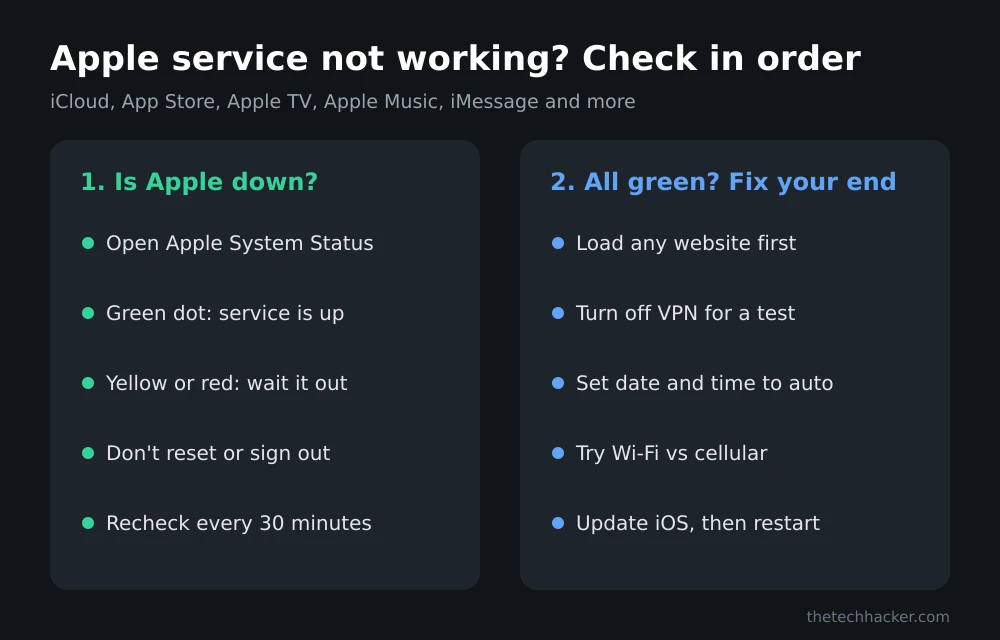
Quick answer: To check for an Apple outage, open Apple’s official System Status page at apple.com/support/systemstatus. A green dot means the service is working; a yellow or red one means Apple has confirmed a problem, and the only fix is to wait. If everything shows green but your app still fails, the problem is on your side: check your internet connection, turn off any VPN, set the date and time to automatic, try another network, and update iOS.
More iPhone help lives in our iPhone fixes hub.
Step 1: Check if Apple Is Actually Down
Apple runs its own System Status page, and it covers far more than iCloud. It lists the App Store, Apple Account, Apple Music, Apple TV, Apple Pay, iMessage, FaceTime, Find My, Maps, Siri, iCloud Mail, iCloud Drive, iCloud Backup and dozens more.
Reading it takes five seconds:
- Green dot: the service is available.
- Yellow or red marker: Apple has logged an issue, outage or maintenance. Tap the service to see when it started and how many users are affected.
- “Resolved” entries: problems from earlier in the day that Apple says are fixed.
Developers have a separate Developer System Status page for things like App Store Connect and TestFlight, linked at the bottom of the same page.
One honest caveat: Apple usually updates this page after it confirms a problem, so there can be a short lag at the very start of an outage. If the page is all green but friends on other networks are having the exact same problem at the same time, give it 15 to 30 minutes and check again.
Step 2: If Apple Is Down, Don’t Touch Anything
This is where people make things worse. When an Apple service is down, signing out of your Apple Account, resetting network settings or deleting the app won’t bring it back. Signing out during an iCloud outage can even make it harder to sign back in until the service recovers.
A recent example: on November 10, Apple’s status page showed problems with iCloud Mail, iCloud Calendar, iCloud Contacts, iWork for iCloud and Game Center, according to reports at the time. Apple later marked those issues as resolved. Anyone who waited it out was fine.
So bookmark the status page, check back every 30 minutes, and use a backup in the meantime: Gmail or Outlook on the web for email, a different music app, or cash and cards instead of Apple Pay.
Step 3: Everything Is Green? Fix Your Side
Apple’s own support article for when you can’t connect to the App Store or other Apple services recommends a short checklist. I have put it in the order that solves the most problems fastest:
- Prove you are online. Open Safari and load any website. If nothing loads, the problem is your internet, not Apple. Try another device on the same Wi-Fi.
- Turn off your VPN. VPNs and third-party security apps can block Apple’s servers. Disable them for a minute and retry.
- Check cellular data for that app. Go to Settings > Cellular and make sure the app you are using is allowed to use cellular data.
- Fix the date and time. A wrong clock breaks secure connections. Go to Settings > General > Date & Time and turn on Set Automatically.
- Switch networks. Jump from Wi-Fi to cellular, or the other way around. If it works on one, restart your router or contact your internet provider.
- Update iOS and restart. Go to Settings > General > Software Update. Our guide to iOS 27.2.1 covers the newest update.
Which Fix Matches Your Problem?
| What you see | Most likely cause | Try this |
|---|---|---|
| Status page shows yellow or red | Apple outage | Wait and recheck |
| Nothing loads in any app | Your internet | Restart router, switch networks |
| Only works with VPN off | VPN blocking Apple | Exclude Apple apps or pause VPN |
| “Cannot connect” on a secure page | Wrong date and time | Set time automatically |
| Works on Wi-Fi, fails on 5G | Cellular data off for that app | Settings > Cellular |
Still Broken? Contact Apple
If the status page is green, your connection is fine and you have tried every step, the issue may be specific to your account. Apple’s status page links straight to Apple Support for problems that are not listed. Outages hit other big platforms too; if Outlook is the app failing, see our guide to fixing Outlook during a Microsoft 365 outage.
FAQs
How do I know if Apple is down right now?
Check Apple’s System Status page at apple.com/support/systemstatus. A green dot means a service is working. Yellow or red means Apple has confirmed a problem.
Is iCloud down today?
Open Apple’s System Status page and look at the iCloud entries, such as iCloud Mail, iCloud Drive and iCloud Account & Sign In. If they are green, the problem is likely on your device or network.
Should I sign out of my Apple Account during an outage?
No. Signing out won’t fix an Apple outage and can make it harder to sign back in until the service recovers. Wait for the status page to turn green.
Why does Apple say everything is working when my app isn’t?
The problem is usually local: your internet connection, a VPN, the wrong date and time, or an outdated iOS version. Apple can also take a short time to post a new outage.
Featured image: Shubham Sharan on Unsplash.
Disclosure: TheTechHacker has no paid relationship with Apple.
More in How-to
How to Fix iPhone 18 Pro Max No Service or SOS on AT&T
Is your iPhone 18 Pro Max stuck on SOS or No Service on AT&T? Here’s how to tell if it’s the issue Apple has acknowledged, what to try first, and how to get a replacement.
How to Fix iPhone 18 Pro and Pro Max Overheating
Is your iPhone 18 Pro or Pro Max running hot? Here’s how to tell normal warmth from a real problem, what Apple’s temperature guidance says, and the checks to try before you book a repair.

How to Fix Outlook Not Syncing Email in Microsoft 365 (Windows, Mac, iPhone and Android)
Outlook stuck on old mail? Here’s how I’d fix Microsoft 365 sync problems in new and classic Outlook on Windows, Outlook for Mac, and the Outlook app on iPhone and Android.
The week in tech, minus the noise.
New reviews, fixes and the stories that matter — once a week, straight to your inbox.
We only use your email to send the newsletter. Unsubscribe any time. See our privacy policy.
Comments