
Remote Desktop is one of those tools that people rely on every day without thinking twice, until it stops at the worst possible moment. You enter your credentials, the login screen disappears, and then Windows 11 sits there forever on “Please wait”. In many cases, the problem comes from a Group Policy setting that tries to detect network quality during the RDP session, but ends up hanging instead. The good news is that this is usually fixable with a few smart changes on the client and server side.
Why does this happen?
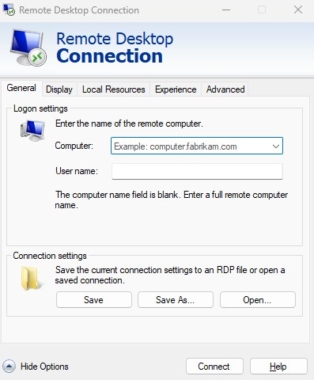
Windows 11 can run a network detection check when someone connects through Remote Desktop. That check is meant to improve performance, but on some systems it gets stuck during login and never finishes. Microsoft has acknowledged similar RDP hanging behavior, and users often report that rebooting may temporarily help, but the freeze returns later. If you use RDP for office work, server access, or support tasks, this kind of freeze can waste time fast.
Quick client-side workaround
Before changing anything on the remote machine, try forcing RDP to assume a stable connection. On your local PC, open Remote Desktop Connection, click Show Options, and go to the Experience tab. Change the connection speed to LAN (10 Mbps or higher) or High-speed broadband (WAN), then connect again. This does not fully solve the bug, but it often gets you past the frozen login screen so you can apply the real fix.
Turn off network detection on the server
This is the main fix. Once you can access the remote machine, open gpedit.msc and go to:
Computer Configuration > Administrative Templates > Windows Components > Remote Desktop Services > Remote Desktop Session Host > Connections.
Find Select network detection on the server, open it, and set it to Enabled. Then choose “Turn off connect time detect and continuous network detect from the dropdown. Click Apply and OK, then restart the server or run a policy refresh if needed. This removes the broken detection step that causes the “Please wait” freeze.
Disable UDP for RDP
If the problem keeps coming back, UDP may be part of the delay. Open gpedit.msc again and go to:
Administrative Templates > Windows Components > Remote Desktop Services > Remote Desktop Connection Client.
Find Disable UDP on the client and set it to Enabled. This forces RDP to use TCP only, which is slower in some situations but often much more stable. For many users, that tradeoff is worth it when remote access matters more than speed.
Check the RDP port
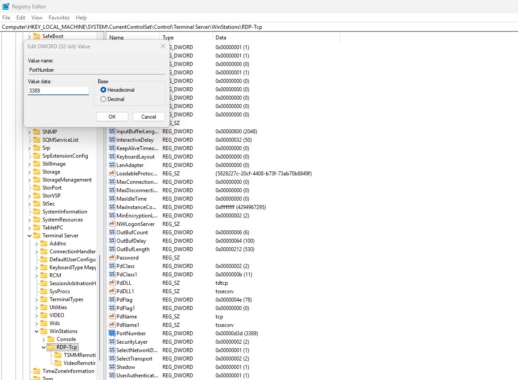
This one is less common, but still worth checking if someone changed the default setup. Open Regedit on the server and go to:
HKEY_LOCAL_MACHINE\SYSTEM\CurrentControlSet\Control\Terminal Server\WinStations\RDP-Tcp.
Look for PortNumber and confirm it is set to 3389 in decimal format. If it was changed to something unusual, set it back to the default and restart Remote Desktop Services. A non-standard port can sometimes create odd connection delays that look like a freeze.
Prevent it from happening again
The easiest long-term habit is to check RDP policy after major Windows updates. If your team uses Remote Desktop often, keep the server-side network detection setting disabled unless you have a clear reason to turn it back on. It also helps to keep UDP disabled on systems where RDP freezes happen often. That makes the connection a little less fancy, but a lot more dependable.
FAQs
1) Why does RDP get stuck on “Please wait” in Windows 11?
Most of the time, the remote machine is hanging while checking network quality during login.
2) What is the fastest fix I can try first?
Change the RDP connection speed in the Experience tab to LAN or High-speed broadband before connecting.
3) What is the permanent fix?
Disable network detection in Group Policy on the server under Remote Desktop Session Host > Connections.
4) Will disabling UDP help?
Yes, in some cases it improves stability because RDP falls back to TCP only.
5) Do I need to change the RDP port?
Usually no, but if the port was altered from 3389, restoring it can remove another source of delay.