

How to Fix iPhone Files App Not Showing Recent Downloads
Trying to fix the iPhone Files app issue where downloads are missing? It can be irritating when essential files don’t show up, but you can resolve this problem with a few simple tweaks. In our testing, these steps to fix iPhone Files app issues have proven effective for many users. Let’s dive into the solution.…

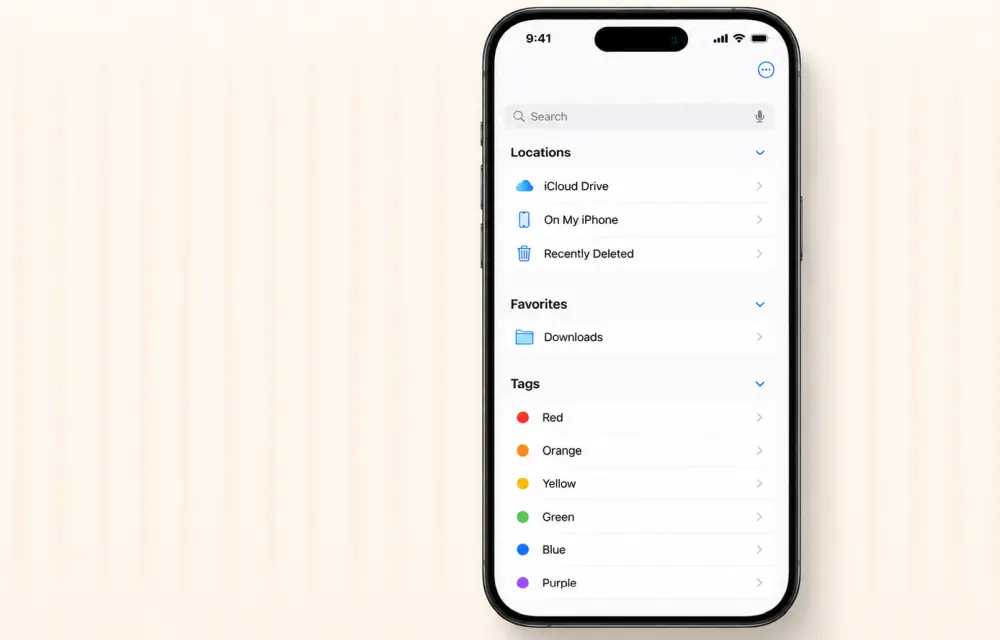
How to Fix iPhone Files App Not Showing Recent Downloads
Trying to fix the iPhone Files app issue where downloads are missing? It can be irritating when essential files don’t show up, but you can resolve this problem with a few simple tweaks. In our testing, these steps to fix iPhone Files app issues have proven effective for many users. Let’s dive into the solution.
iPhone Files App Issues
The ability to manage your downloads efficiently is crucial for seamless smartphone use. If you find yourself unable to locate your recent files, you’re not alone. Apple’s Files app is typically reliable, but occasional glitches can occur. Fortunately, we have some effective solutions to help you address this problem.
Prerequisites / What You’ll Need
- Your iPhone
- Access to Settings
- Stable internet connection (for sync issues)
Steps to Fix iPhone Files App Download Issues
Step 1: Check the Safari Download Location
- Go to Settings, then open Safari.
- Navigate down to Downloads.
- Make sure either On My iPhone or iCloud Drive is chosen.
- To refresh it, select a different location and then switch back.
Step 2: Refresh Recent Items Indexing
- Access Settings and head to the Files settings.
- Turn Show Recent Items OFF, wait 10 seconds, then turn it back ON.
- Open the Files app again and look at the Recents section.
Step 3: Perform a Force-Restart on Your iPhone
- Quickly press and let go of the Volume Up button.
- Next, press and let go of the Volume Down button.
- Press and hold down the Side Power button until you see the Apple logo.
Step 4: Reset iCloud Drive App Sync
- Open Settings, tap the Apple ID banner, and access iCloud settings.
- Switch the iCloud Drive or Files app toggle OFF, then back ON.
Step 5: Offload and Reinstall the Files App
- In Settings, select General, then iPhone Storage.
- Locate and open the Files app.
- Select Offload App, then choose Reinstall App.
Step 6: Verify File Type Compatibility
Check that the file formats are supported and not corrupt to appear correctly in the Files app. The official Apple Support documentation can be a useful reference for supported file types.
Conclusion
By following these guidelines, you should be able to resolve the iPhone Files app downloads issue. Rest assured, most configuration problems can be fixed with these easy steps. For further assistance, you can also consult the Apple Community Forums.
Frequently Asked Questions
Why can’t I locate my downloads in the Files app?
This could be due to an incorrect download location or a minor indexing glitch. Follow the guidelines above to troubleshoot.
Will offloading the Files app erase my data?
No, offloading the app won’t delete your personal files but will reinstall the app itself.
How can I determine if my files are supported?
Ensure that the files are in a format that iOS supports and aren’t corrupt or incomplete. Check Apple’s guidelines for more information.
Why aren’t my files appearing after an iOS update?
Updates can sometimes modify settings or disrupt processes, which can hide files. Adjust settings according to the instructions above.
What is the purpose of the Files app?
The Files app is used to manage local and cloud-stored files on your iPhone, including downloaded content.
Last updated: August 2026
Edited by Tech Expert Team
More in How-to
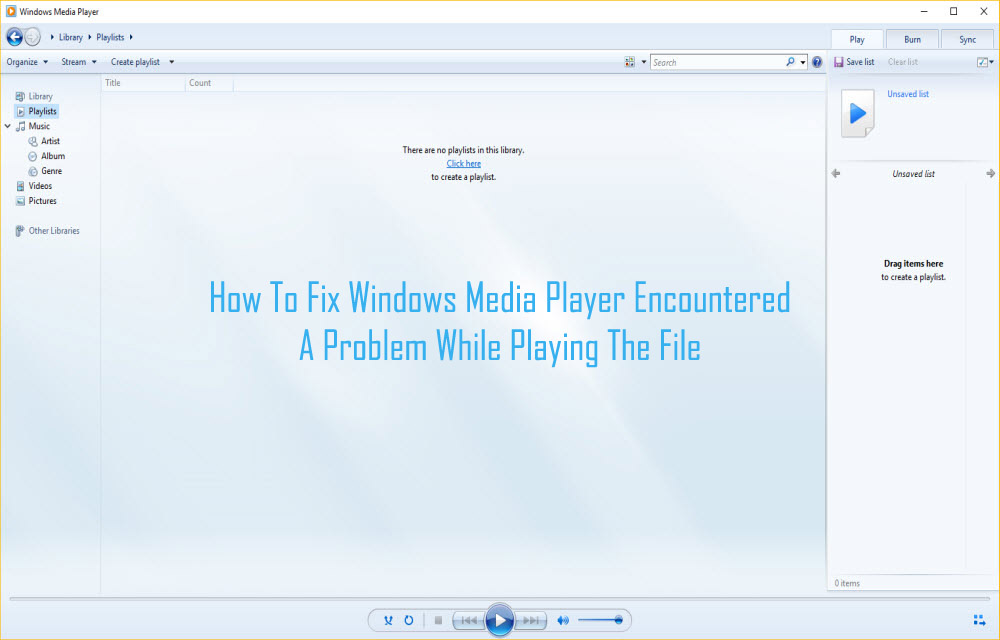
How To Fix Windows Media Player Encountered A Problem While Playing The File
How annoying it is when you want to stream your favorite audio or video and Windows media player shows an error C00D11B1? That error message ‘Windows Media Player encountered the problem while playing the file’ is even more annoying. Windows Media Player is considered to be the safest and most trustworthy media player. But, this…
How to fix Siri does not respond or answers correctly
Having trouble with Siri after an iOS update? Here’s how to fix it!
How to fix WhatsApp crashes in specific group chats on iPhone, Android
You open WhatsApp to check a group message, and the app closes immediately. You try again, but the same thing happens. Other conversations may work normally, while one particular group keeps crashing the app. It is frustrating, especially when that group is used for work, family updates, or important announcements. The good news is that…
The week in tech, minus the noise.
New reviews, fixes and the stories that matter — once a week, straight to your inbox.
We only use your email to send the newsletter. Unsubscribe any time. See our privacy policy.
Comments