

How to Fix iPhone Not Showing the iOS 27.2 Update (and Other Update Errors)
iOS 27.2 not showing up, stuck on Preparing or Verifying, or failing with Unable to Install Update? Here are Apple’s own fixes, in the order I’d try them.


Image by magnific on Magnific
You open Settings, go to Software Update, and your iPhone tells you it’s up to date. Meanwhile your friend’s phone already has iOS 27.2. Or the update does show up, starts downloading, then sits on “Preparing” or “Verifying” for ages before throwing an “Unable to Install Update” message. Annoying.
Apple released iOS 27.2 on October 26, 2026, and it’s the version every iOS 27-compatible iPhone can get. The 27.1 release before it was only for iPhone Duo, Apple’s foldable. So if you own any other model, 27.2 is the first point update you’ve seen since iOS 27 itself. If you want to know what’s actually in it, I covered that in my iOS 27.2 update news post.
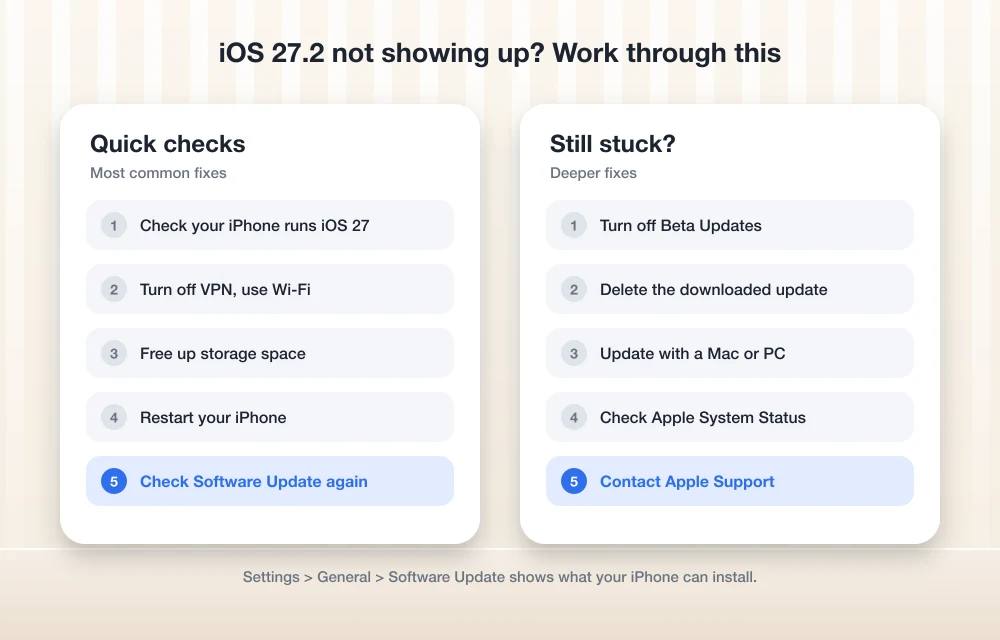
Below, I’ve put the fixes in the order I’d try them myself. Quick checks first, the computer method last. Most people won’t need to go past the first few.
Quick answer: Make sure your iPhone is on Apple’s iOS 27 list, connect to Wi-Fi, turn off any VPN, plug into power and free up some storage, then go to Settings > General > Software Update > Download and Install. If you get “Unable to Check for Update” or the install keeps failing, try another network, delete the downloaded update and download it again. If it still won’t work, update through Finder on a Mac or the Apple Devices app on Windows, and contact Apple if even that fails.
Before you start: back up your iPhone
Apple’s advice is to back up first, then plug your iPhone into power and connect to Wi-Fi before updating. I’d take the backup seriously this time. Apple’s security page says you can’t go back to an older version of iOS once an update is installed. So if something goes wrong, the backup is your safety net, not a downgrade.
Once that’s done, the normal way to update is simple:
- Open Settings.
- Tap General, then Software Update.
- Tap Download and Install.
If that works, you’re done. If it doesn’t, keep reading.
Check that your iPhone can run iOS 27.2
This sounds obvious, but it’s the first thing Apple lists. To update at all, you need a compatible device, an internet connection and enough free storage. Here’s Apple’s iOS 27 compatibility list. If your model is on it, it can get 27.2.
| Family | Models that support iOS 27 |
|---|---|
| iPhone 11 | iPhone 11, 11 Pro, 11 Pro Max |
| iPhone SE | 2nd generation and later |
| iPhone 12 to iPhone 16 | All models in each line, plus iPhone 16e |
| iPhone 17 | iPhone 17, 17 Pro, 17 Pro Max, 17e and iPhone Air |
| iPhone 18 | iPhone 18 Pro and 18 Pro Max |
| Foldable | iPhone Duo |
If your iPhone is older than the iPhone 11 (or it’s a first-generation SE), iOS 27.2 simply won’t appear. No setting will change that.
Give it a little time
Sometimes an update shows up on one phone hours before another. Apple hasn’t said anything official about rolling iOS 27.2 out in stages, so I can’t tell you that’s what’s happening. Still, if your phone is compatible and everything else looks fine, checking again later in the day costs you nothing. While you wait, you can turn on automatic updates at Settings > General > Software Update > Automatic Updates, so the phone grabs it on its own.
Check your Wi-Fi and turn off your VPN
A lot of update problems are really network problems. Apple says a VPN or a proxy can stop your iPhone from reaching its update servers. If you use a VPN app (lots of people do, for work or streaming), switch it off before you check for the update. Turn it back on afterwards.
Use Wi-Fi rather than mobile data. One of the errors Apple lists literally says the update needs a Wi-Fi connection to download. If your home Wi-Fi is flaky, try a different network. Apple’s own advice for update errors is to try again on the same network first, then try other networks.
Free up storage space
I wish I could give you an exact number here, but I couldn’t find any official figure from Apple for the size of the iOS 27.2 download or how much free space it needs. What Apple does say is that you need enough free storage, and that how long the update takes depends on its size and on how much storage your phone has.
So if your iPhone is nearly full, clear out some old videos, big downloads or apps you don’t use, then try again. If your iPhone asks to remove apps for a while to make room for the update, Apple says to tap Continue. That’s a temporary removal to fit the update in, not you deleting them for good.
Turn off beta updates if you tested iOS 27
If you joined Apple’s beta program over the summer, your iPhone might still be set to receive betas instead of the regular release. That can make the public 27.2 update look like it’s missing, or show you a beta build instead.
On older versions of iOS, beta access came from a profile you installed. On recent versions it’s handled inside the Software Update screen. I couldn’t confirm Apple’s exact menu wording for iOS 27 before publishing, so open Settings > General > Software Update, look for the beta option there and switch it off. If you’re on a very old setup that still has a beta profile, remove that profile too.
Restart your iPhone
Boring, I know. But turning your iPhone off and back on clears out a lot of small glitches, including a Software Update screen that seems stuck. Restart, wait a minute after it boots, then check for the update again.
What the error messages mean
Different messages point to slightly different problems. Here’s how I’d read each one.
“Unable to Check for Update”
Apple’s wording is “Unable to Check for Update. An error occurred while checking for a software update.” This is almost always a connection issue. Turn off the VPN, try again on the same Wi-Fi, then try a different network. If it keeps happening, move on to updating with a computer.
“Unable to Download”
The full message reads “Unable to Download. This update requires a Wi-Fi network connection to download.” Connect to Wi-Fi and try again. Simple as that.
Stuck on “Preparing” or “Verifying”
Some of this is just waiting. Apple says update time depends on the size of the update and your phone’s storage, and suggests using Wi-Fi and not downloading other content at the same time to speed things up. So pause any big app downloads or cloud uploads and give it a while. If it truly never moves, delete the update and download it again (next section).
“Unable to Install Update”
This one usually means the download itself is the problem. Apple’s advice for update errors that keep failing is to delete the update and download it fresh. Make sure you have free space and a steady connection before you try again.
Delete the downloaded update and try again
If an update keeps failing, there’s often a broken or half-finished download sitting on your phone. Apple’s fix is to remove it and start over:
- Find the iOS update in your iPhone’s list of apps (the storage screen that shows how much space each app uses).
- Tap the update.
- Tap Delete Update.
- Go back to Settings > General > Software Update and download it again.
Apple’s full write-up on this, including the exact error messages above, is on its page about what to do if your iPhone won’t update.
Update with a Mac or Windows PC
If the update isn’t in the list at all, or the same problem keeps coming back, Apple says to update with a computer. This is the fix I’d jump to once the on-phone options have run out.
On a Mac
You need macOS 10.15 or later.
- Connect your iPhone to the Mac with a cable.
- Select your iPhone in the Finder sidebar.
- Click General.
- Click Check for Update and follow the prompts.
On a Windows PC
Use Apple’s Apple Devices app.
- Connect your iPhone to the PC with a cable.
- If “Trust this Computer” appears on your iPhone, unlock it and tap Trust.
- Open the Apple Devices app, select your iPhone and click General.
- Check for the update and install it from there.
Some older Apple pages still describe iTunes on Windows. If that’s what you have, the path is the iPhone button, then Summary, then Check for Update.
If the computer shows a numbered error, Apple gives a few pointers. For Error 9, just try again. For errors 2, 4, 6 or 1611, check any third-party security software on the computer, since it may be blocking the connection.
If the computer doesn’t see your iPhone
Apple says to use recovery mode if your computer doesn’t recognize the iPhone, or if the Apple logo stays on screen for several minutes with no progress bar. Apple’s update-error page linked above covers this. Treat it as a last resort, and only after you have that backup.
For the full official steps on every update method, Apple’s Update iOS on iPhone guide is worth bookmarking.
Check Apple’s System Status page
Every now and then the problem isn’t your phone at all. Apple runs a System Status page that shows whether its services are having trouble. If lots of people are hitting “Unable to Check for Update” at once, it’s worth a quick look there. If something on Apple’s side is down, the only fix is to wait.
When to contact Apple
I’d get in touch with Apple Support if your iPhone gets stuck on the Apple logo even after trying recovery mode, if the computer method fails with the same error every time, or if the phone won’t start properly after an update attempt. At that point you’ve done everything you safely can at home, and Apple can look at the device itself.
My take: is iOS 27.2 worth the hassle?
For most people, yes. It’s the update every compatible iPhone can get, and once it’s installed you can’t roll back, so it’s worth doing carefully rather than rushing. Back up, use Wi-Fi without a VPN, free some space, and it usually goes through fine. If it doesn’t, deleting the update or using a computer fixes the vast majority of stuck installs.
One honest warning. A lot of people update hoping it’ll cure an existing bug. I can’t promise iOS 27.2 fixes every iOS 27 problem, so if you’re dealing with something specific, have a look at my guide on fixing iPhone freezing when moving widgets in iOS 27. And if you’re on an iPhone 18 Pro that keeps rebooting, I’ve written up fixes for the iPhone 18 Pro restarting during Face ID or Apple Pay too.
If you hit an error I haven’t covered here, tell me what the message says and I’ll try to help.
Frequently Asked Questions
Why is the iOS 27.2 update not showing on my iPhone?
The most common reasons are an incompatible model, a VPN or proxy blocking Apple’s update servers, a weak or missing Wi-Fi connection, or your phone still being set to receive beta updates. Check your model against Apple’s iOS 27 list, turn off the VPN, connect to Wi-Fi and check again. If it still doesn’t appear, Apple recommends updating with a Mac or PC.
How much free storage do I need for iOS 27.2?
Apple hasn’t published an official figure for the iOS 27.2 download size or the free space it needs. Apple only says you need enough free storage. If your iPhone offers to remove apps temporarily to make room, Apple says to tap Continue.
Is iOS 27.2 rolling out in stages?
Apple hasn’t made any official statement about a staged rollout for iOS 27.2. If your iPhone is compatible and everything else checks out, try again later or turn on Automatic Updates in Settings > General > Software Update.
Can I go back to an older iOS version after installing iOS 27.2?
No. Apple’s security page says you can’t go back to an older version of iOS once an update is installed. That’s why backing up before you update is a good idea.
What should I do if my iPhone is stuck on Preparing or Verifying?
Give it time first, since Apple says update time depends on the update size and your storage. Stay on Wi-Fi and pause other downloads. If it never moves, delete the downloaded update, then download it again from Settings > General > Software Update.
Featured image: magnific on Magnific.
More in How-to
How to Fix iPhone 18 Pro Restarting When Face ID Fails or During Apple Pay
If your iPhone 18 Pro restarts when Face ID fails, Apple has fixed that bug in iOS 27.0.1. This guide covers how to update, what to try next, and what is still unknown about the Apple Pay shutdowns.
Instagram DM Not Working? 9 Fixes That Actually Work
If your Instagram DMs are not working, first check whether Instagram itself is down, then force-close the app, update it, and switch between Wi-Fi and mobile data. If messages still will not send or load, clear the app’s cache (Android) or reinstall it (iPhone), and check your Account Status for a messaging restriction. DM problems…
How to Fix Apps Crashing While Multitasking After iOS 26 Update
The latest iPhones are powerful enough to handle heavy multitasking without breaking a sweat. So when your device starts crashing, freezing, or stalling while switching apps after the iOS 26 update, it feels especially frustrating. This issue can stem from several sources: a bug in the iOS build, misconfigured background refresh settings, insufficient storage, or…
The week in tech, minus the noise.
New reviews, fixes and the stories that matter — once a week, straight to your inbox.
We only use your email to send the newsletter. Unsubscribe any time. See our privacy policy.
Comments