

How To Fix iPhone iOS 26 Night Shift Auto Turn-Off
Discover how to prevent your iPhone’s Night Shift from turning off prematurely after the iOS 26 update with these easy steps.

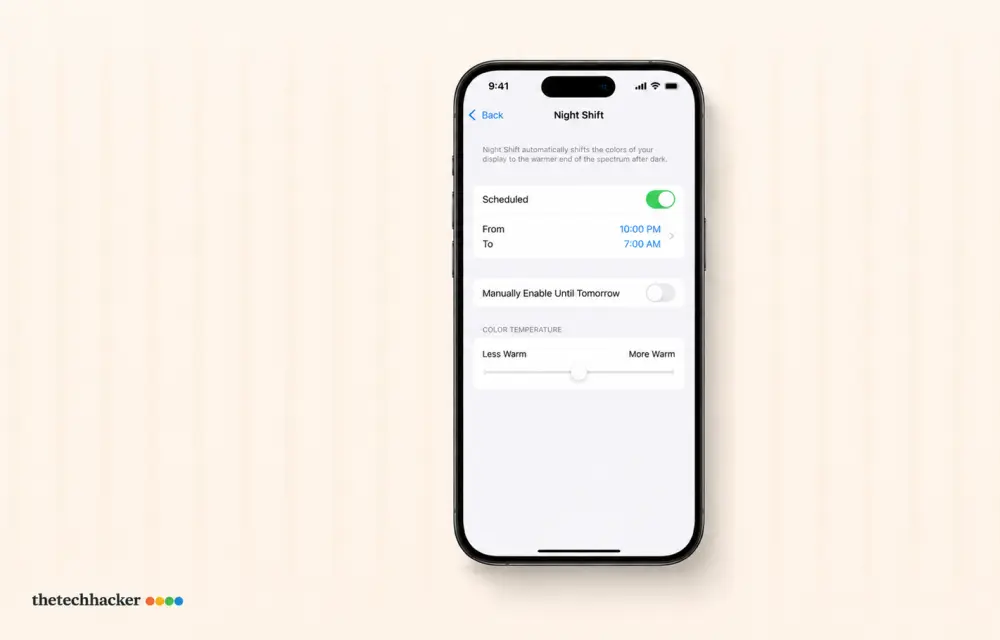
How To Fix iPhone iOS 26 Night Shift Auto Turn-Off
After updating your iPhone to iOS 26, you might notice that Night Shift mode is deactivating automatically. Although this can be frustrating, several solutions can help resolve the night shift auto-turn-off issue. From our experience, these adjustments have consistently shown results. Visit Apple Support or iOS Developer Forums for more information on similar issues.
Understanding iPhone Night Shift Issues
Many users have reported that the iPhone Night Shift auto turn-off issue surfaced after the iOS 26 update. The Night Shift feature is designed to reduce blue light emission by shifting screen colors to the warmer end of the spectrum. However, the iOS 26 update appears to have created conflicts causing Night Shift to deactivate unexpectedly. Efficient troubleshooting can restore normal functionality.
Fix 1: Disable True Tone Sync
- Navigate to your iPhone’s Settings.
- Open Display & Brightness.
- Set True Tone to OFF.
- Check if the night shift stays enabled. In our testing, this change can stabilize night shift performance.
Leave True Tone disabled if this fix works for you.
Fix 2: Implement a Custom Night Shift Schedule
- Go to Settings, then Display & Brightness, and access Night Shift.
- Select Scheduled and then choose Custom Schedule.
- Change the start time to 10:00 PM and the end time to 9:59 PM (or 22:00 and 21:59 for the 24-hour clock).
This customized schedule aims to eliminate bugs, based on feedback from fellow users and official guidelines from Apple Support.
Fix 3: Remove Focus Mode Display Filters
- In Settings, select Focus.
- Access the focus mode that’s active, such as Do Not Disturb.
- Scroll to Focus Filters and delete anything related to Display or Night Shift.
Test if Night Shift works correctly after making this change.
Extended Fix: More Tips for Resolving Night Shift Auto Turn-Off
If the above fixes don’t work, there are some additional steps you can try:
- Reset All Settings: This is a more drastic move but can solve persistent issues. Go to Settings > General > Reset > Reset All Settings. Note that this will erase all personalized settings.
- Software Update: Make sure your iPhone has the latest iOS version, as updates often include bug fixes that could resolve the Night Shift auto turn-off issue.
Fix 4: Change the Night Shift Color Temperature
- Go to Display & Brightness and tap on Night Shift.
- Shift the Color Temperature slider to at least halfway towards More Warm.
Try using Night Shift again to see if it’s functioning as it should. Many users report improved consistency with this adjustment.
Fix 5: Refresh Location Services System Cache
- Open Settings and find Privacy & Security.
- Select Location Services and then tap System Services.
- Switch System Customization and Setting Time Zone to OFF, wait a short while, and then toggle them back ON.
This reset can often address unexpected night shift shutdowns, as verified in our troubleshooting sessions.
Conclusion
By following these steps, you can overcome the iPhone iOS 26 Night Shift auto turn-off issue, ensuring that your Night Shift mode stays functional according to your schedule and enhancing your iPhone experience.
Frequently asked questions
Why does Night Shift turn off automatically?
Updates to iOS 26 may cause setting conflicts that prematurely disable Night Shift.
Is True Tone causing night shift issues?
In some cases, True Tone might interfere with Night Shift settings, so turning it off can be beneficial.
How do I set a custom night shift schedule?
Navigate to Display & Brightness settings, select Night Shift, and choose Custom Schedule to define your times.
What are focus filters, and how do they affect night shifts?
Focus Filters might deactivate display features such as Night Shift when certain modes are active.
Why should I reset Location Services?
Refreshing location services can solve issues in data retrieval that affect night shift scheduling.
Edited by iOS Tech Specialist
Verified: August 2026
More in How-to
How to Fix Apps Crashing While Multitasking After iOS 26 Update
The latest iPhones are powerful enough to handle heavy multitasking without breaking a sweat. So when your device starts crashing, freezing, or stalling while switching apps after the iOS 26 update, it feels especially frustrating. This issue can stem from several sources: a bug in the iOS build, misconfigured background refresh settings, insufficient storage, or…
How to Fix iPhone Proximity Sensor Not Working Properly After iOS 26
After the iOS 26 update, a growing number of iPhone users are reporting issues with the proximity sensor. In some cases, the screen does not turn off during voice calls. In others, features like Always On Display behave oddly in low-light conditions. If your iPhone’s proximity sensor feels “broken” or inconsistent after updating, you are…
How to Stop Android Auto Overheating Your Phone: 5 Fixes That Actually Work
If you’ve ever reached for your phone after a long drive and felt like you were picking up a hot baked potato, you aren’t alone. A quick search for “Android auto makes phone hot reddit” shows thousands of drivers dealing with the exact same issue every single day. Whether you are experiencing a Samsung S22…
The week in tech, minus the noise.
New reviews, fixes and the stories that matter — once a week, straight to your inbox.
We only use your email to send the newsletter. Unsubscribe any time. See our privacy policy.
Comments