

How to Fix VPN Not Connecting on iPhone: 11 Fixes to Try
Is your VPN spinning forever or showing connected with no internet? Here are the fixes I’d try, in order, from a quick restart to resetting network settings and reinstalling the VPN profile.

Photo by Bagus Hernawan on Unsplash
A VPN that refuses to connect on an iPhone never picks a convenient moment. You tap Connect, the little spinner goes round and round for a while, and then… nothing. Or it proudly says Connected while not a single page loads. Great. That’s extra fun on hotel Wi-Fi, or when you actually need the thing for work.
The good news? Most VPN problems on iPhone come down to a pretty short list of causes. Your connection might be shaky, the app or iOS could be out of date, the clock might be wrong, the network might not like the protocol you’re using, or the profile has just gone bad. I’ve put the fixes below in the order I’d try them myself. Quick stuff up top, settings-wiping stuff at the bottom.
Still deciding whether you even need a VPN on your phone? I wrote about whether a VPN is worth it for US users. This post is just about getting yours working again.
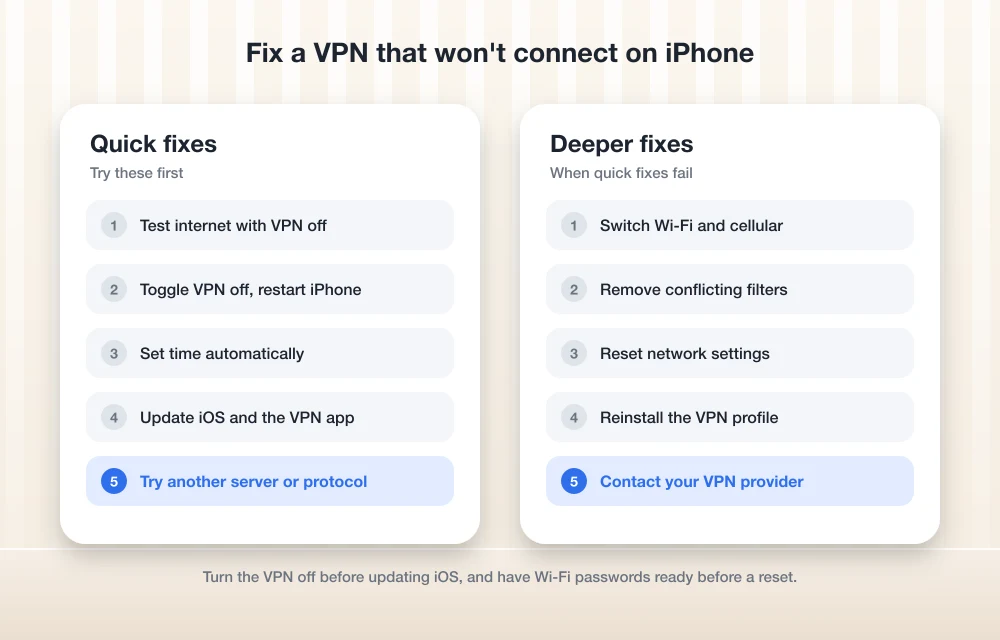
Quick answer: First make sure your internet works with the VPN turned off, then switch the VPN off and on and restart your iPhone. If it still won’t connect, set the date and time to update automatically, update iOS and your VPN app, and try a different server or protocol in the app. Still stuck? Reset network settings (Settings > General > Transfer or Reset iPhone > Reset > Reset Network Settings), then delete and reinstall the VPN profile, and contact your VPN provider if nothing works.
Why your VPN won’t connect on iPhone
A VPN (virtual private network) pushes your traffic through an encrypted tunnel to a server run by your provider or your employer. And for that tunnel to open, a bunch of little things have to line up. Your iPhone needs a working connection. The network has to let VPN traffic through, your clock has to be right, and the VPN settings on the phone can’t be broken.
When even one of those slips, you usually get a failed connection and no useful error at all. Thanks, iPhone. The table below should point you at a sensible starting place, and the steps themselves lean on Apple’s own support pages wherever Apple covers the problem.
| What you’re seeing | Try this first |
|---|---|
| Nothing loads, even with the VPN off | Fix 1 (check your internet) |
| VPN stuck on Connecting | Fixes 2, 3 and 6 |
| Works on Wi-Fi but not cellular, or the reverse | Fix 7 |
| Stopped working after an iOS update | Fixes 4, 5 and 9 |
| Error mentions a profile or configuration | Fixes 8 and 10 |
| Nothing on this list helped | Fix 11 (contact your provider) |
1. Check that your internet works without the VPN
Yeah, I know. Way too obvious. But it saves a ton of time, because if your Wi-Fi or cellular data is down, no VPN fix in the world will help and you’ll spend an hour chasing the wrong problem.
Turn the VPN off
Find the VPN switch in Settings or inside your VPN app and flip it off.
Load a website
Open Safari and try a couple of different sites, not just one.
Try the other connection
If nothing loads, move from Wi-Fi to cellular (or the other way round) and test again.
Internet still broken with the VPN off? Sort that out first. Once regular browsing works, come back here and turn the VPN on again.
2. Toggle the VPN off and on, then restart your iPhone
A quick off-and-on fixes a surprising number of stuck connections. Your VPN configurations live in Settings > General > VPN & Device Management, though there’s usually a VPN switch in Settings or in the VPN app too.
Switch the VPN off
Turn it off in the app or in Settings, then give it a few seconds.
Restart your iPhone
Power the phone off completely and then turn it back on.
Restart your router if you’re on Wi-Fi
Unplug the modem and the router, wait a bit, and plug them back in.
Connect again
Open your VPN app and tap Connect.
Restarting the phone, modem and router is actually part of Apple’s own troubleshooting guide for connection problems when a VPN is installed. So don’t skip it. And don’t half-do it either.
3. Check the date, time and time zone
Funny enough, Apple lists this as the very first thing to check when a VPN is messing with your connection. Secure connections generally expect your clock to be correct. If your phone’s set to the wrong time, it can fail to connect for no obvious reason, and it’s not exactly the first thing you’d think to look at.
Open Date & Time
Head to Settings > General > Date & Time.
Turn on Set Time Automatically
That way your iPhone grabs the correct time from the network.
Restart if prompted
If a message pops up saying updated time zone information is available, restart your iPhone.
One catch. The automatic time zone needs Location Services switched on and a working connection, so if you’ve turned Location Services off, the time zone might not update when you travel. Easy to miss.
4. Update iOS
Apple’s little point updates often sneak in connection fixes. Case in point: iOS 26.0.1 fixed a bug where some iPhones couldn’t connect to a cellular network after updating to iOS 26. So I’d always get on the latest iOS version available for your iPhone before doing anything drastic.
Open Software Update
Go to Settings > General > Software Update.
Install the update
If there’s an update listed, tap Download and Install and follow along.
Turn on Automatic Updates
While you’re in there, tap Automatic Updates so future fixes just install themselves.
5. Update the VPN app
VPN providers keep updating their apps to keep up with new iOS versions. An old one can simply stop working after a big iOS update. Open the App Store and check your account or the updates area, where any pending app updates show up, and if your VPN app has one waiting, install it.
App Store says it’s already up to date and the app still won’t connect? Keep going. Reinstalling the app or its profile comes later, in Fix 10.
6. Change the VPN protocol or server
Think of a protocol as the method your VPN uses to package up and send your traffic. iOS supports IKEv2, IPsec and L2TP VPN settings, though most providers’ apps set up the connection for you, often with their own protocol choices layered on top.
Some networks handle certain protocols badly. So switching can be what finally gets you connected. Every app hides this option somewhere different (of course), so look for Protocol in the app’s settings, try Automatic first if it’s there, then work through the others one by one.
While you’re poking around in the app, try a different server too. An overloaded or temporarily down server will fail no matter what you do on your phone. Picking another one in the same country, or one closer to you, is a really quick test.
7. Try Wi-Fi instead of cellular (or the other way)
If your VPN connects on one network and not the other, the network’s probably the problem, not your iPhone. I couldn’t find any Apple guidance on this exact situation, so treat this section as general advice.
Public Wi-Fi at hotels, airports, schools and offices sometimes blocks VPN traffic on purpose. Not ideal. Cellular carriers might also block or slow down some kinds of VPN traffic. Switching protocols (Fix 6) can sometimes get you around it, since a network might block one protocol and let another through.
If the VPN always fails on cellular but works everywhere else, ask your carrier whether your plan limits VPN use. And if it does, and that’s a dealbreaker for you, it might be time to look at the cheapest unlimited phone plans in the US.
8. Look for settings that might be interfering
Sometimes your VPN isn’t even the culprit. Another app’s setting is fighting with it instead: a second VPN, a firewall app, a content filter. Apple recommends searching Settings to track these down.
Open the Settings search
Open Settings and swipe down so the search field shows up.
Search for the usual suspects
Search “VPN,” “profile,” “firewall” and “filter,” one at a time.
Remove what you don’t need
If you spot settings from an app you don’t use anymore, remove them and restart your iPhone.
9. Reset network settings
Still there after a restart? Apple’s next suggestion is resetting network settings. It clears out corrupted network data, which is often what’s behind VPN and iPhone Wi-Fi not connecting problems. But it’s a bigger step, so read the warning first.
Open Reset
Go to Settings > General > Transfer or Reset iPhone > Reset.
Tap Reset Network Settings
Type in your passcode if it asks, and confirm.
Reconnect
Once the phone restarts, join your Wi-Fi again and open your VPN app to reconnect.
Apple spells out exactly what gets cleared on its Reset iPhone settings page. Your apps, photos and other data don’t go anywhere. Phew.
10. Delete and reinstall the VPN profile
Lots of VPNs sit on your iPhone as a configuration profile, a small file that holds the VPN’s settings. A network reset doesn’t touch settings that came from a profile. So if the profile itself is damaged, you’ll have to remove it and set it up again.
Find the profile
Go to Settings > General > VPN & Device Management and pick the profile for your VPN.
Delete it
Tap Delete Profile and follow the prompts.
Restart your iPhone
Turn the phone off and back on before you set anything up.
Set the VPN up again
If you use a provider’s app, open it and follow its prompts to add the VPN back. The exact screens differ from app to app.
Did your provider or IT team give you a profile file to download instead? Then installing it goes like this: open Settings, tap the downloaded profile, then tap Install in the top-right corner. Only one downloaded profile can be waiting to install at a time, by the way.
11. Contact your VPN provider
Made it this far and the VPN still won’t connect? Then the problem might be on the provider’s side. Their servers could be down, your account or subscription might need a look, or there could be a known issue with the latest iOS version.
When you message them, include your iPhone model, your iOS version, the network you’re on, which protocol and server you tried, and the exact error message. Saves a lot of back and forth with support.
And if your current VPN keeps giving you grief, there’s nothing wrong with switching. Shopping around? My ExpressVPN review is a decent place to see what a premium option gets you.
Frequently Asked Questions
Why does my iPhone say the VPN is connected but nothing loads?
The tunnel might be open while the server just isn’t passing traffic properly. Try a different server or protocol in your VPN app, restart your iPhone, and make sure the date and time are set automatically. Keeps happening? Get in touch with your VPN provider.
Will resetting network settings delete my VPN?
It removes VPN settings that weren’t installed by a configuration profile or device management (MDM). It also wipes saved Wi-Fi networks and passwords and renames your iPhone to “iPhone.” But any VPN settings that came from a profile stay put.
Why does my VPN work on Wi-Fi but not on cellular?
Apple doesn’t have specific guidance on this one, but networks can block or limit some VPN traffic. Try switching protocols in your VPN app. If it still only fails on cellular, ask your carrier whether your plan restricts VPN use.
Should I turn off my VPN before updating iOS?
Yes. Apple says VPN or proxy connections can stop your iPhone from reaching its update servers. So turn the VPN off, update through Settings > General > Software Update, then switch it back on.
How do I delete a VPN profile on my iPhone?
Go to Settings > General > VPN & Device Management, pick the profile, tap Delete Profile and follow the prompts, then restart your iPhone. The VPN won’t connect until you set it up again. And if it’s a work or school iPhone, check with your administrator first.
Which fix to try first (and when to stop)
Nine times out of ten, one of the first few fixes sorts it out. A restart, a correct clock or a fresh app update clears up a weirdly large number of VPN failures. Switching protocols is the next big one, especially on public Wi-Fi.
I’d save the network reset and the profile reinstall for when the easy stuff doesn’t work, and keep in mind what each one wipes before you tap anything. None of it helped? Contact your provider. At that point the problem’s probably on their end, not yours.
Featured image: Bagus Hernawan on Unsplash.
Disclosure: TheTechHacker has no paid relationship with the companies in this article.
More in How-to

How to Fix iPhone Not Showing the iOS 27.2 Update (and Other Update Errors)
iOS 27.2 not showing up, stuck on Preparing or Verifying, or failing with Unable to Install Update? Here are Apple’s own fixes, in the order I’d try them.

How to Fix Claude Not Working: Login Errors, Outages and Sign in With Apple
Claude had a rough couple of days. On November 13, Anthropic logged two separate incidents with elevated errors across claude.ai, the Claude API and Claude Code. The first stopped people from signing in, and the second, a few hours later, hit chats, connectors and agents. Late that night, purchases and plan upgrades failed for about…
How to Fix Siri Not Responding on Apple Watch
Is Siri not responding when you try to use it on your Apple Watch? You may raise your wrist, say “Hey Siri,” or press the Digital Crown, but nothing happens. This can be frustrating, especially when you depend on Siri for quick messages, reminders, calls, directions, or other hands-free tasks. The problem may be caused…
The week in tech, minus the noise.
New reviews, fixes and the stories that matter — once a week, straight to your inbox.
We only use your email to send the newsletter. Unsubscribe any time. See our privacy policy.
Comments